SAEDNEWS: Simple cooling habits, proper ventilation, and sensible workload management can help prevent a laptop from overheating during extended use.
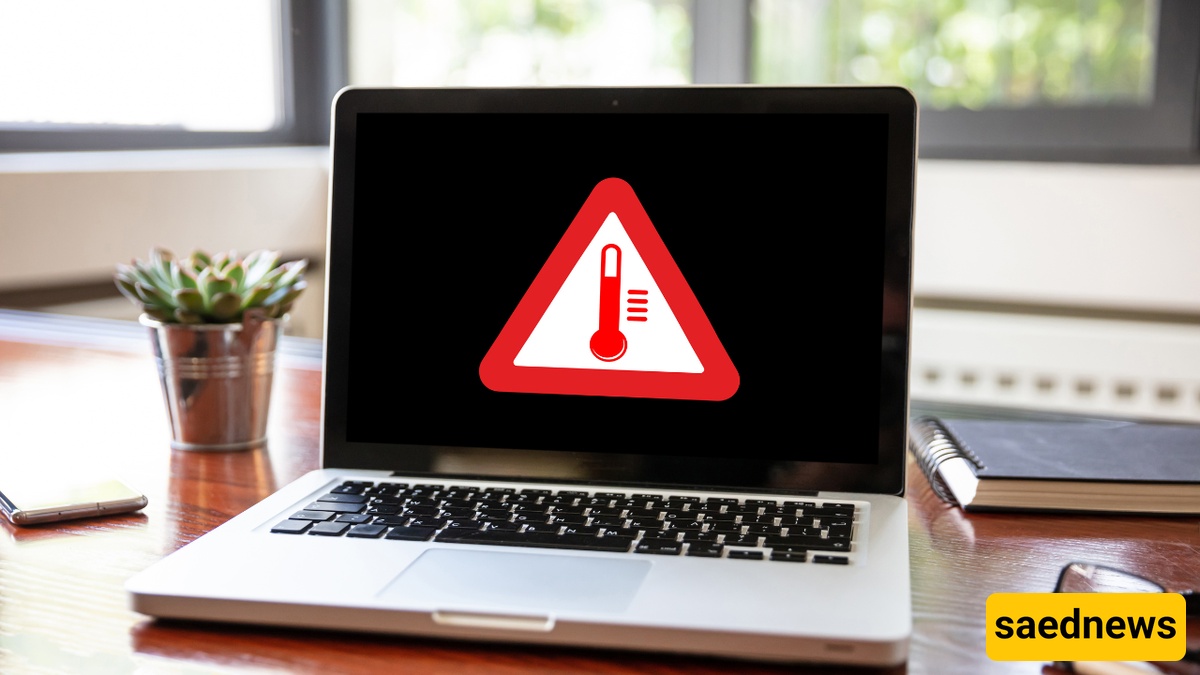
According to SAEDNEWS, laptops can become noticeably warm during long work sessions because the processor and other internal components generate heat while running. Some warmth is normal, but excessive heat can contribute to reduced performance and may cause the cooling system to work harder. A few practical habits can improve airflow and help the computer maintain a more suitable operating temperature.
One of the simplest ways to reduce heat buildup is to use the laptop on a hard, flat surface. Beds, blankets, sofas, and other soft surfaces can block ventilation openings, restricting the movement of air around the device.
Keep the laptop's vents unobstructed and avoid placing objects directly against them. Regularly removing dust from accessible ventilation areas can also help maintain airflow. If the manufacturer provides specific cleaning instructions, follow those recommendations rather than using methods that could damage internal components.
A laptop may produce more heat when several demanding applications or processes are running simultaneously. Closing programs and browser tabs that are no longer needed can reduce unnecessary system activity.
For long work sessions, consider these simple habits:
Close unused applications.
Reduce the number of unnecessary browser tabs.
Avoid running several demanding programs at the same time when they are not needed.
Keep the operating system and essential drivers updated.
Check whether an application is consuming unusually high CPU resources.
If the laptop becomes hot during intensive tasks, short breaks can give the system an opportunity to return toward its normal temperature. This can be particularly useful during activities such as video editing, large file processing, gaming, or other workloads that keep the processor or graphics hardware busy for extended periods.
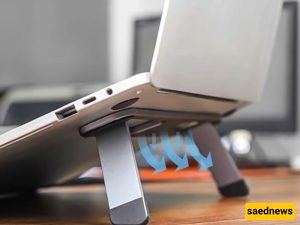
An external laptop stand can also raise the device and improve the space around its ventilation openings. The important factor is maintaining unobstructed airflow rather than simply elevating the computer.
The surrounding environment also affects how effectively a laptop can release heat. Keep the computer away from direct sunlight, radiators, heaters, and other sources of external heat. Working in a reasonably cool, well-ventilated room can make it easier for the cooling system to dissipate heat.
If the laptop repeatedly becomes extremely hot, suddenly slows down, shuts down, or shows persistent thermal warnings, the issue may require more than a change in workspace habits. In such cases, checking the manufacturer's guidance or having the device inspected can help identify problems with the cooling system, fan, or other hardware.