SAEDNEWS: If you’re planning to share your phone’s internet connection with your laptop, this guide introduces practical methods for connecting your phone’s internet to a laptop.
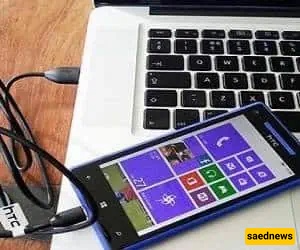
According to Saednews, Wireless modems and routers play an essential role in our homes and workplaces. We rely on internet access for almost everything we do, so losing the connection can quickly interrupt our daily tasks. Fortunately, if your regular internet connection stops working, your smartphone can serve as a convenient backup.
Most smartphones include mobile hotspot and tethering features that allow you to share your mobile data with a laptop or computer. You can connect your devices in three practical ways: USB tethering, Bluetooth tethering, or Wi-Fi hotspot.
USB tethering is a reliable way to share your phone’s mobile internet connection with a laptop.
Disconnect the USB cable from your phone charger and keep it ready.
Open your phone’s Settings.
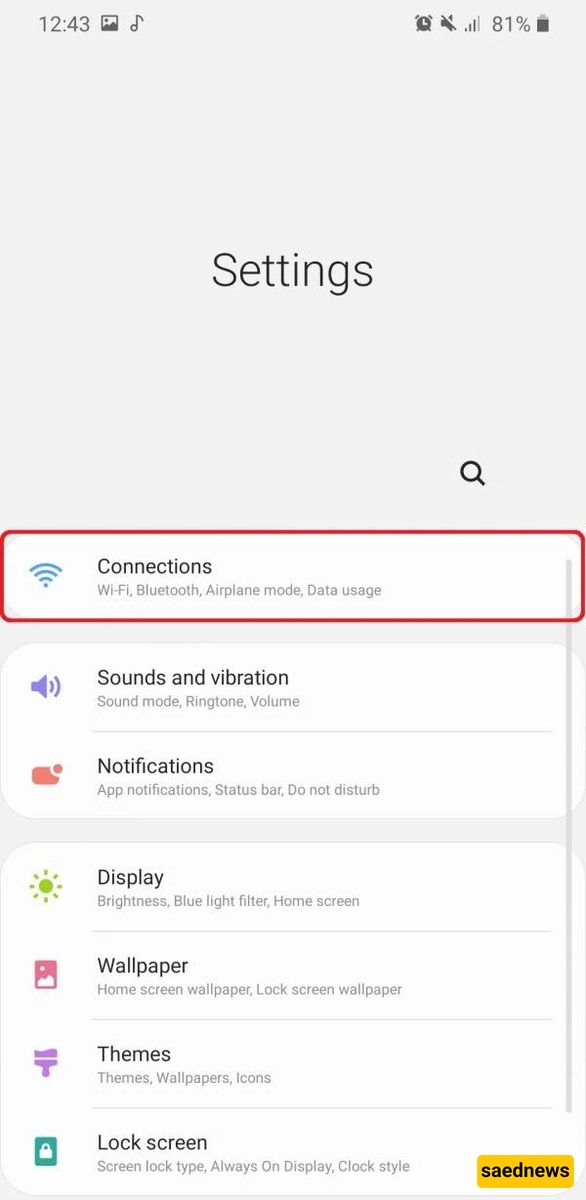
Select Connections.
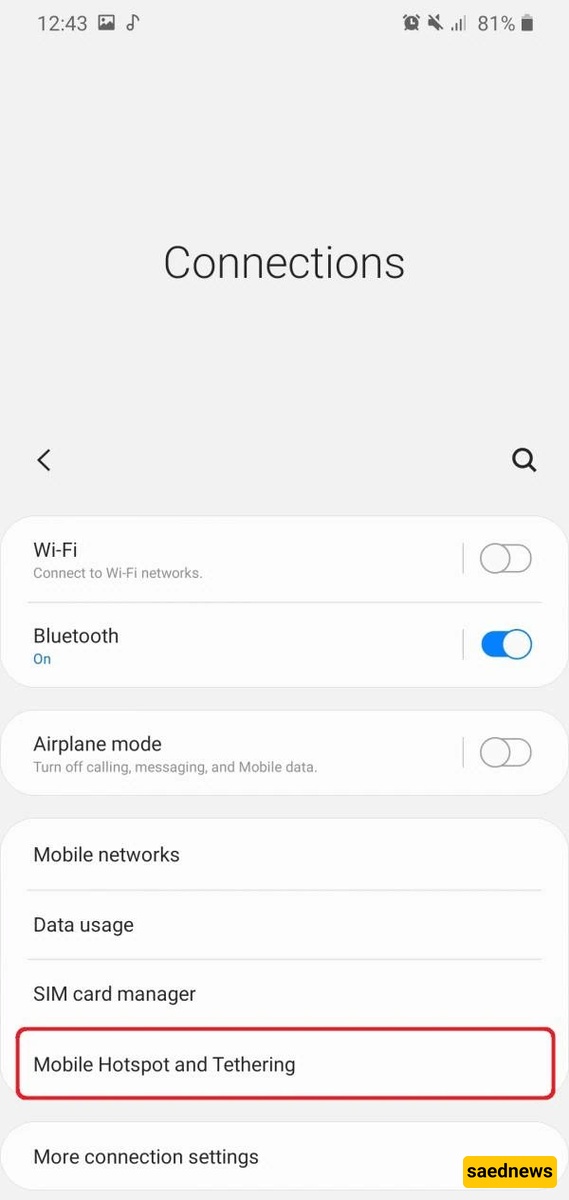
Tap Mobile Hotspot and Tethering.
Connect your phone to the laptop using the USB cable.
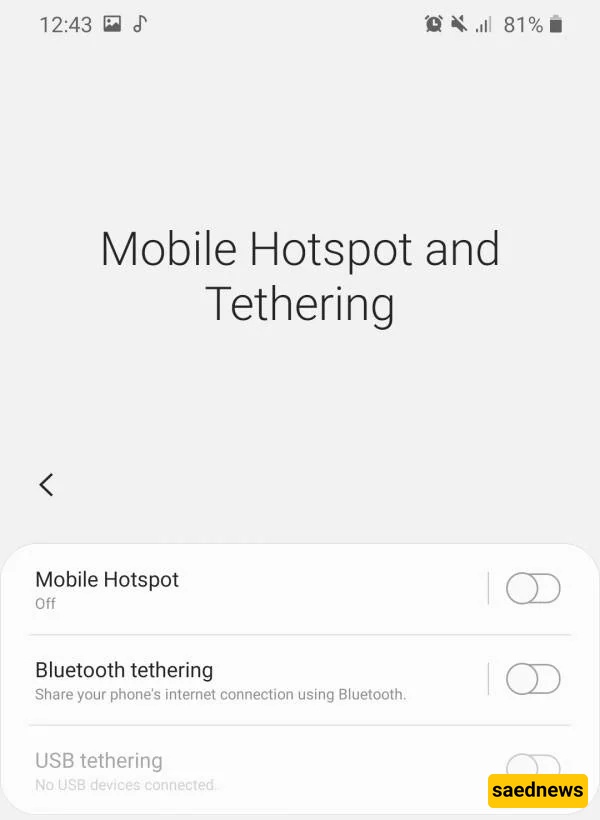
Enable USB Tethering.
Once enabled, your laptop should automatically use your phone’s mobile data connection.
Bluetooth tethering is another option for sharing your phone’s internet connection. It does not require a cable, although the setup process can take a little longer than using USB or Wi-Fi.
Open your phone’s Settings and go to Mobile Hotspot and Tethering.
Turn on Bluetooth Tethering.
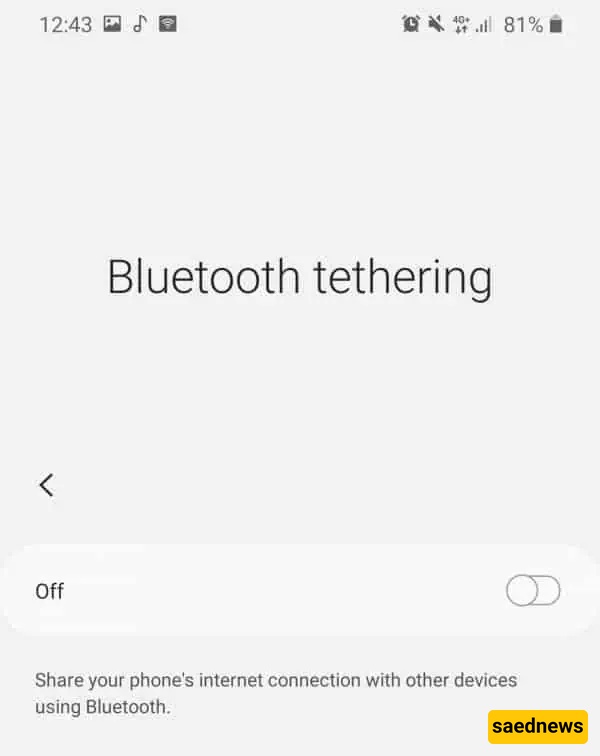
Open the Bluetooth settings on your laptop.
Pair your phone with the laptop.
On Windows, you can manage the connection through the Devices and Printers section.
Once the devices are paired, select the phone as the available network connection.
Bluetooth tethering is particularly useful when you do not have a USB cable available, although it is generally less convenient than a Wi-Fi hotspot.
Using a mobile hotspot is usually the easiest and most popular way to share a phone’s internet connection. Your smartphone essentially works like a portable Wi-Fi router, allowing your laptop to connect wirelessly.
Open Settings on your phone.
Go to Mobile Hotspot and Tethering.
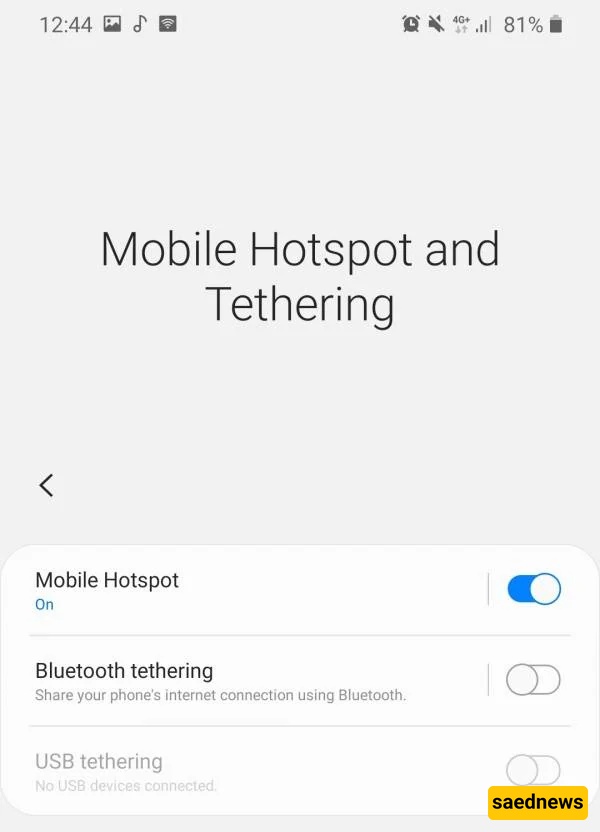
Select Mobile Hotspot and turn it on.
Make sure your phone’s mobile data is also enabled.
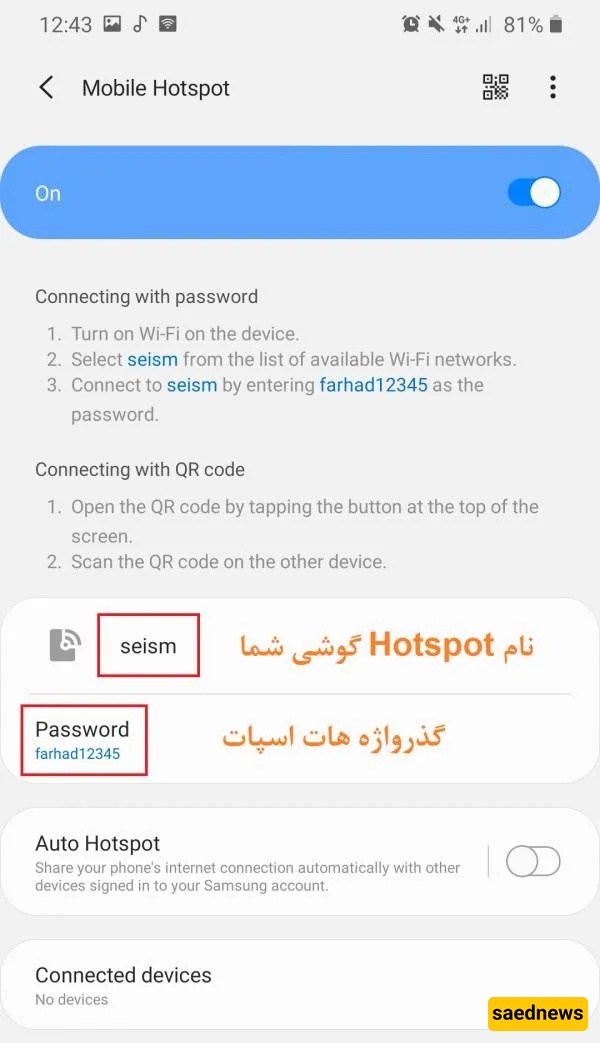
Open the Mobile Hotspot settings to view the hotspot name and password.
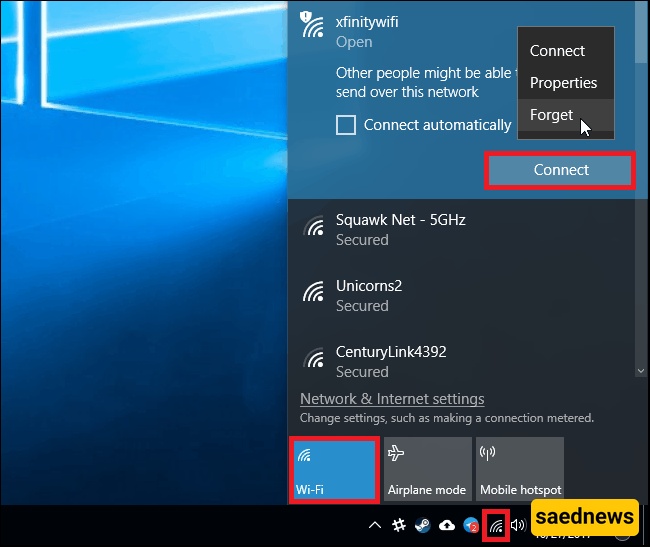
On your laptop, click the Wi-Fi icon in the bottom-right corner of the screen.
Turn on Wi-Fi and wait for the available networks to appear.
Select your phone’s hotspot name and click Connect.
Enter the hotspot password.
Your laptop should now be connected to the internet through your phone’s mobile data.
If you want the most stable connection, USB tethering is a good choice. If you want a wireless connection without using Wi-Fi, Bluetooth tethering can work. For the quickest and most convenient setup, a Wi-Fi hotspot is usually the best option.
Keep in mind that using your phone as a hotspot consumes mobile data and can drain the phone’s battery more quickly, so it is a good idea to monitor your data usage and battery level.