SAEDNEWS: To update apps designed by Samsung, you need to use the Galaxy Store. In this report, we will explain how to update Samsung apps.
According to Saednews, Samsung phones, unlike many popular brands around the world, come with a dedicated app store called the Galaxy Store. This store is pre-installed on all Samsung devices. (If you are using an older Samsung phone, you can download it separately.)
To use the Galaxy Store, you first need to sign in with your Samsung account. After logging in, the app becomes active and starts checking all installed applications. If updates are available, you can easily download and install them directly.
Some apps available in the Galaxy Store are not found on other stores like Google Play. For this reason, the Galaxy Store is considered the main source for certain Samsung apps. It is completely free to use.
Below is a simple guide on how to update Samsung apps:
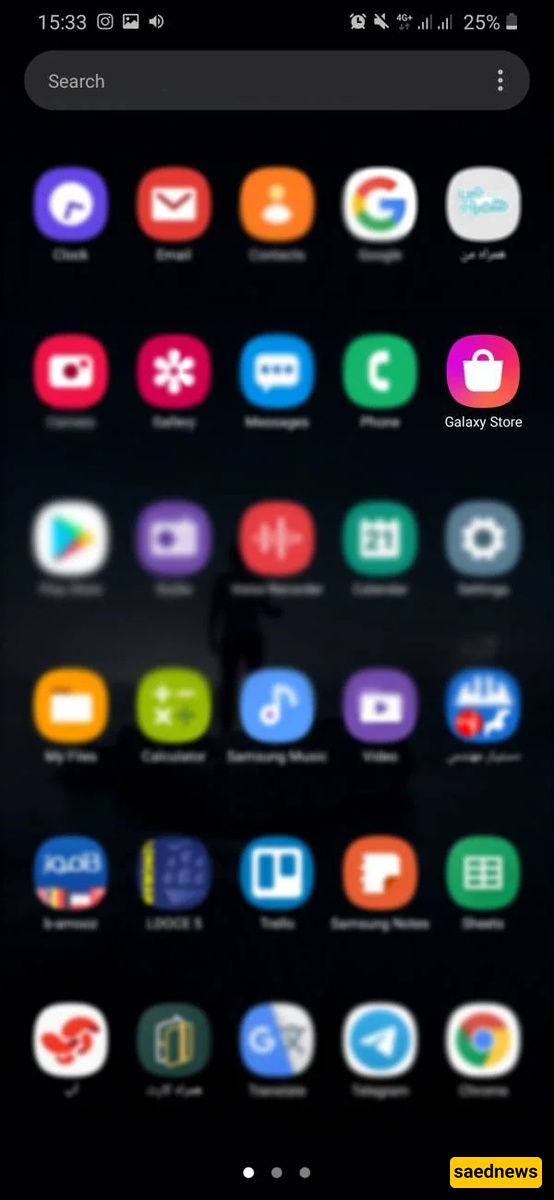
First, go to your phone’s app menu and open the Galaxy Store application.
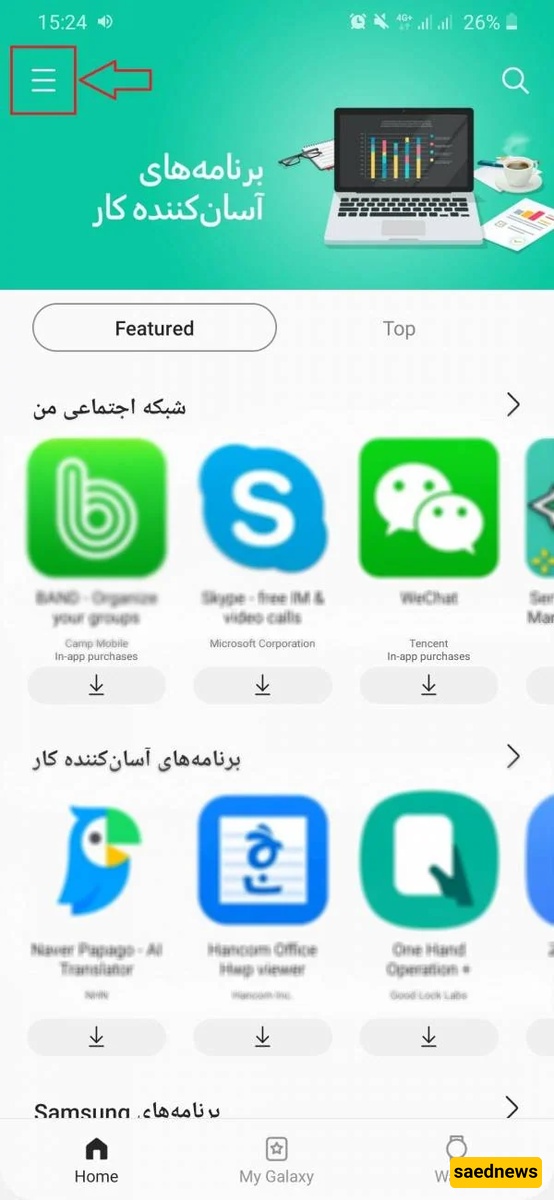
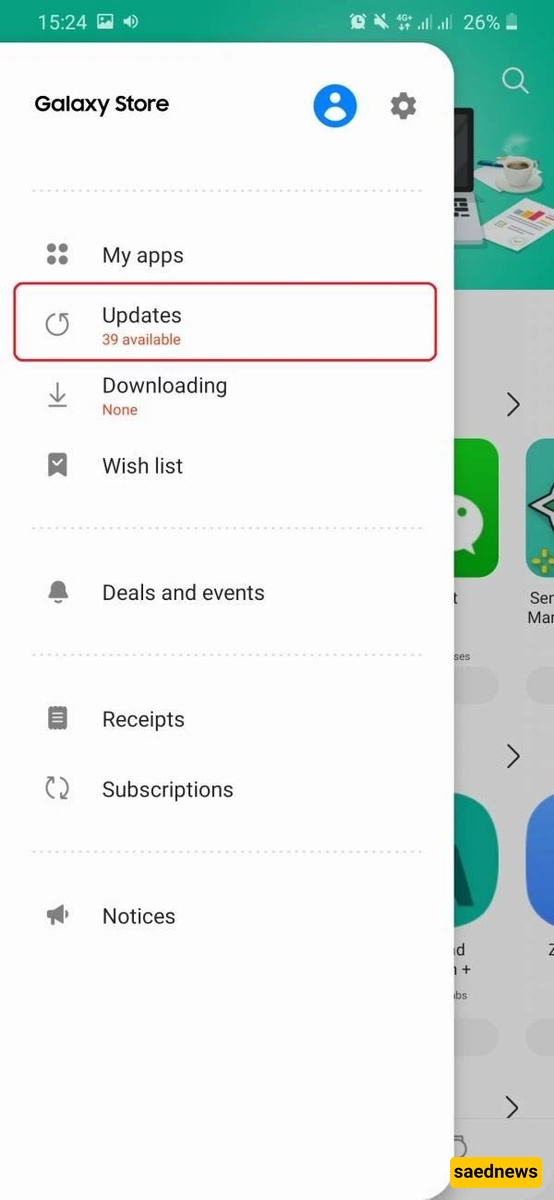
Once inside the app, tap the three horizontal lines (menu icon) in the top-left corner of the screen.
From the menu, select “Updates”.
You may see a number next to this option (for example, 39), which indicates how many apps have available updates. This number varies depending on your installed apps.
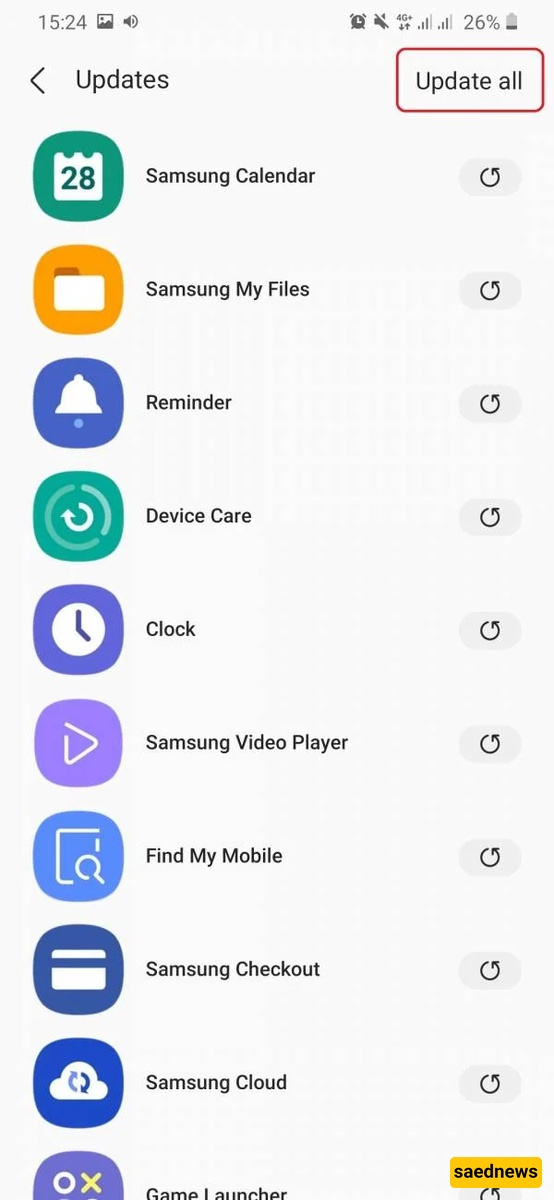
You will now see a list of apps with available updates. You can:
Update each app individually by tapping the update icon next to it
Or update all apps at once by selecting “Update all”
This allows you to keep all your Samsung apps up to date easily and efficiently.