SAEDNEWS: How to Quickly Recalibrate Your Phone’s Touchscreen
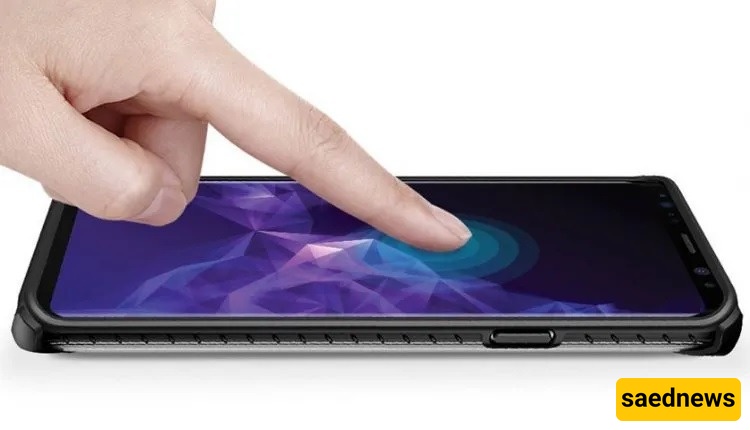
Sometimes, for various reasons, you may feel that your phone’s touchscreen is no longer properly calibrated and needs recalibration. This issue often becomes noticeable while gaming: when you tilt or swipe your phone left, right, up, or down, the screen may not respond as expected, causing frustration.
The good news is that you don’t need a technician to fix this. With a simple, effective tool, you can recalibrate your phone’s touchscreen yourself. Here’s how:
1. Install a Touchscreen Calibration App
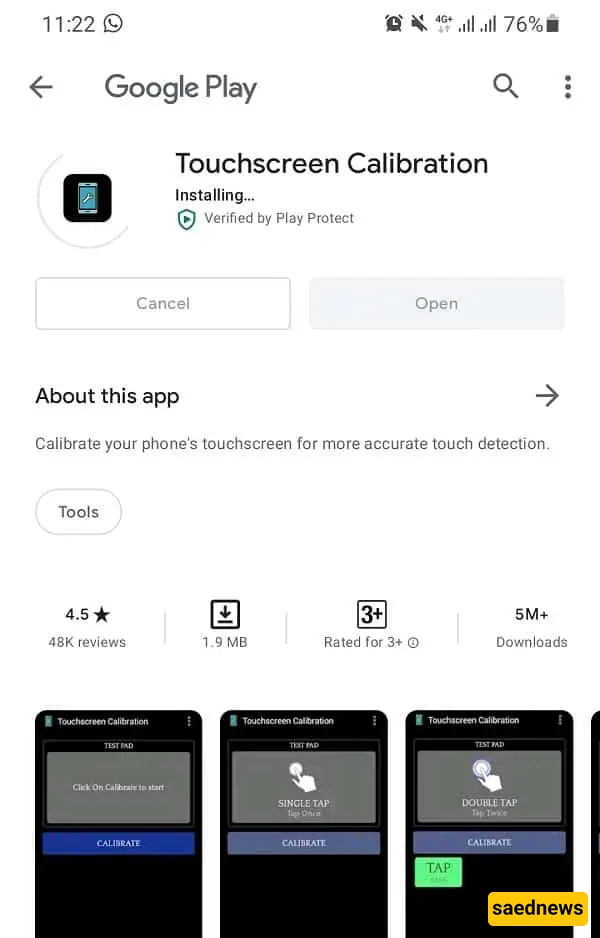
To fix an uncalibrated touchscreen on an Android phone, you’ll need a third-party app. A quick search on Google Play will reveal dozens of options. The app we recommend, however, is fully tested and reliable: Touchscreen Calibration. Download and install it from the Google Play Store.
2. Open the App and Start Calibration
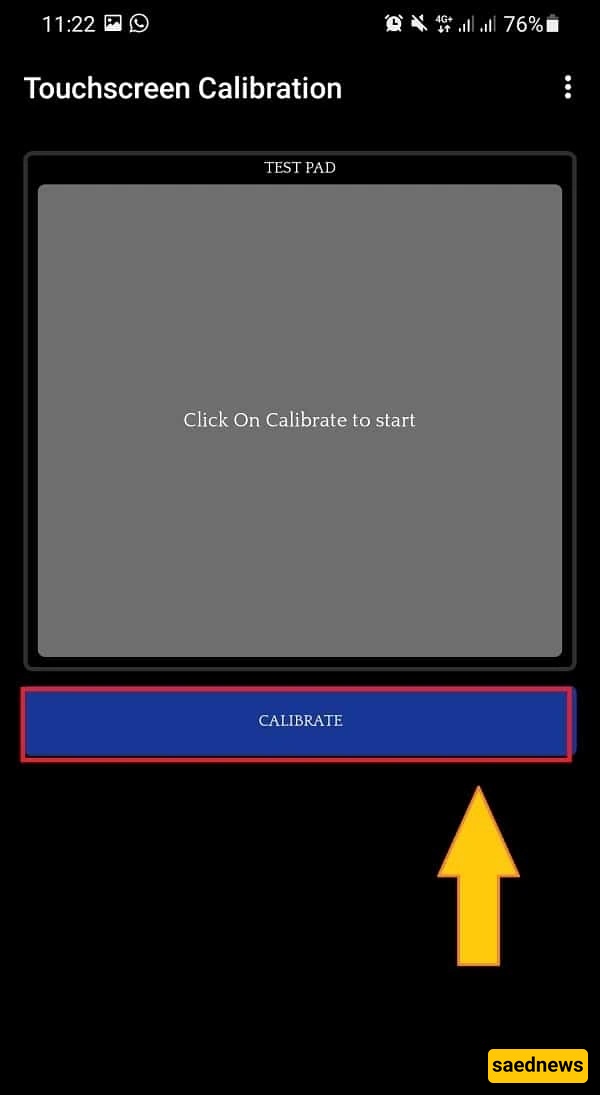
Once installed, open the app and tap the blue Calibrate button to begin the process.
3. Follow the Calibration Steps
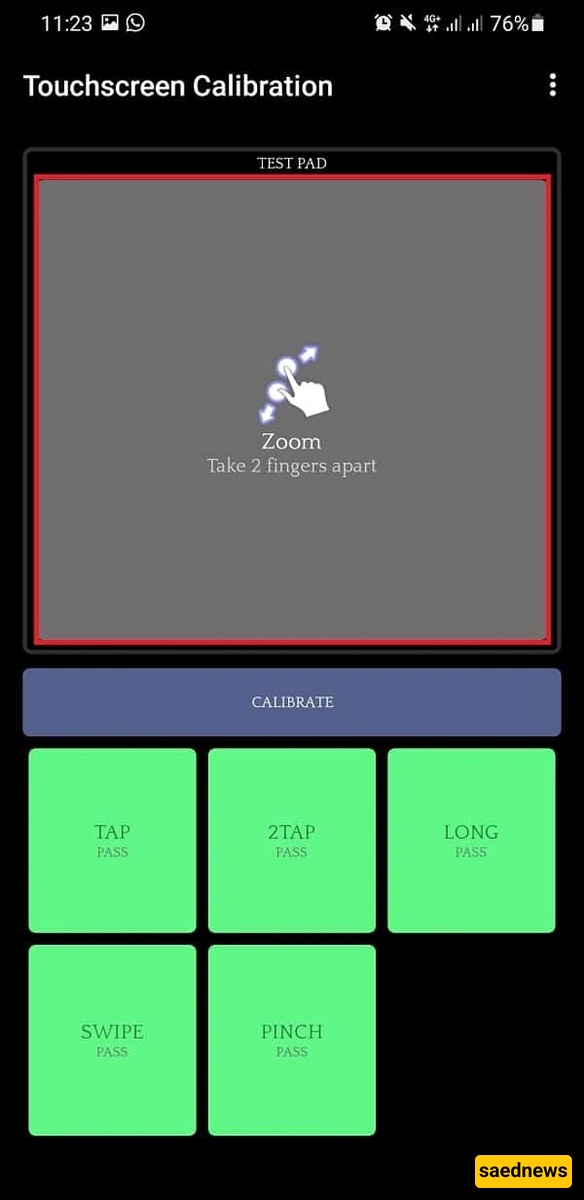
The app will guide you through a series of tests, such as single taps, double taps, zooming, and more. Complete each step carefully. In total, there are six testing stages.
4. Confirm Successful Calibration
After completing all tests, the app will display a message indicating whether the calibration was successful. If done correctly, your touchscreen should now respond accurately to your inputs.
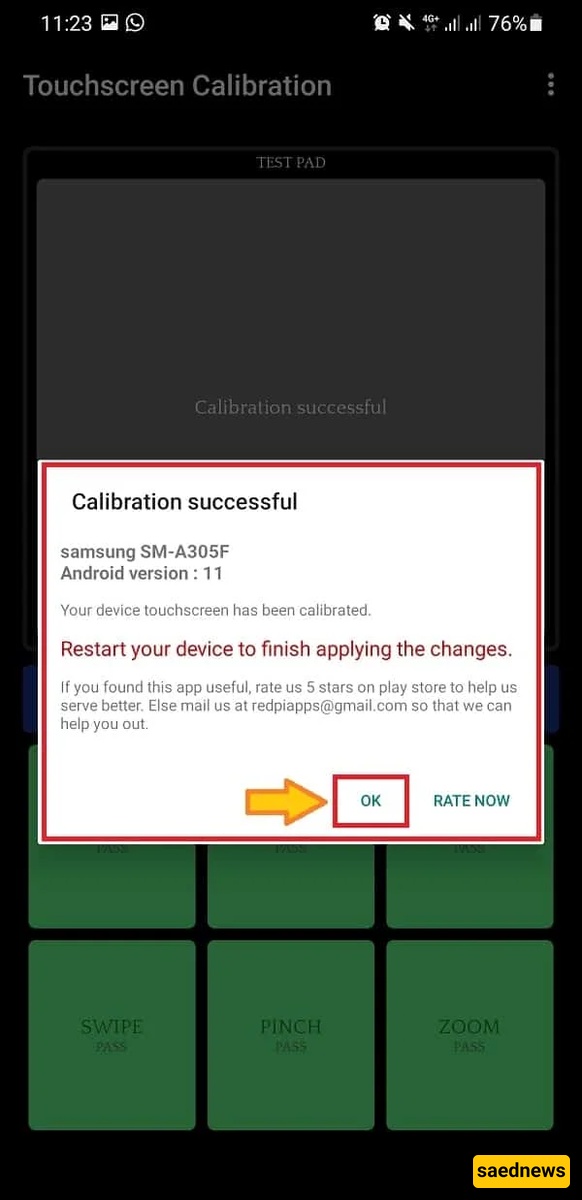
5. Final Steps
Tap OK to finish, and then restart your phone to apply the changes.
By following these steps, your Android touchscreen should function smoothly and accurately once again.