SAEDNEWS: Sometimes, for various reasons, an iPhone may fail to connect to a Wi-Fi network. In this article, we’ll explain how to troubleshoot and fix the issue.
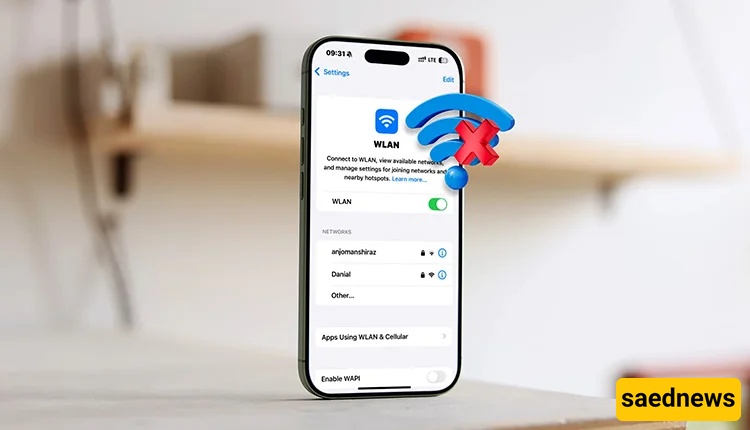
According to Saednews, It can be frustrating when your Wi-Fi is working properly, everyone around you can connect without any issues, but your iPhone cannot—especially considering the premium price of an iPhone. However, there are several possible reasons why an iPhone may fail to connect to Wi-Fi.
Sometimes, an iPhone may refuse to connect to a specific router while connecting normally to other networks. Fortunately, there is no need to worry. Below are some common causes and solutions for fixing Wi-Fi connection problems on an iPhone.
There are several possible reasons, including:
The iPhone may have trouble connecting to Wi-Fi after an iOS update.
The network settings may have been changed or misconfigured.
If your iPhone connects to other routers but not one particular router, the problem may be with that router.
There may be an issue with your phone's antenna or hardware.
The Wi-Fi password may have been changed.
Other network-related settings may be causing the problem.
Although these issues can prevent your iPhone from connecting to Wi-Fi, there are several solutions you can try.
The first and simplest solution is to restart your iPhone. Temporary software glitches can sometimes interfere with network connections, and a simple restart may resolve the issue.
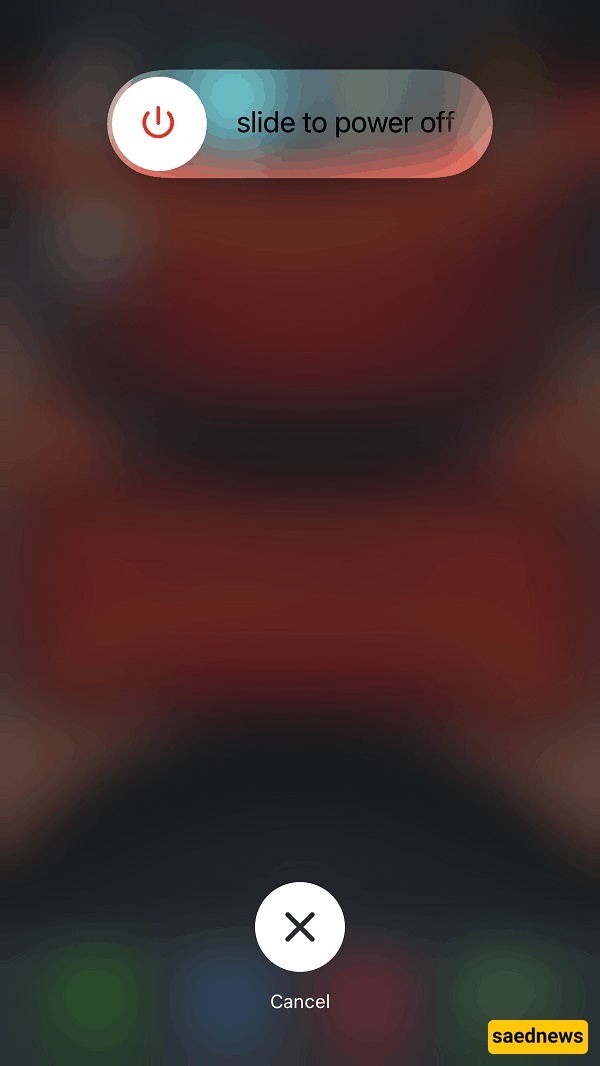
If restarting your iPhone does not fix the problem, try the following methods.
Another simple solution is to use Airplane Mode. Turning it on temporarily disables your phone's wireless connections. When you turn it off again, the network connections are refreshed.
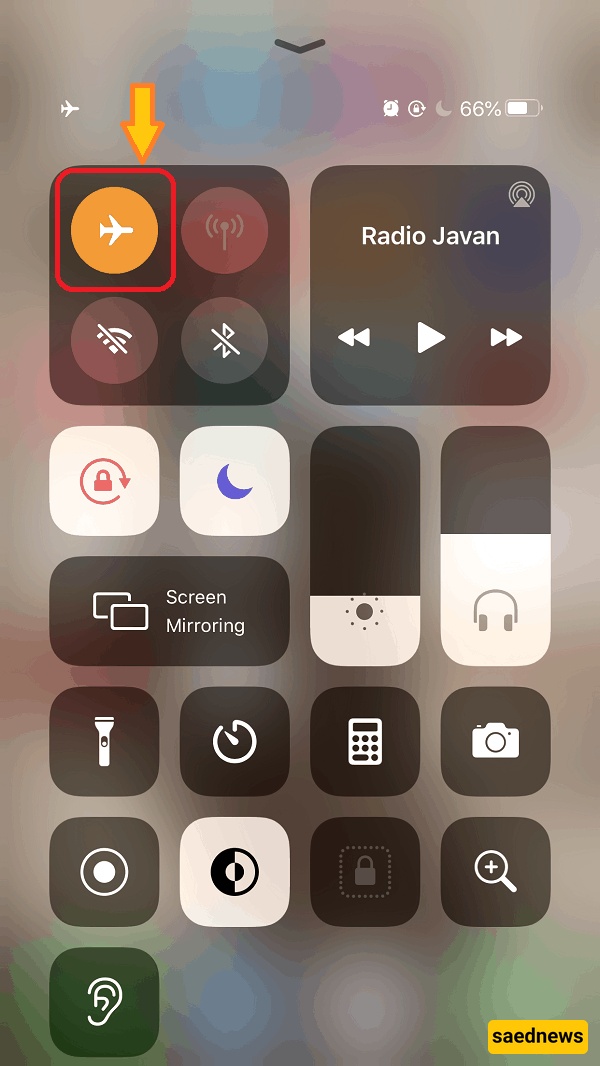
Turn on Airplane Mode, wait for one or two minutes, and then turn it off. Afterward, try connecting to your Wi-Fi network again.
Many people connect to Wi-Fi networks in different places and forget to remove them afterward. It can be helpful to disconnect from networks you no longer use, especially unfamiliar ones.
To do this:
Open Settings on your iPhone.
Tap Wi-Fi.
Disconnect from the network you are currently using if necessary.
Review saved or available networks and remove any unfamiliar or unused connections.
Try connecting again to the Wi-Fi network you want to use.
If the previous methods do not solve the problem, you can reset your iPhone's network settings. This can fix corrupted network configurations, saved connection issues, APN settings, and other network-related problems that may prevent your iPhone from connecting to Wi-Fi.
To reset your network settings:
Open Settings.
Tap General.
Select Reset or go to the reset options available on your version of iOS.
Choose Reset Network Settings.
Enter your iPhone passcode if requested.
Confirm that you want to reset the network settings.
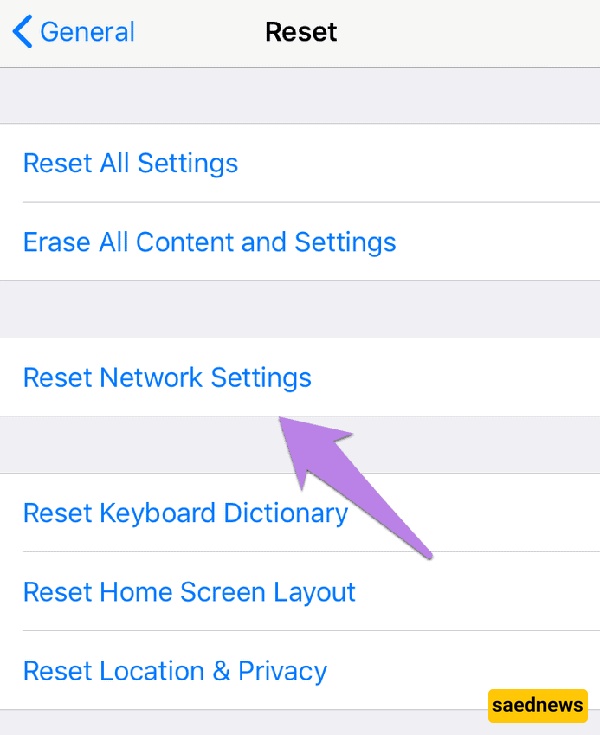
Keep in mind that this will not reset your entire iPhone. Only network-related settings will be reset. For example, previously saved Wi-Fi networks and passwords will be removed, and your network settings will return to their default configuration.
If your iPhone still cannot connect to Wi-Fi after trying these solutions, the issue may be related to the router or your iPhone's hardware. In that case, contacting an experienced technician or Apple support service may be the best option.