SAEDNEWS: Common Causes of Bluetooth Connection Problems Between a Phone and Speaker
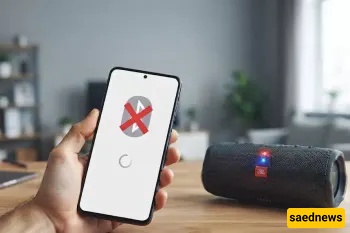
According to Saednews, Wireless connection between a smartphone and a speaker through Bluetooth technology is one of the most common ways to play music today. However, many Android and iOS users experience the issue of Bluetooth not connecting when trying to pair their phones with Bluetooth speakers.
This problem is usually not caused by hardware failure. In most cases, it occurs because of incorrect settings, signal interference, pairing errors, or temporary software issues. This guide explores the most common reasons behind Bluetooth connection problems and explains practical methods to fix them.
One of the simplest causes is that Bluetooth is turned off or is not functioning correctly. In some cases, enabling Airplane Mode can disable wireless connections, preventing your phone from communicating with the speaker.
Bluetooth is a short-range wireless technology. If the distance between your phone and speaker is too great, or if there are physical obstacles such as walls or metal objects between them, the connection may become weak or fail completely.
A common reason for connection failure is an unsuccessful Bluetooth pairing process. This may happen when:
The speaker was previously connected to another device
The previous Bluetooth connection was not properly disconnected
The phone is not searching for devices correctly
The speaker is not placed in pairing mode
Other electronic devices, such as Wi-Fi routers, laptops, or powerful wireless equipment, can interfere with Bluetooth signals. Since many wireless devices operate on similar frequencies, interference can prevent a stable connection.
When the battery level of the phone or speaker is low, power-saving features may limit certain functions, including Bluetooth connectivity. This issue is especially common on some Android devices and Apple products.
Some smartphones have limits on the number of stored Bluetooth connections. If the saved device list is full, removing older connections may be necessary before pairing with a new speaker.
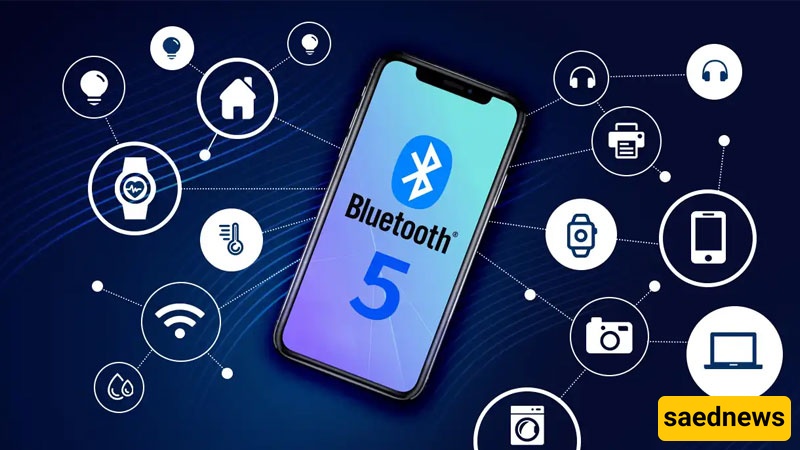
Differences between Bluetooth versions can sometimes cause connection problems. For example, an older phone using Bluetooth 4.0 may have difficulty maintaining a stable connection with a newer Bluetooth 5.0 speaker.
Possible results include:
The devices failing to connect
Frequent disconnections
Unstable audio performance
The phone’s operating system or the speaker’s internal software may experience temporary errors that affect Bluetooth performance. Restarting both devices often resolves these issues.
Effective Ways to Fix Bluetooth Connection Problems
Disable Bluetooth on your phone, wait a few seconds, and enable it again. This refreshes the device search process and can resolve temporary connection failures.
Open Bluetooth settings on your phone, select the speaker, choose “Forget Device” or “Unpair,” and then try connecting again from the beginning.
Restarting the smartphone and Bluetooth speaker can clear temporary software errors and restore normal connectivity.
Place the phone and speaker near each other and remove any objects that may block the Bluetooth signal.
If your phone is connected to headphones, a car system, a smart TV, or another Bluetooth device, disconnect it first and try connecting to the speaker again.
Disable Battery Saver, Low Power Mode, or similar energy-saving features. Charging both devices can also improve Bluetooth performance.
Installing the latest Android or iOS updates can fix known Bluetooth bugs and improve device compatibility.
The most common reasons are that Bluetooth is disabled, the speaker is not in pairing mode, the devices are too far apart, or the speaker is already connected to another device.
This is usually related to incorrect audio output settings, volume settings, or the phone being connected to another audio device.
Yes. Differences between Bluetooth versions may affect connection stability, sound quality, and compatibility between devices.
Try connecting the speaker to another smartphone. If it works normally, the issue is likely related to your original phone’s settings or software.
In most cases, a phone failing to connect to a Bluetooth speaker is caused by simple issues such as incorrect pairing, excessive distance, outdated settings, or wireless interference. These problems can usually be solved by restarting the devices, removing previous connections, adjusting battery settings, or updating the operating system.
If the issue continues after trying all troubleshooting methods, the problem may be related to a hardware fault in the speaker or Bluetooth compatibility limitations, which may require further technical inspection.