SAEDNEWS: Instagram does not allow direct copying of text; however, with 8 simple methods—including using a browser, desktop mode, and dedicated apps—you can copy any caption, comment, or biography.

According to Saednews, Have you ever come across an Instagram caption or comment that you wanted to copy? Instagram does not directly allow text copying, but with the creative methods explained in this article, you can easily copy any text on Instagram.
There are several reasons users look for ways to copy text from Instagram:
Using different fonts: Sometimes copying a caption with a special font is easier than finding a font generator tool.
Saving time: Long comments can be difficult to rewrite manually.
Editing a professional bio: Your bio creates the first impression, and copying creative bios can give you new ideas.
The simplest way to copy Instagram captions is through a mobile browser:
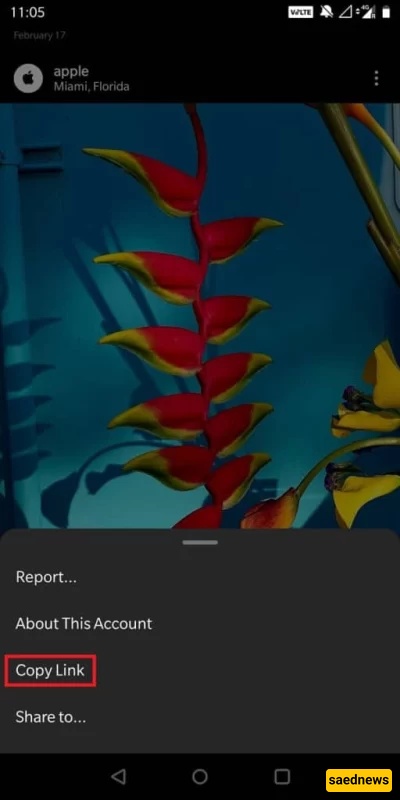
Open the desired post in the Instagram app.
Tap the three dots (⋮) on the right side of the post.
Select “Copy Link.”
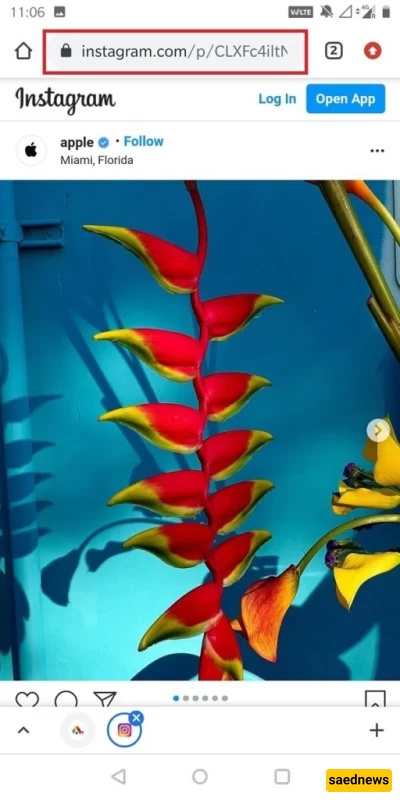
Open your phone’s browser and paste the copied link into the address bar.
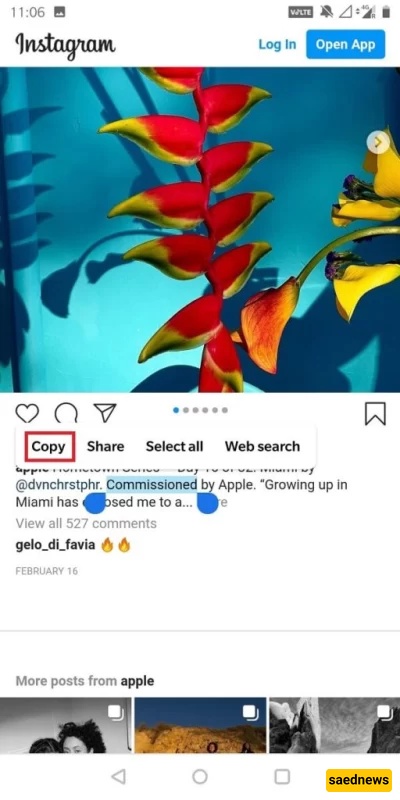
Once the post opens in the browser, you can easily copy the caption text.
Note: This method does not work well for copying comments.
By switching your mobile or tablet browser to desktop mode, you can use Instagram like on a computer:
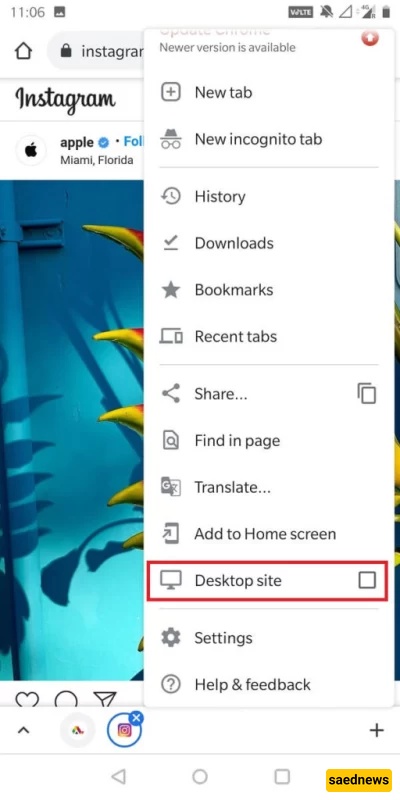
Open the post link in your browser.
Enable “Desktop Site” in browser settings.
The page will reload in desktop view, allowing you to select and copy text easily.

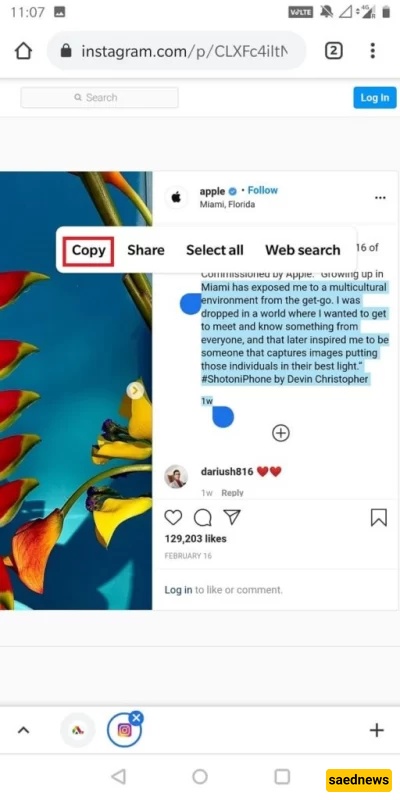
The fastest method for copying Instagram text:
Open the official Instagram website in a desktop browser.
Go to the desired post.
Use your mouse or trackpad to select and copy the text.
No additional settings are required.
This app allows you to copy any text from any application:
Download and install Universal Copy from the Play Store.
Grant the required permissions.
Open the desired Instagram post.
Activate Universal Copy Mode from the notification bar.
Select the caption, comment, or bio and tap Copy.
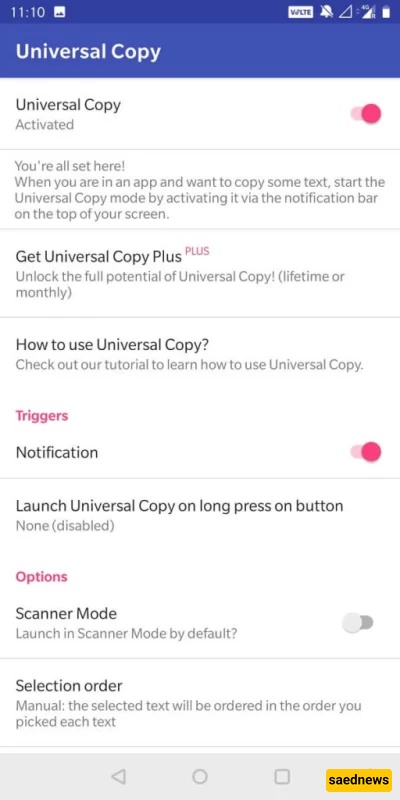
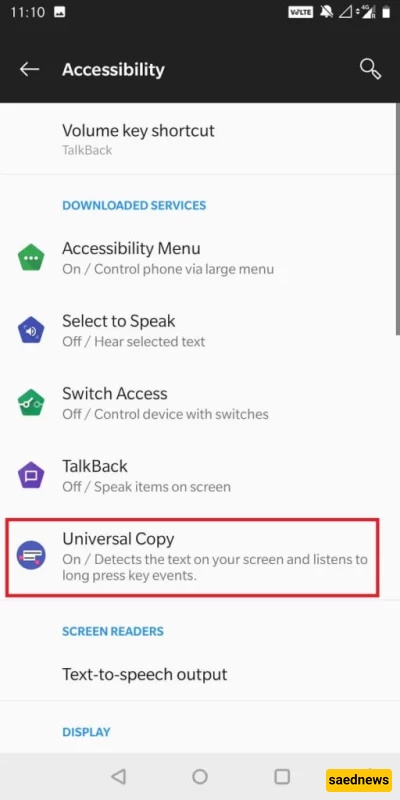
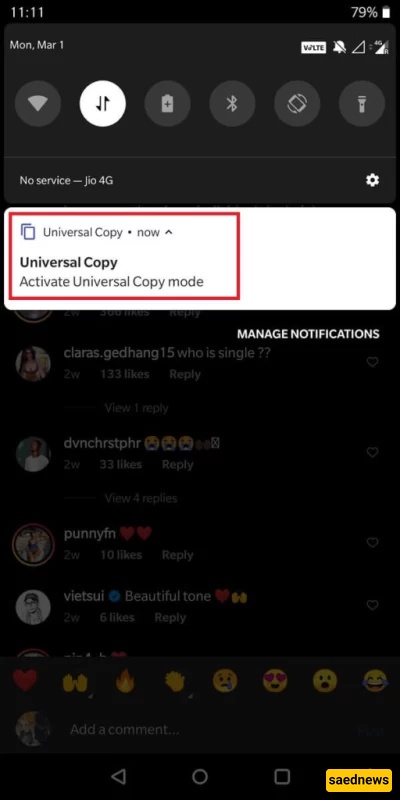
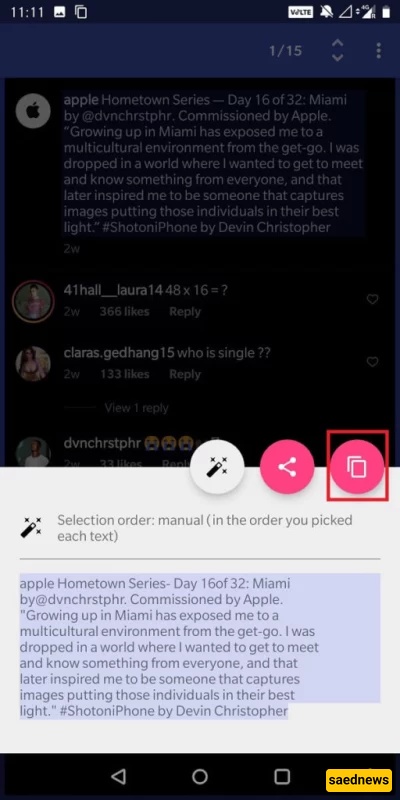
To copy text from a screenshot:
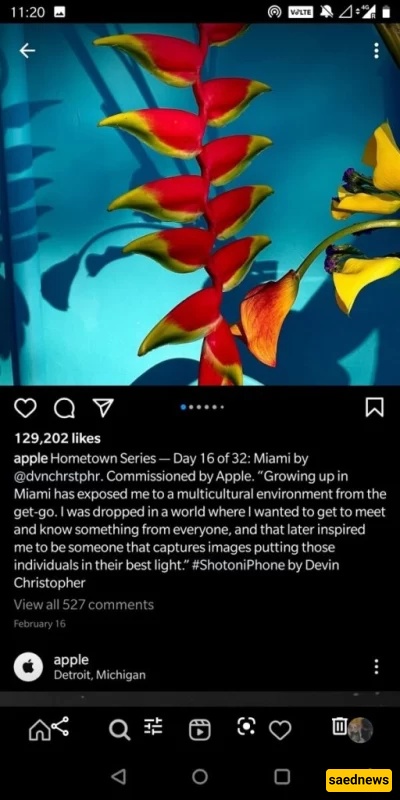
Take a screenshot of the Instagram post.
Open Google Photos.
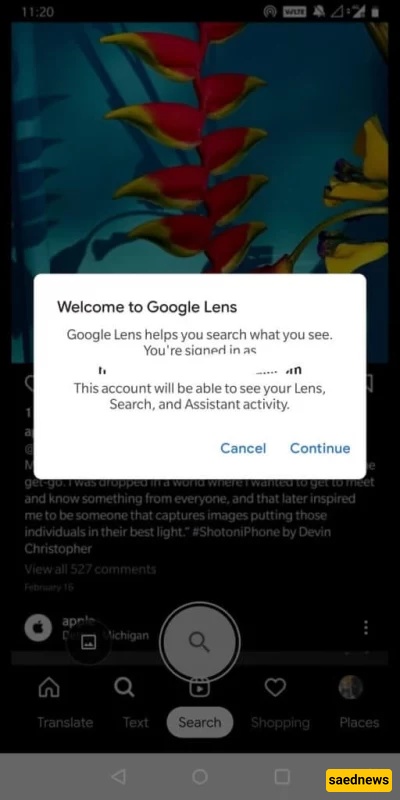
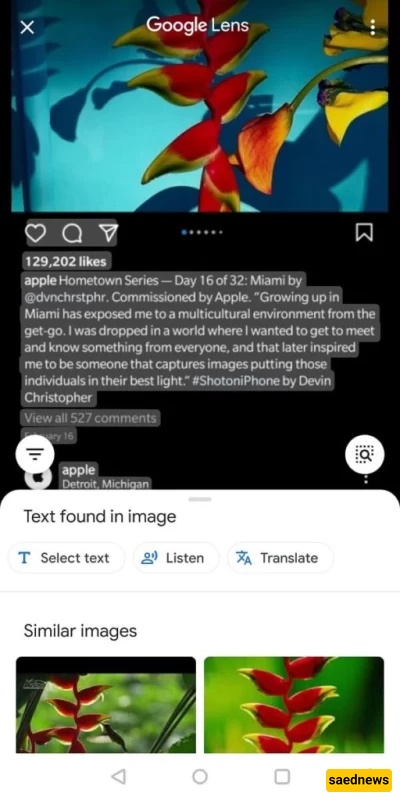
Open the screenshot and tap Google Lens.
The text will be highlighted automatically, allowing you to copy it.
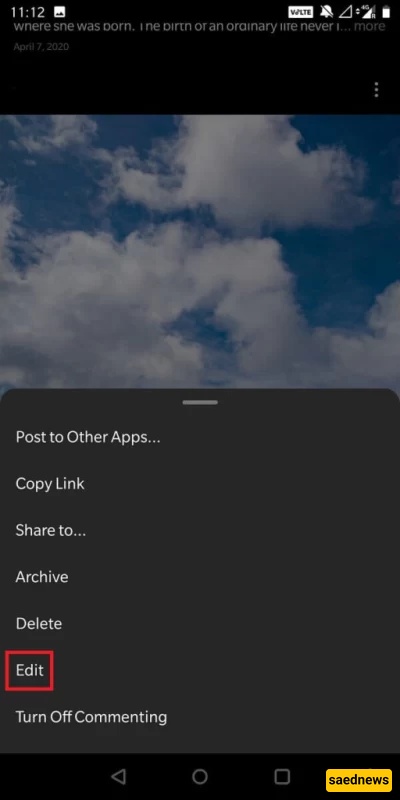
If you want to copy the caption of your own post:
Open your post.
Tap the three dots (⋮).
Select Edit.
The caption will appear in an editable field where you can select and copy it.
To copy multiple comments at once:
Add a Scraper extension to Chrome or Firefox.
Open the Instagram post and load all comments.
Select the desired comments and use the scraper tool to copy them.
To download all comments in an Excel file:
Copy the Instagram post link.
Open an Export Comments website.
Paste the link into the “Media Link” field.
Choose the time range and format.
Click Export to download the Excel file.
Although Instagram does not directly support copying captions, comments, or bios, there are many effective ways to do it. From mobile browsers and desktop mode to third-party apps like Universal Copy and online tools such as Export Comments, you can choose the method that best suits your needs.