SAEDNEWS: Sometimes we may want to maintain our privacy or keep our phone storage organized, which is why clearing Google search history becomes important.

According to Saednews, In today’s world, smartphones have become an important part of our daily lives, and most of our online activities are done through them. One of the things Google always records is our search history. This history may include personal searches, visited websites, and even locations. Sometimes we may want to protect our privacy or keep our phone organized, which is why deleting Google search history becomes important.
If you want to delete your Google search history, there is a simple way:
Go to Google My Activity and scroll down the page.
Select Delete activity by.
You can choose a specific time range, for example All time to remove all history.
After selecting the period, tap Delete to erase your search history.
Sometimes you may want to clear your searches so that others cannot see your history. To delete browsing history on a Samsung phone:
Open Chrome and tap the More options (three vertical dots).
Go to Settings, then Privacy and security.
Tap Clear browsing data and choose your desired settings.
Use the Time range menu to select a period, then tap Clear Data.
Note: If you have a large amount of data, it may take a few minutes to complete the process.
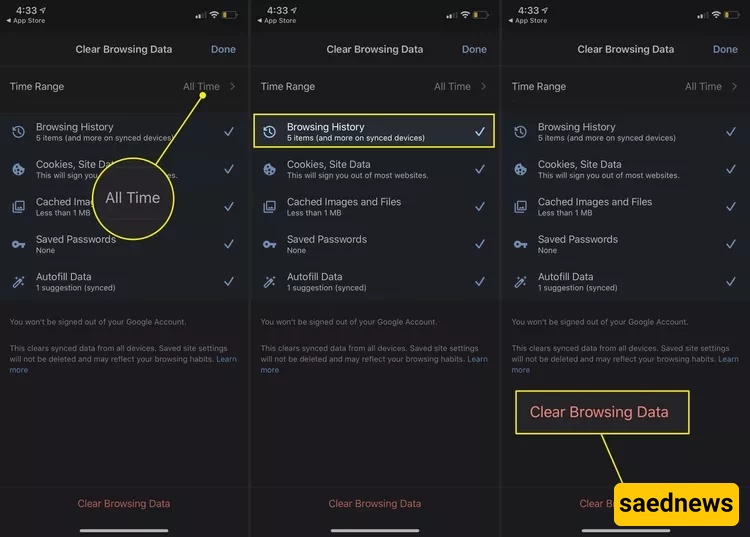
Search history on Xiaomi devices is usually stored in the browser and can be easily removed:
Open Mi Browser.
Tap Profile.
Go to Settings.
Select Clear data.
You can delete specific data or tap Clear all, then confirm by pressing OK.
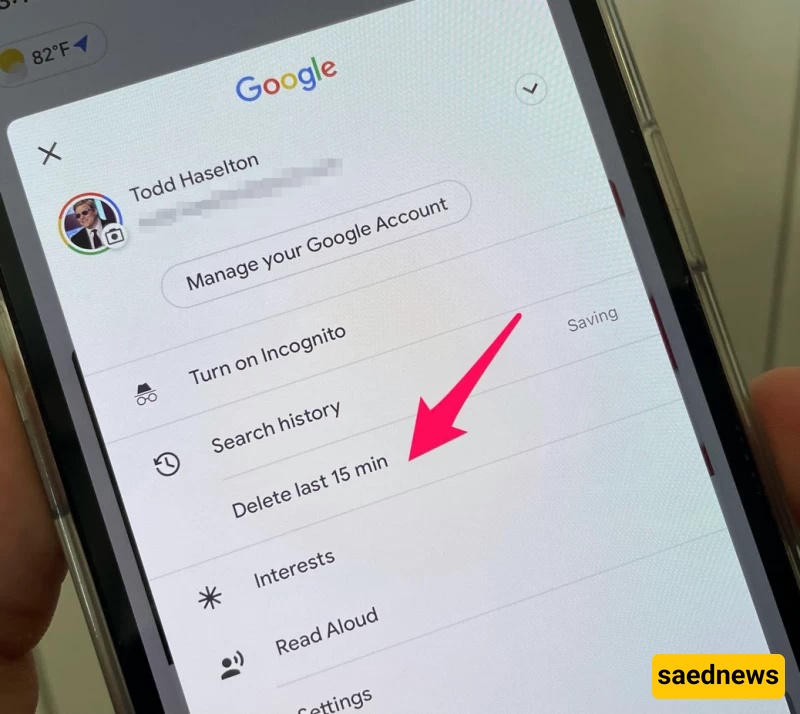
If you are using an iPhone, you can clear your Google search history as follows:
Open Google Chrome.
Tap the three-dot icon in the top right corner.
Select History.
Your search history will appear.
Tap Clear Browsing Data.
If you only want to remove search history, choose Clear browsing history.
If you also want to delete cache and site data, choose Clear All.
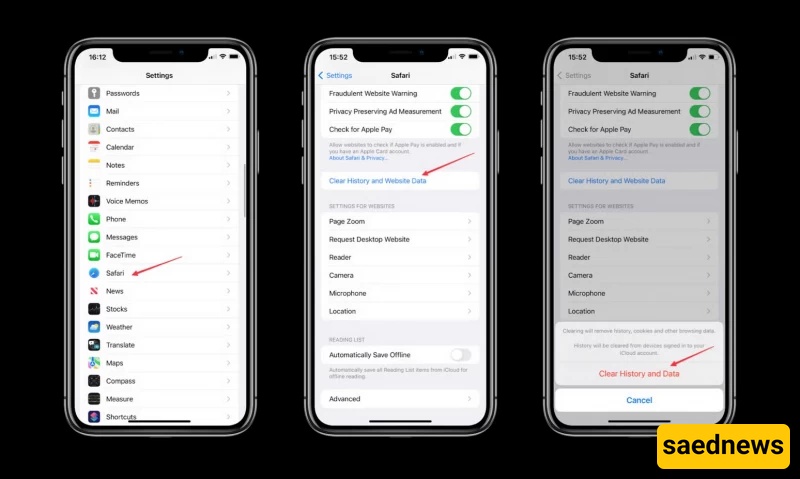
For Safari, go to Settings > Safari and tap Clear History and Website Data.
Open Google Chrome.
Click the three-dot menu in the top right corner.
Select History to open the history page. (You can also press Ctrl + H on a keyboard.)
Click Clear Browsing Data.

In the history section, you can choose what to delete:
Time range: Select the period (for full deletion choose “All time”).
Browsing history: All visited websites and searches.
Download history: Downloaded files history (files remain on the device).
Cached images and files: Stored site data for faster loading.
Passwords: Saved login passwords.
Autofill form data: Saved form information.
Hosted app data: Data from Chrome apps.
Media licenses: Website media permissions and licenses.