SAEDNEWS: Internet Download Manager (IDM) is one of the most popular programs. here you will learn how to install Download Manager.
According to Saednews, Internet Download Manager (IDM) is one of the widely used applications among computer users for better management of download lists. But why do we need such programs? If you frequently download different files, you have likely experienced some issues without a tool like IDM.
For example, one of the most common problems is an unexpected interruption of downloads. Imagine you are downloading a 10 GB file and it has reached about 90%, but suddenly there is a power outage. In this case, all the internet data already consumed would be wasted. However, by using Internet Download Manager, you can easily overcome such problems.
Therefore, it is recommended to download and install Internet Download Manager if possible. Based on reports from some users regarding issues encountered during installation, we will explain how to install IDM. Stay with us.
The first method is installing IDM on Windows. First, you need to download the program from a trusted source along with a purchased license. After obtaining the software, follow these steps:
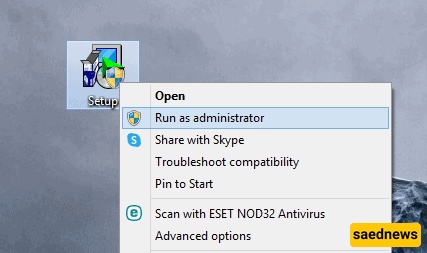
1.Select the IDM installation file, right-click on it, and choose “Run as administrator.”
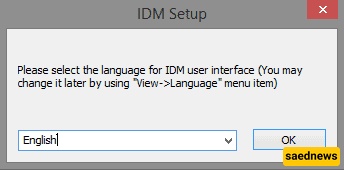
2.Select your preferred language and click OK.
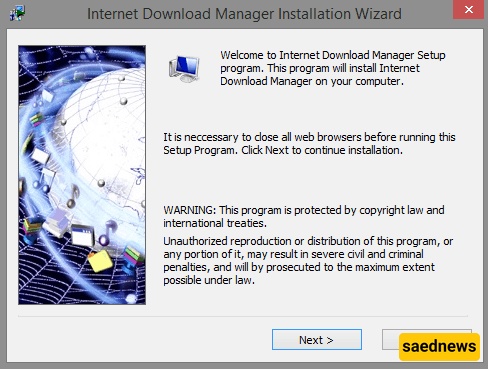
3.At this stage, you are advised to close all browser tabs before continuing. After closing them, click Next.
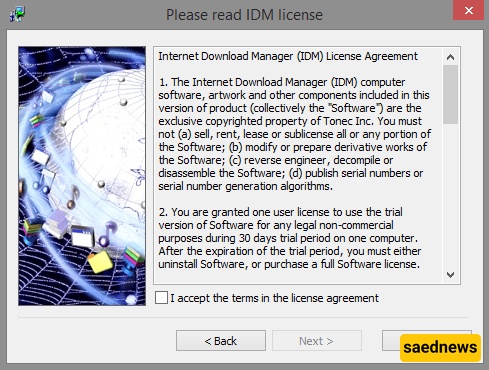
4.The terms of use for Internet Download Manager are shown here. If you agree, check the box “I accept the terms” so the Next button becomes active, then proceed.
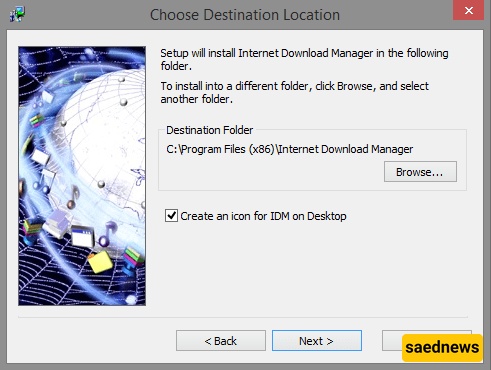
5.Now you can choose the installation path on your computer. By default, it will be installed on the C drive. If you want a shortcut on the desktop, check the option “Create an icon for IDM on desktop,” then click Next.
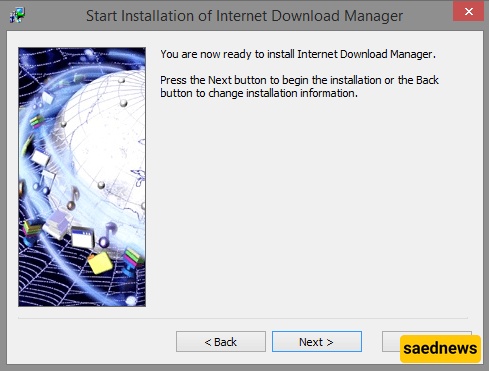
6.You have completed the initial installation steps. If you are sure about installing, click Next to begin the installation process.
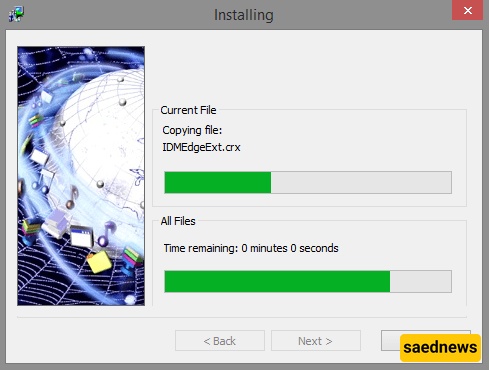
7.The program will be installed successfully within a few seconds. During this time, do not click any buttons.
8.Installation is complete. Click Finish to exit the setup.
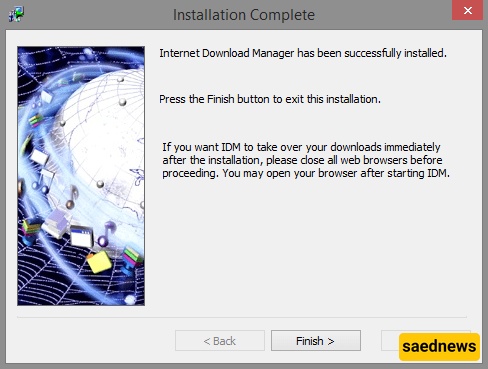
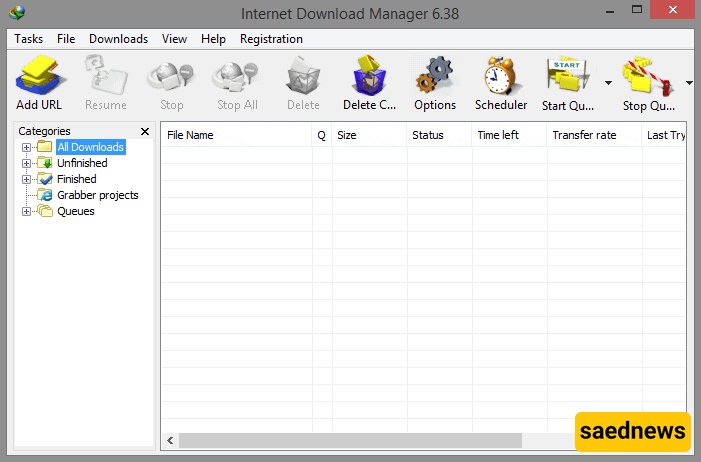
9.Now run Internet Download Manager from the desktop. As you can see, IDM has been successfully installed.
The second method is installing the IDM extension on Google Chrome, which is very simple. First, click the link provided below and download the Chrome version of IDM, which will install automatically without any additional steps.
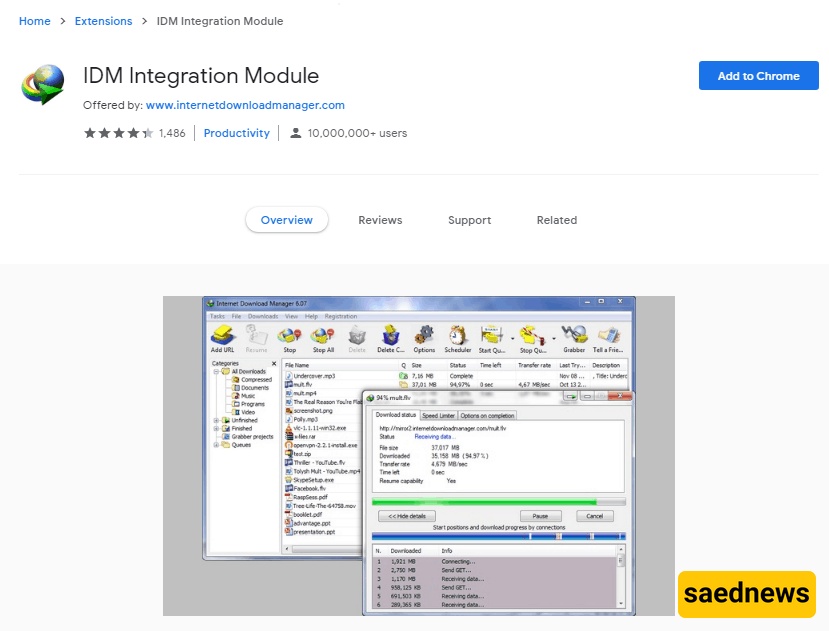
IDM Chrome extension
After opening the link, you will see the “Add to Chrome” button in the top-right corner. By clicking it, the extension will be downloaded and installed within a few seconds.