SAEDNEWS: How to Check Image Size and File Size in Photoshop Easily
According to Saednews, To publish images on different platforms, you need proper sizing and an appropriate file size. Otherwise, problems may occur. For example, if you plan to upload an image to your blog or website, the image size must be compatible with your site’s mobile index. If the image is too large, it can cause issues. Fortunately, you can easily check and adjust both image size and file size in Photoshop to avoid such problems. In this guide, we explain how to do it.
To check the file size of an image in Photoshop, you can follow these simple steps:
From the top menu, select File, then click on Save for Web from the dropdown menu.
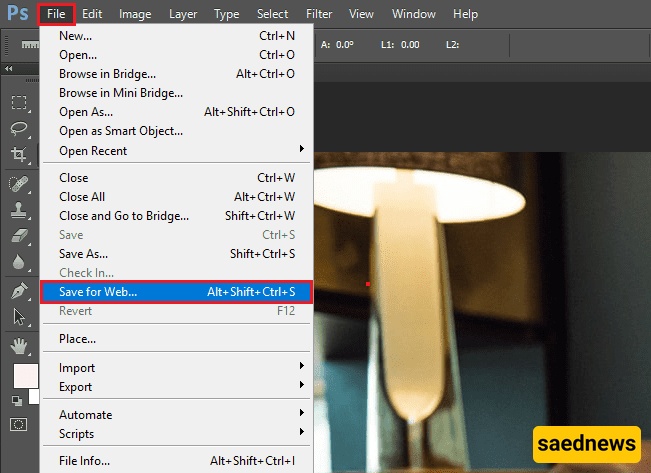
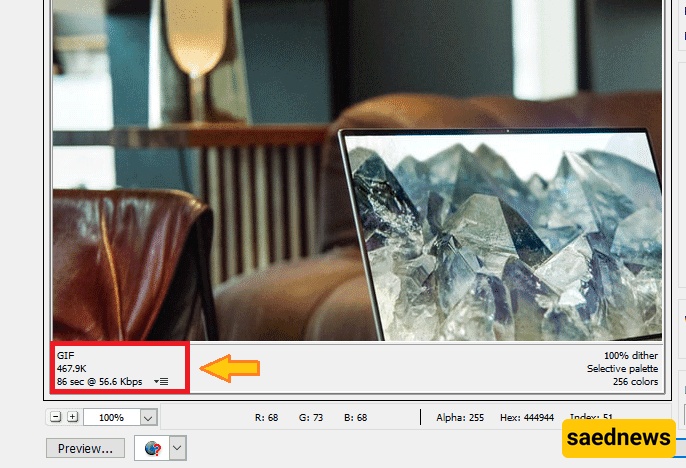
A new window will open. In the bottom-left corner of this window, you can see the exact file size of the image clearly and precisely.
There are two different ways to check image dimensions in Photoshop. You can choose either method:
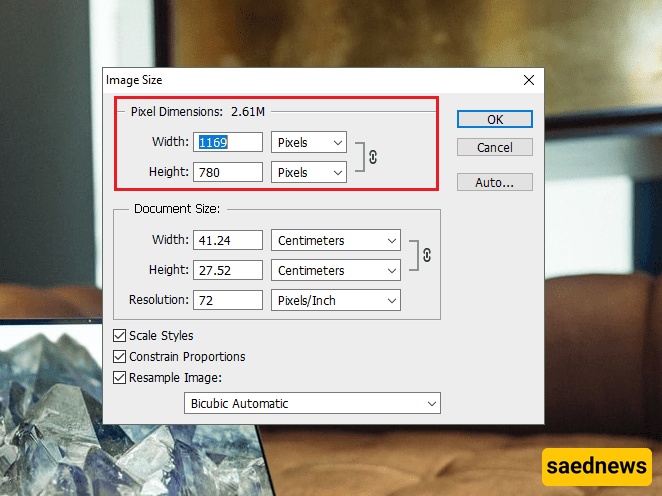
From the Photoshop toolbar, select Image, then click on Image Size.
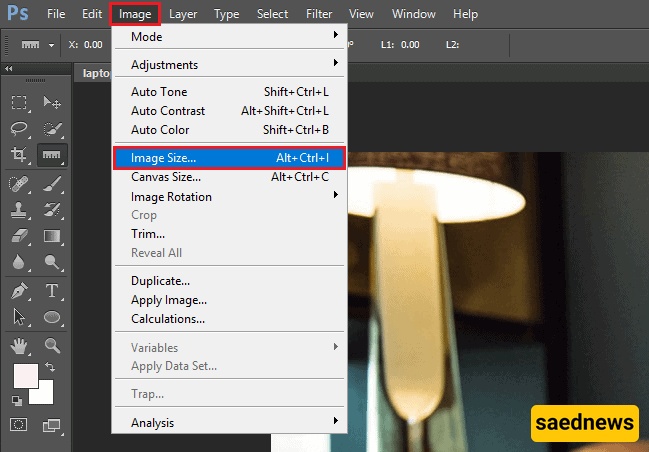
A new window will open where you can view the full dimensions of the image. In this section, you can also change the width and height to your desired values.
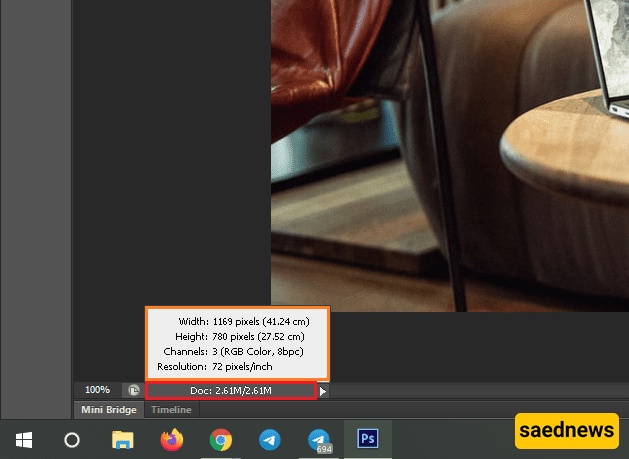
At the bottom of the Photoshop interface, there is a status bar section. By left-clicking in this area, you can directly view the exact image dimensions without opening any additional menus.