SAEDNEWS: How to Delete Undeletable Files in Windows: Effective Methods to Try

According to Saednews, Sometimes, you may encounter problems in Windows that you have never seen before. For example, imagine that you recently downloaded a file that you no longer need and decide to delete it. However, when you try to remove the file, nothing happens because the file simply refuses to be deleted. There can be several reasons for this issue, one of the most important being that the file may be infected with a virus.
Despite the problems these files can cause, there are several effective ways to remove them. Below are some of the most useful methods for deleting undeletable files in Windows.
One of the easiest and fastest methods is to use a dedicated file-deletion program. Many tools are available online, but not all of them are reliable or effective.
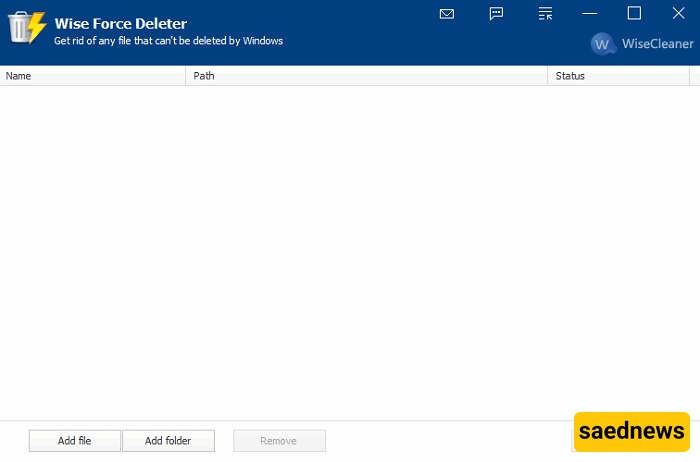
One useful option is Wise Force Deleter, which is designed to remove files that Windows cannot delete normally. After downloading and installing the program, open it and select Add File. Choose the file you want to remove, then use the Remove option to permanently delete it.
Another method is to use the Windows Command Prompt.
Press Win + R to open the Run window.
Type cmd and press Enter.
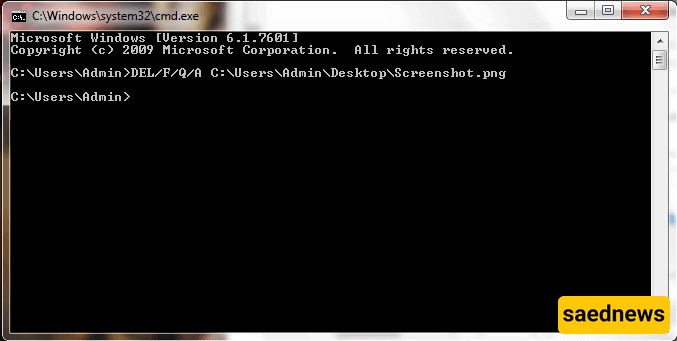
In the Command Prompt, enter a command similar to the following:
DEL /F /Q /A "C:\Users\Username\FilePath\FileName.extension"
Username: Your Windows account username.
FilePath: The location of the file you want to delete.
FileName.extension: The exact name of the file, including its extension.
The /F option forces deletion, while /Q performs the operation without asking for confirmation.
Restarting your computer is another simple and effective solution. Sometimes a file cannot be deleted because it is currently being used by a program or process. Restarting Windows may close the process that is locking the file, allowing you to delete it afterward.

If the file still cannot be removed, it may be worth scanning your computer with a reputable and up-to-date antivirus program. If the file is malicious or infected, antivirus software may detect and remove it.
Make sure your antivirus software is properly updated so it can recognize the latest threats.