SAEDNEWS: Using the Recycle Bin, System Restore, and software such as Recuva, you can easily recover deleted files in Windows.

According to Saednews, Accidentally deleting files from your computer is no longer as serious a problem as it used to be. There are now many tools available for recovering deleted files in Windows, which has significantly reduced users’ concerns in this regard.
Ever since the introduction of the Recycle Bin in 1995, accidentally deleted files in Windows have no longer been considered a major concern. Users can still recover deleted files by making use of this feature.
Below, we explain all the available methods for recovering deleted files in Windows.

When you delete a file in Windows, it is not immediately removed permanently. Instead, it is moved to the Recycle Bin on your desktop.
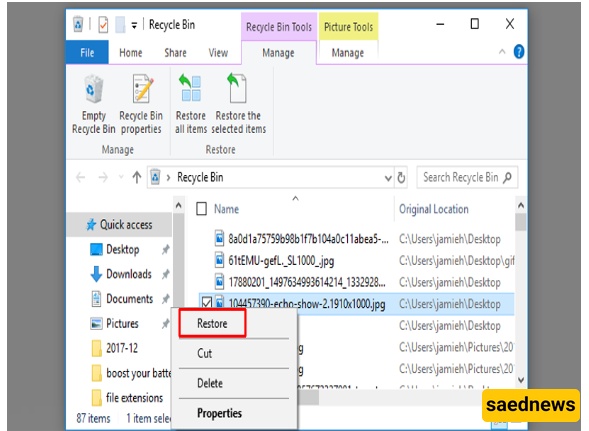
By opening the Recycle Bin, you can find many of your deleted files and restore them by selecting the “Restore” option. To do this, simply right-click the desired file and select “Restore.”
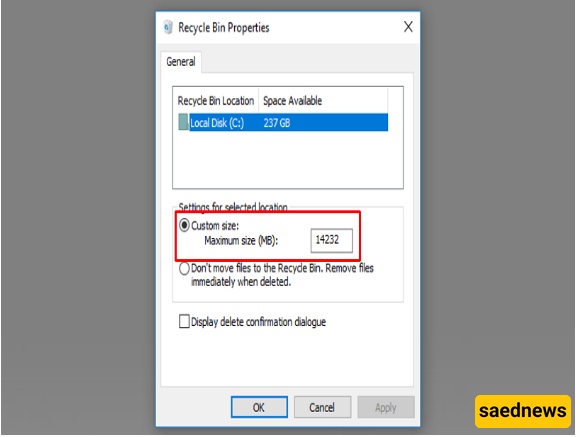
The Windows Recycle Bin has a limited amount of storage space. Therefore, when a large amount of space is occupied, Windows may automatically remove older deleted files to make room for newly deleted ones. In this situation, the possibility of permanently losing files stored in the Recycle Bin increases.
To check this setting, right-click the Recycle Bin icon on the desktop and select “Custom Size.” In the box provided, specify the maximum amount of space allocated to the Recycle Bin. The value is shown in megabytes and can be increased depending on the drive where the Recycle Bin is located.
If you are unable to recover a deleted file using the Recycle Bin, Windows provides another option.
Windows can automatically save previous versions of files that have been modified. In fact, when certain changes are made to files, a version known as a shadow copy may be created on the system, allowing users to access an earlier version.
To use this feature, right-click the desired file and select “Restore previous versions.” You will then be able to access previous versions of the file. After finding the version you want based on its date and time, click “Restore” to recover the file.
However, depending on your system settings, Windows may not have created a shadow copy for the file in question.
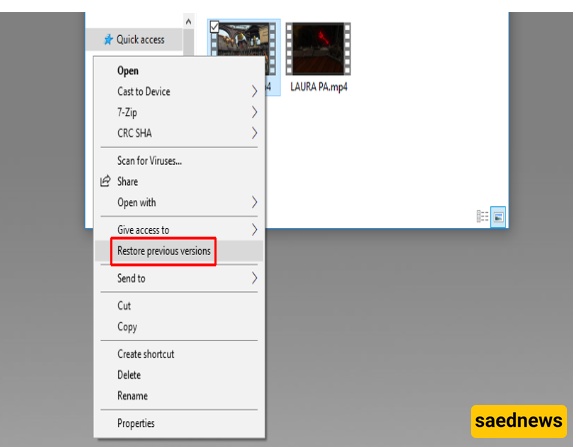
If you are unable to recover your deleted files using the restore feature, it is a good idea to check Windows System Restore and make sure that this feature is enabled.
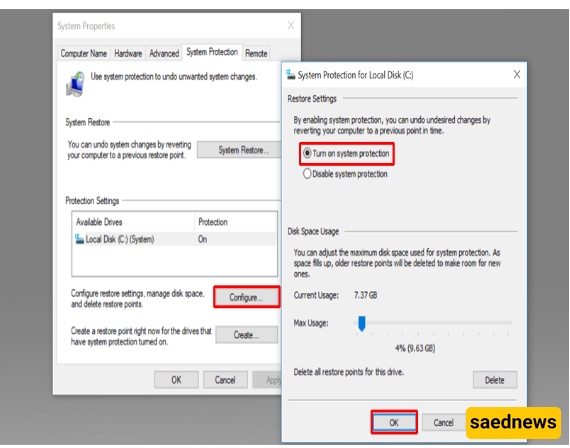
To do this, type “system restore” in the Start menu and select “Create a restore point.”
On the page that opens, select “…Configure” and enable the “Turn on system protection” option.
If you remember, we previously introduced some of the best software available for recovering Windows files, with Recuva at the top of the list. (Learn about 5 powerful file recovery programs for Windows!)
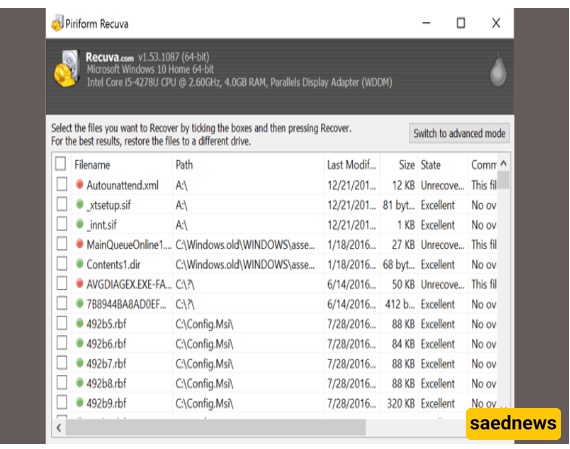
This program can help you recover deleted files in Windows, including files that have been lost due to formatting or disk corruption. Recuva can be downloaded and installed for free on Windows.