SAEDNEWS: Several times, you may have forgotten your phone’s password, especially when you urgently need access to it. Fortunately, there are a few simple ways to resolve this issue and regain access to your device. In this guide, we’ll explain how to unlock a Samsung phone when you’ve forgotten its password.
According to Saednews, You may have experienced a situation where you quickly set a password on your mobile phone to protect the personal data and files stored on it, only to forget the password moments later. In such cases, you might think your only option is to hand the phone over to a repair technician and have it restored to factory settings, which is certainly not an appealing solution.
But is there another way to solve the problem without giving your phone to someone else?
Yes. In some cases, you can regain access to your Samsung phone and set a new password yourself. Below are three methods that can help you unlock a Samsung device when you have forgotten its screen lock.
Important: With recent Android updates, turning off a locked phone may require you to enter the screen-lock password. This security feature was introduced to make the operating system more secure. If your Samsung phone runs a newer version of Android and requires the password before it can be powered off, some recovery methods may not work. In particular, Samsung's remote-unlock feature requires the phone to be connected to the internet. If the device is offline, you may need assistance from an authorized service technician.
Older Samsung devices may have supported service codes that could trigger a factory reset. If applicable to your particular model:
Turn off the phone and remove the SIM card.
Turn the phone back on and enter the appropriate service code.
Wait for the device to reset and return to its factory settings.
Reinsert the SIM card and turn the phone on again.
Important: A factory reset erases the data stored on the phone. The service codes mentioned in older guides are not supported on many modern Samsung devices, so they should not be assumed to work on current models.
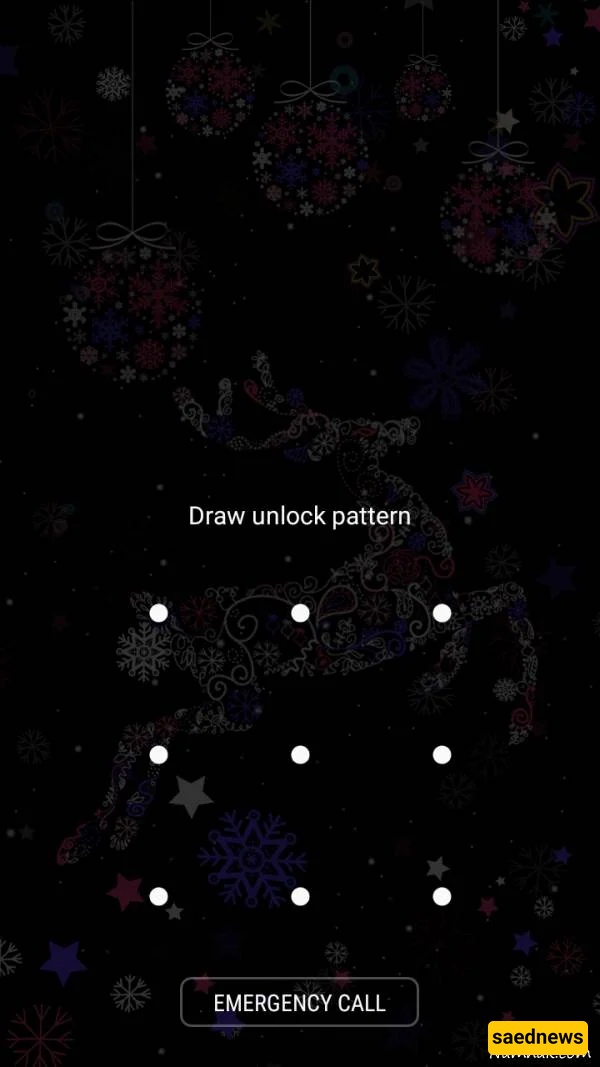
If you have forgotten your unlock pattern and cannot access the phone, older Samsung devices had several recovery methods.
Some older models could be reset by holding a combination of physical buttons, such as the Home, Power, Back, and Call-End keys, for several seconds. After the phone restarted, it could return to its original factory settings, allowing the lock to be configured again.
The exact button combination varied by model, and this method does not apply to most modern Samsung phones.
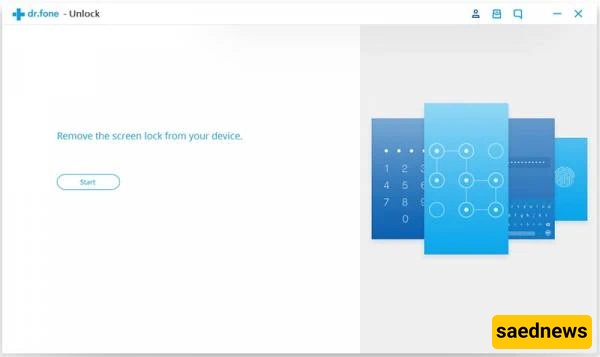
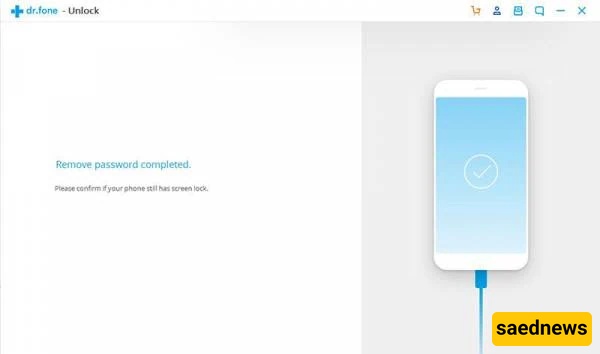
Older guides sometimes recommended computer programs such as Dr.Fone Unlock to remove a pattern or screen password. The phone would be connected to a computer using a USB cable, after which the software would attempt to remove the lock.
However, compatibility depends heavily on the Samsung model and Android version, and using third-party unlocking software can result in data loss or security risks. It is therefore better to use Samsung's official recovery options whenever they are available.
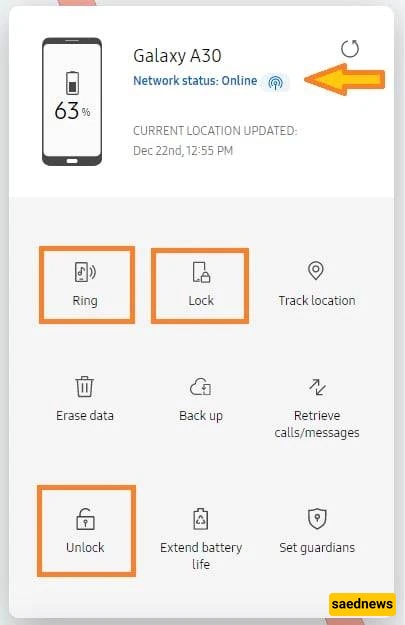
Samsung's remote-device services have provided a convenient way for users to manage certain locked devices remotely.
Before using a remote-unlock feature, several requirements generally need to be met:
The phone must be connected to the internet.
The device must be associated with a Samsung account.
You need to be able to sign in to that Samsung account.
The relevant remote-management feature must be supported and enabled for the device.
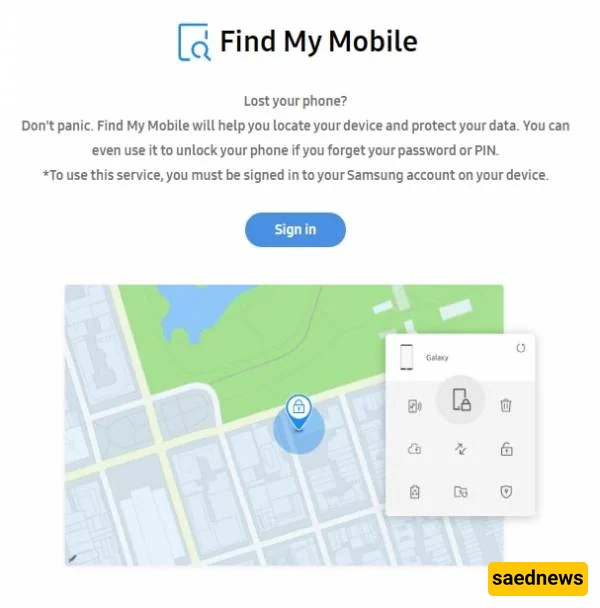
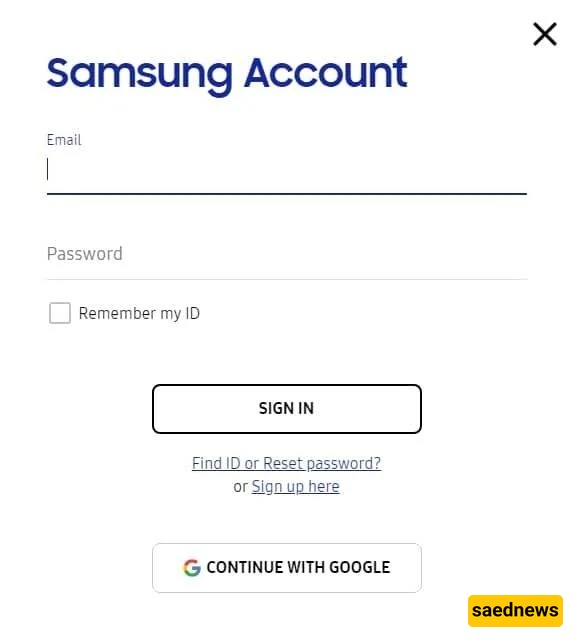
To use Samsung's remote device-management service, sign in with the Samsung account associated with your phone and select the available device-management options.
If a supported Unlock option is available, selecting it can remove the screen lock remotely without requiring you to enter the existing password on the phone.
Important: Samsung has changed and replaced some of its remote-device services over time, so the options available today may differ from those described in older guides. If your phone does not appear online or the unlock option is unavailable, the device may not meet the requirements for remote unlocking.
For modern Samsung phones, the safest approach is to use Samsung's official account and recovery services or contact an authorized Samsung service center rather than relying on outdated reset codes or third-party unlocking tools.