SAEDNEWS: If you decide to share and connect your phone’s internet to a laptop, this report will introduce you to practical methods for connecting “mobile internet to a laptop.”
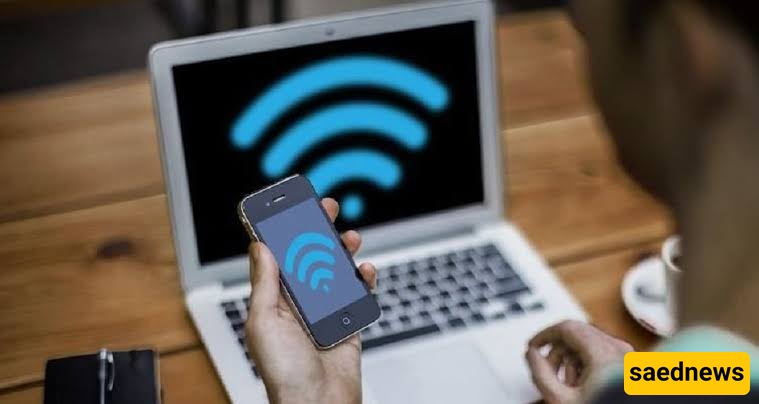
According to Saednews, Wireless modems or Wi-Fi routers play a very important role in each of our homes or workplaces today, allowing us to carry out daily tasks without any problems. Without a doubt, living without the internet in today’s world is almost unimaginable. However, when we face an internet outage, the tasks we planned are inevitably delayed. Fortunately, there are practical ways to solve the problem of not being able to connect to the internet.
One of the most accessible solutions is the smartphone you already have in your hand. But how? All smartphones have a hotspot feature that allows you to share mobile internet, which can be prioritized over other methods. In this report, we will introduce three practical ways to connect your phone’s internet to a laptop.
USB connection
Bluetooth connection
Hotspot connection
The first method for sharing your phone’s internet with a laptop is using a USB cable. If you choose this method, follow the steps below:
First, disconnect the USB cable from the charger adapter and keep it ready.
Go to your phone’s Settings menu.
In the settings menu, select Connections.
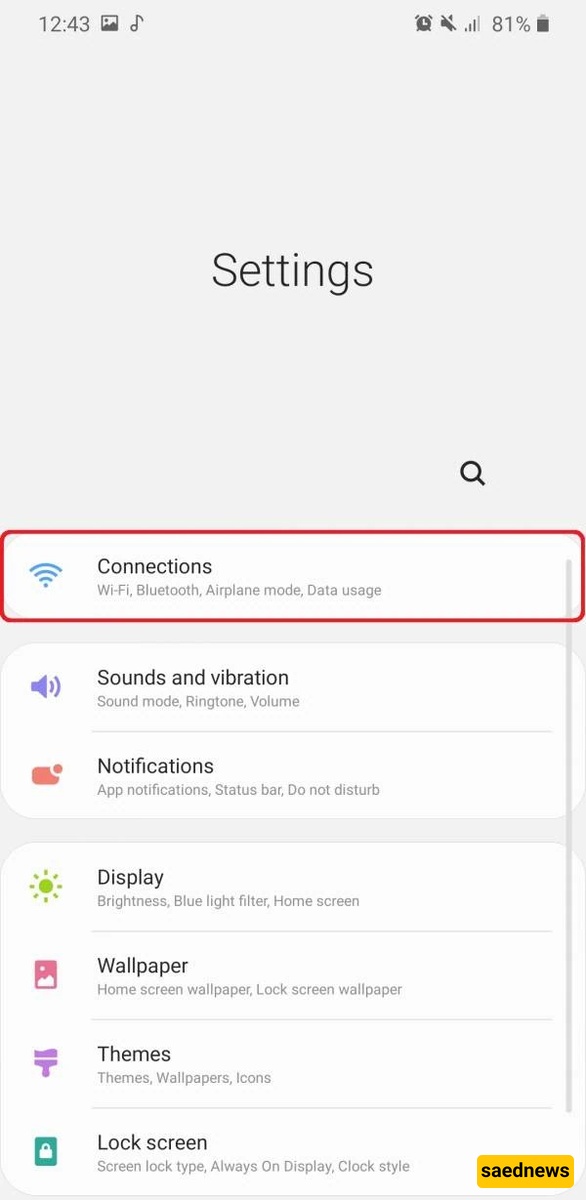
Then choose Mobile Hotspot and Tethering.
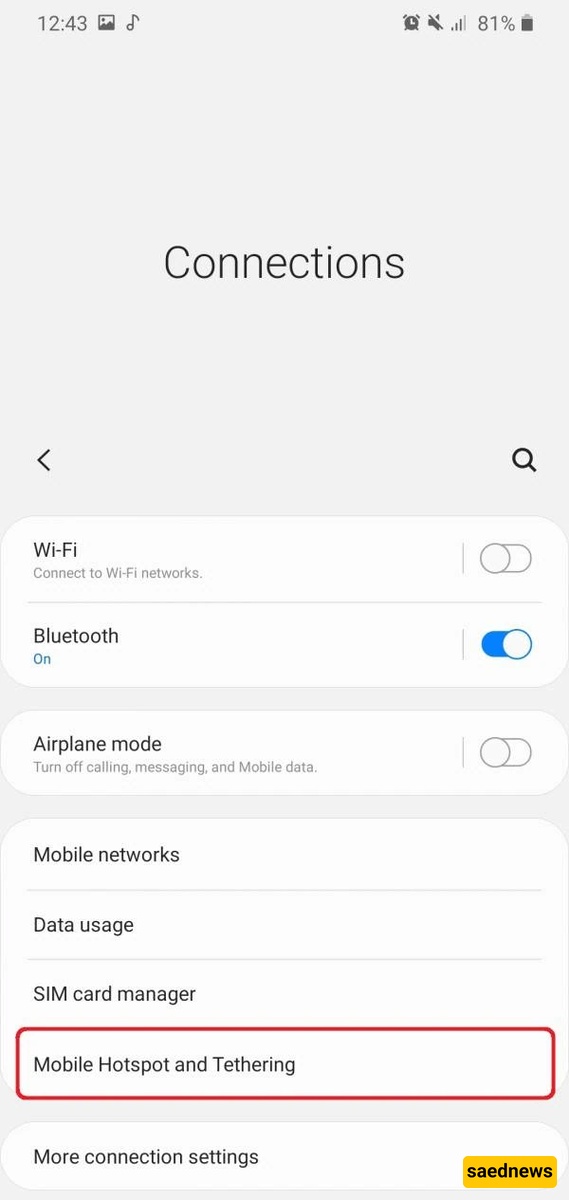
The third option you will see is USB tethering. First connect your phone to your computer using a USB cable, then enable this option so that the switch turns blue. This will successfully connect your phone’s internet to your laptop.
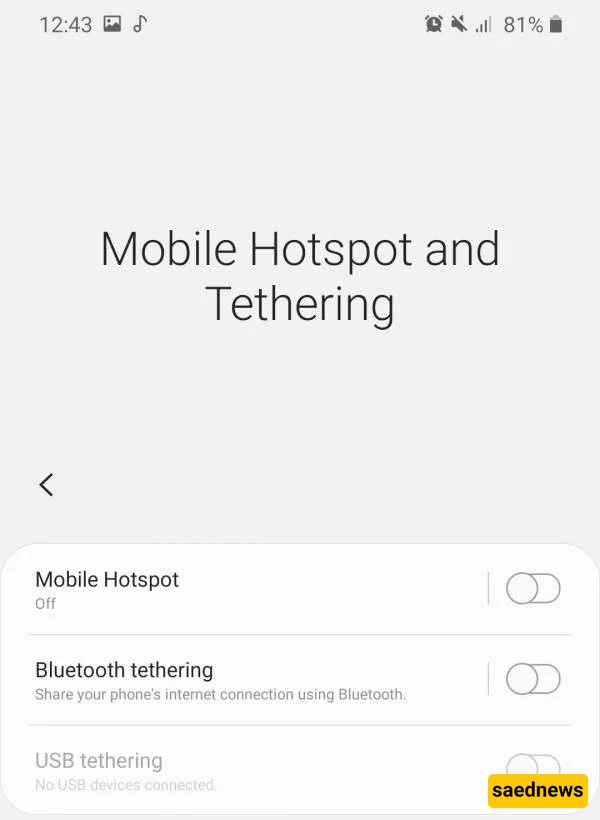
The second method is Bluetooth connection. This method is slightly slower than the other two and may take more time. If the previous methods do not work, you can use this one. Otherwise, the first and third methods are recommended. To connect via Bluetooth:
Follow the first five steps from the previous method to reach the Mobile Hotspot and Tethering section.
Enable Bluetooth tethering. Once activated, the related icon will appear in the top toolbar.
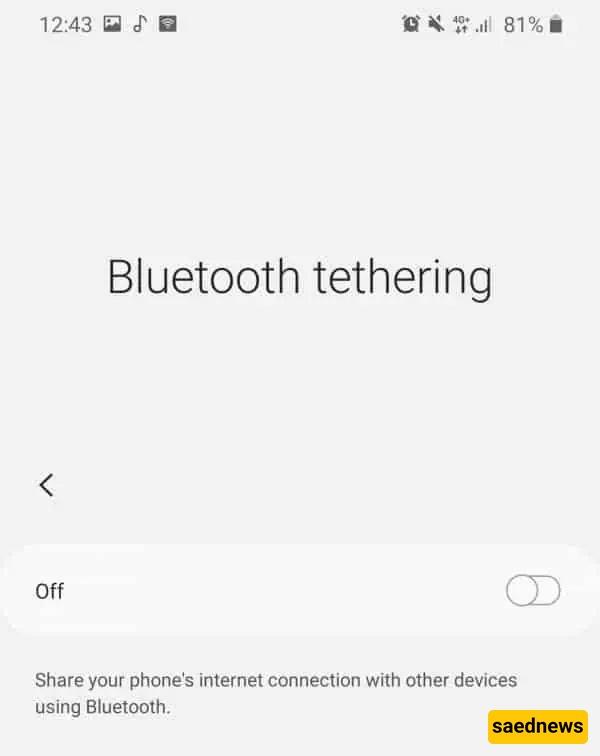
Now go to your laptop’s Bluetooth settings and pair your phone with your laptop. This can be done easily through the Devices and Printers section in Windows settings.
The third and most common method is using Mobile Hotspot. This method does not require any cable, only a smartphone with hotspot capability. In this method, your phone works like a modem. Follow these steps:
Go to Mobile Hotspot and Tethering in your phone’s settings, just like in the previous methods.
Enable the Mobile Hotspot option and turn on mobile data.
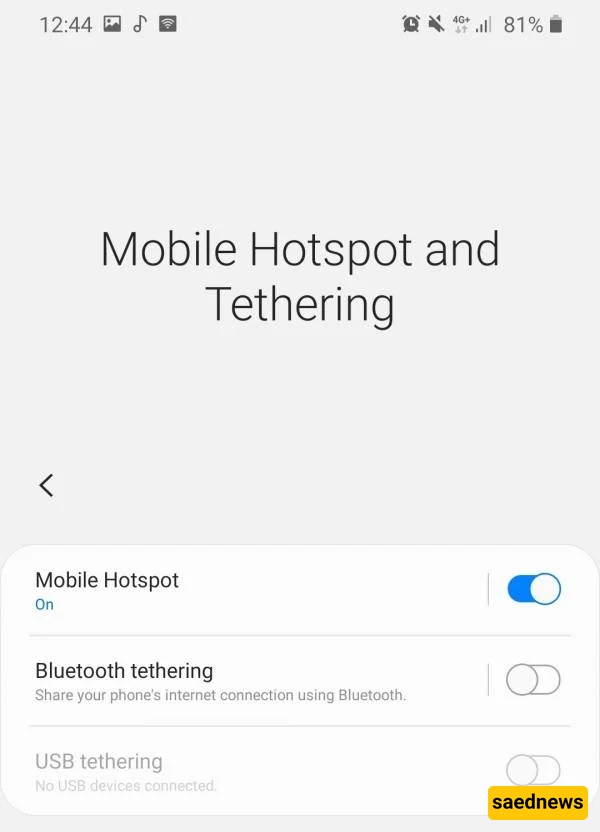
To allow your laptop to connect, you need the hotspot name and password. Tap on the active Mobile Hotspot option to view them.
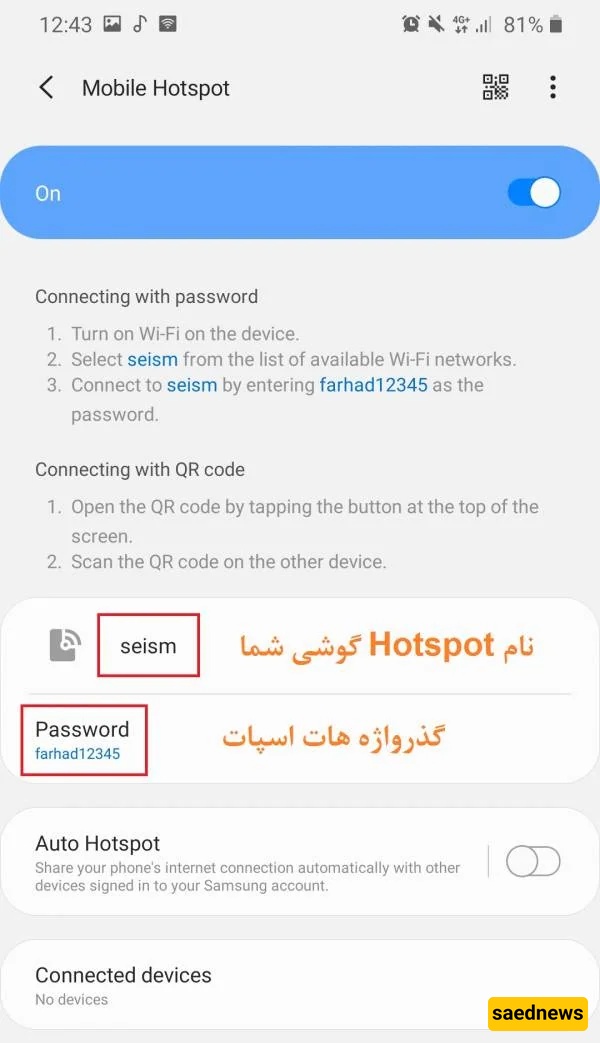
Finally, click the Wi-Fi icon on your laptop (bottom-right corner), turn on Wi-Fi, and wait for available networks to appear. Select your phone’s hotspot name, click Connect, and enter the password to complete the connection.
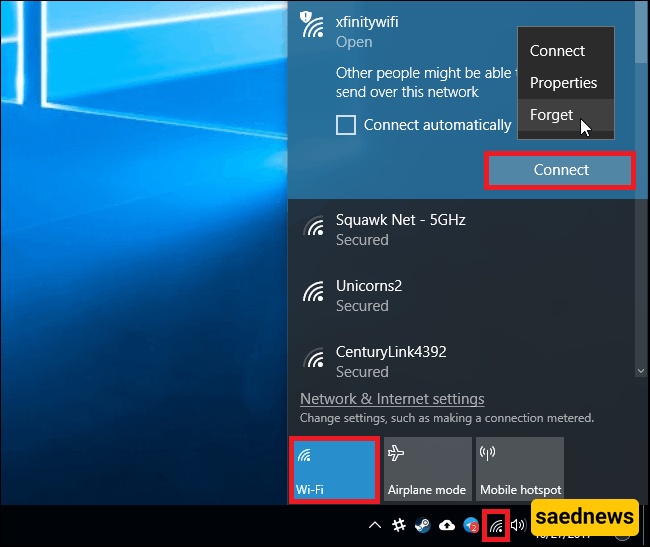
Now your phone’s internet is successfully connected to your laptop.