SAEDNEWS: If you’ve seen text on a website but couldn’t copy it, this guide will introduce practical methods to copy text from locked sites.

Many of us have encountered text on the internet that cannot be easily selected or copied. This security or content barrier, which prevents information transfer, often frustrates users. While some pages allow copying, “locked” pages pose a different challenge. Don’t worry! In this guide, we’ll walk you through all effective and practical methods for bypassing these restrictions and easily copying text from any website, step by step. Ready to take control of web content?

One of the main reasons websites lock their content is to prevent unauthorized copying and distribution. However, if your goal is purely personal use—such as saving content for later reference, not misuse or public sharing—there are ways to extract it.
These methods ensure you don’t lose valuable content if the original website becomes unavailable. Here’s how to do it step by step:
The simplest method to copy text from locked websites is to disable JavaScript in your browser. This is quick and straightforward. It’s recommended to try this first, and if it doesn’t work, move on to other methods.
Steps to disable JavaScript:
Open the website in your browser and click the lock icon at the top-left of the address bar.
Select Site Settings.
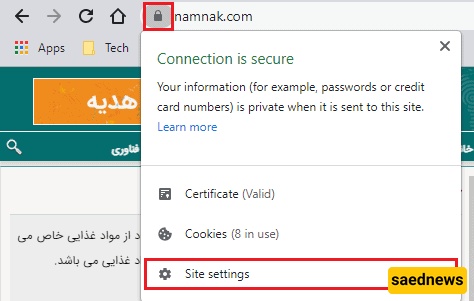
Scroll down to JavaScript.
Choose Block to disable JavaScript.
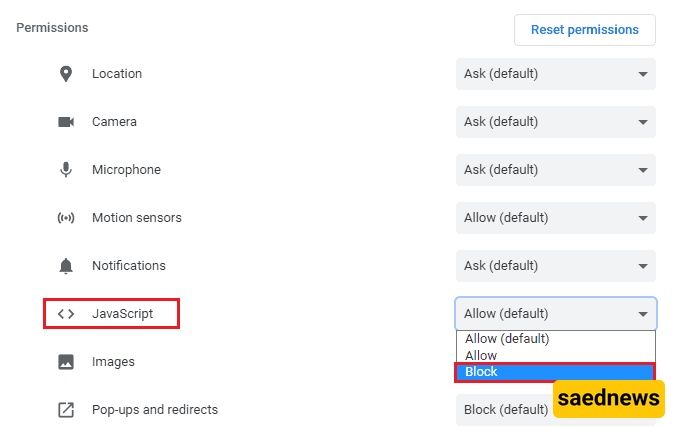
Close and reopen your browser to apply changes.
You can now try copying text from the locked website.
Another way to copy text from locked sites is by using browser extensions. Many extensions exist, but not all are effective. Some of the recommended ones are:
For Chrome:
Simple Allow Copy
Enable Copy
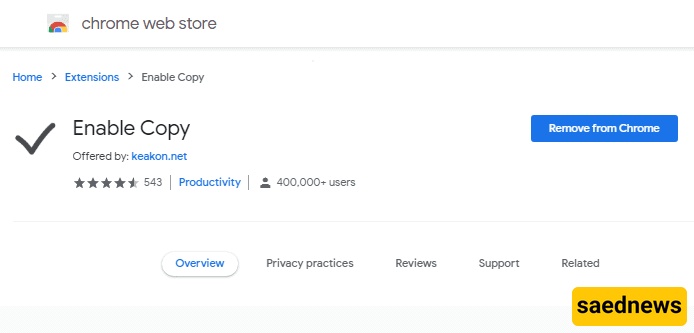
For Firefox:
Absolute Enable Right Click & Copy
Allow Right-Click
Most users aren’t aware of the Inspect option in browsers, which web developers use to examine page elements. Using Inspect, you can make any element selectable and copy its content, regardless of whether the page is locked.
Steps to use Inspect:
Hover over the paragraph you want to copy, right-click, and select Inspect.
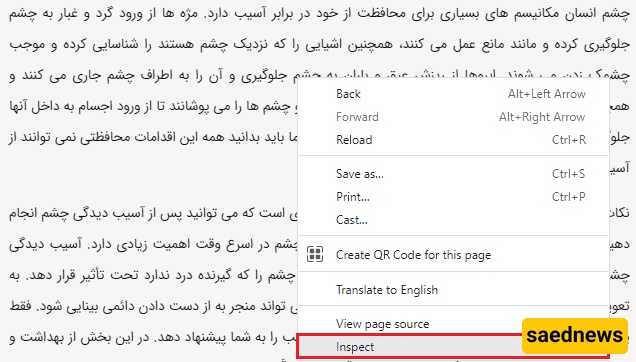
Locate the text in the code panel, double-click to select it, then right-click and choose Copy → Copy Element.
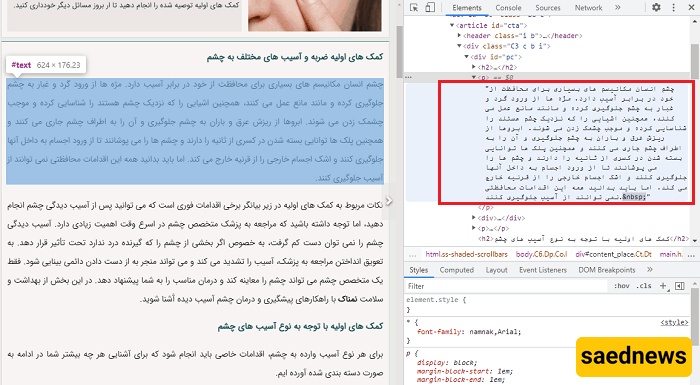
The text is now copied and can be saved anywhere on your computer.
If you want the entire content of a page rather than individual sections, you can take a full-page screenshot. Some tools allow you to capture the entire page in Chrome and export it as a PDF. This is a free and simple way to preserve content for offline use.