SAEDNEWS: Samsung phone lock screens have a hidden and useful feature called Touch and Hold Edit.
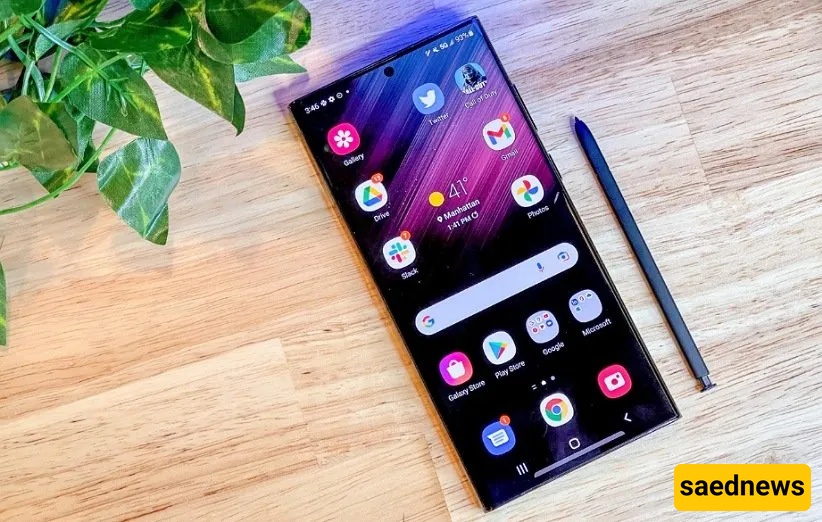
According to a report from the Saed News Technology Service, citing the Young Journalists Club, in recent years Samsung has been working hard to improve its One UI interface and add useful features to it. However, what is interesting is that Samsung often includes hidden features in its phones that remain unnoticed by many users. Today we will look at one of these hidden features related to the lock screen on Samsung devices.
This feature, introduced with the One UI 5.0 update, is called Touch and Hold Edit. As the name suggests, it allows users to make changes to their home or lock screen without going into the phone’s settings menu. First, you need to activate it:
Go to your phone’s Settings and tap on Lock Screen.
Enable the Touch and Hold Edit option.
Press the power button to turn off the screen and enter the lock screen.
Now double-tap the screen or pick up the phone to display the lock screen.
Press and hold on an empty area of the lock screen.
You will then be able to edit different elements on the screen.
For example, you can change the style of the clock by tapping on it.
With this hidden lock screen feature on Samsung phones, you can display more information on the screen. For instance, you can add a specific contact’s information to the lock screen so you can quickly call them.
In addition, another hidden feature called Screen Off Memo is available on the Galaxy S22/S23 Ultra and Galaxy Note 20 series. This feature uses the S Pen and allows users to take notes directly on the lock screen without opening the Samsung Notes app.
To activate it:
Go to your phone’s Settings.
Scroll down and select S Pen.
Find the Screen Off Memo option and enable it.
From now on, you can write notes on your screen without unlocking your phone. Before writing, you need to press the S Pen button to activate it. The written note can then be saved to your phone’s memory.