SAEDNEWS: Windows Clipboard is a built-in Windows feature. In this guide, we’ll explain how to enable and use it effectively.

According to Saednews, Among the many tools available in Windows for everyday users, there are dozens worth exploring. One particularly useful feature is the Windows Clipboard, especially for people who frequently work with content and regularly copy and paste different pieces of text.
Windows Clipboard History allows you to access previously copied items instead of being limited to the most recent copy. It is simple to activate and can make everyday work much more efficient.
Windows Clipboard is built into the operating system, but Clipboard History must be enabled before you can use it. Follow these steps:
Open Settings from the Windows Start menu.
Select System.
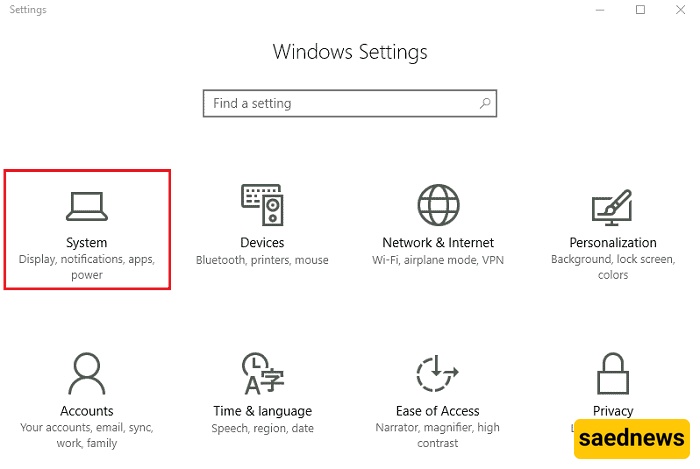
From the left-hand menu, choose Clipboard.
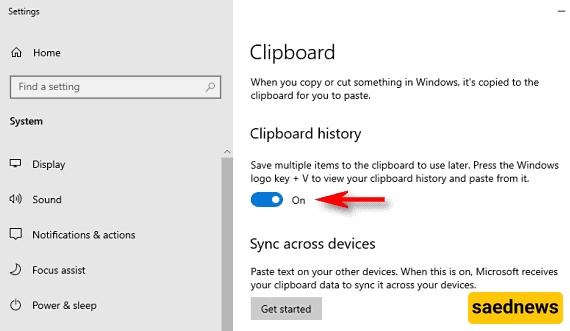
In the Clipboard settings, turn on Clipboard history.
Once enabled, Windows will begin storing your copied items so you can access them later.
After enabling Clipboard History, you can access and manage your previously copied content as follows:
Press Win + V on your keyboard. A panel will appear showing the text and other items you have recently copied.
Click any item in the Clipboard History panel to paste it into the active application or field.
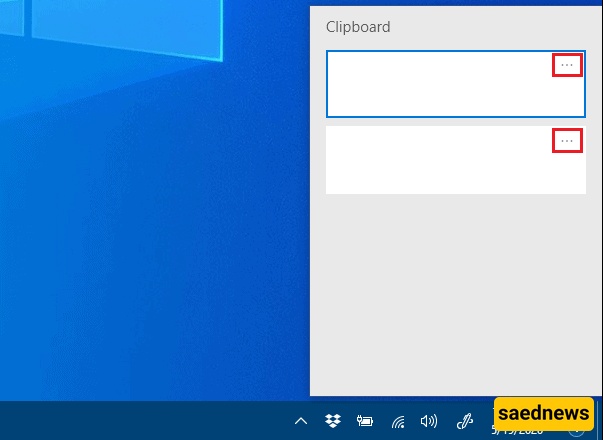
To manage individual items, click the three-dot menu next to a copied item. You can then:
Delete the selected item.
Pin an item so it remains available.
Clear all items from Clipboard History.
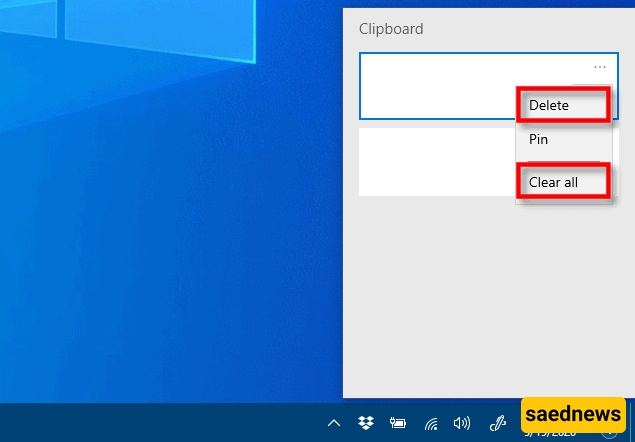
With these simple options, you can easily manage Windows Clipboard History and quickly reuse content you have copied in the past.