SAEDNEWS: How to Access Samsung TV Service Menus for Repairs and Advanced Tasks
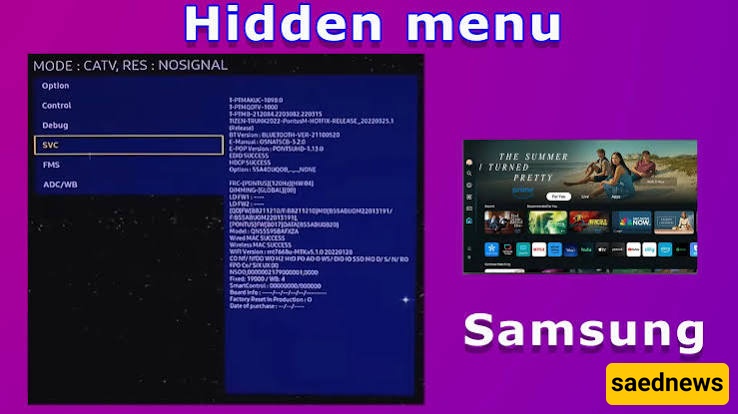
According to Saednews, You can easily open the hidden menu on a Samsung TV, provided that you know the correct Samsung TV service codes. In this guide, you will learn how to access advanced Samsung TV settings. This information can help with software diagnostics and professional configuration.
By pressing the remote buttons in this sequence: INFO → MENU → MUTE → POWER (in order and without pauses), a blue service screen appears. It displays important details such as the exact serial number, factory region, operating hours, and software version.
This information can be useful for verifying the authenticity of a Samsung TV because counterfeit models may fail to open this menu or may show a serial number that does not match the label on the back of the television.
Practical example:
After entering this code, you can immediately check whether a TV has only a few hours of use or hundreds of hours of operation.
Using the sequence MUTE → 1 → 8 → 2 → POWER opens the Samsung Service Menu, where advanced image-related settings may be available, including RGB calibration, color temperature adjustments, and panel-related options.
If movies appear too artificial, overly smooth, or have washed-out colors, these settings may allow professional calibration beyond the standard Picture menu.
Practical example:
Adjusting image parameters carefully can improve color accuracy and make skin tones appear more natural in movies and TV shows.
For anyone purchasing a second-hand Samsung TV, checking operating time can be valuable. The sequence DISPLAY → 5 → VOL+ → POWER may display information such as Total Power On Time, showing the number of hours the television has been used.
A low number may indicate limited use, while a very high number suggests that the TV has been operating for many years or for extended periods in places such as stores, offices, or waiting areas.
Practical example:
If a supposedly “new” television shows thousands of operating hours, it may indicate previous heavy usage.
Some imported Samsung TV models may not include Persian language support or may have difficulty detecting local channels.
The sequence MUTE → ADD → RETURN → POWER can open the Option Byte menu on certain models, where region-related settings may be available. Changing the country or region settings can affect language options, channel compatibility, and tuner configuration.
Practical example:
Changing the correct region settings may help a TV recognize local broadcast channels and enable additional language options.
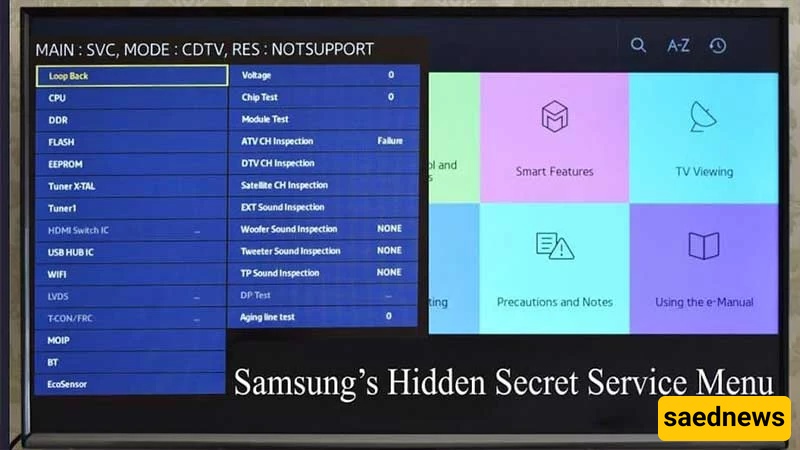
If a Samsung TV randomly restarts or experiences issues such as HDMI connection problems, the INFO → SETTINGS → MUTE → POWER sequence may open a self-check screen.
This diagnostic menu can display information related to hardware components, including temperature sensors, power supply status, and backlight condition.
If a component shows a failure message, it may require further inspection by a qualified technician.
Practical example:
A backlight failure indication can help identify why the screen has become dim and may allow repairs before complete LED failure occurs.
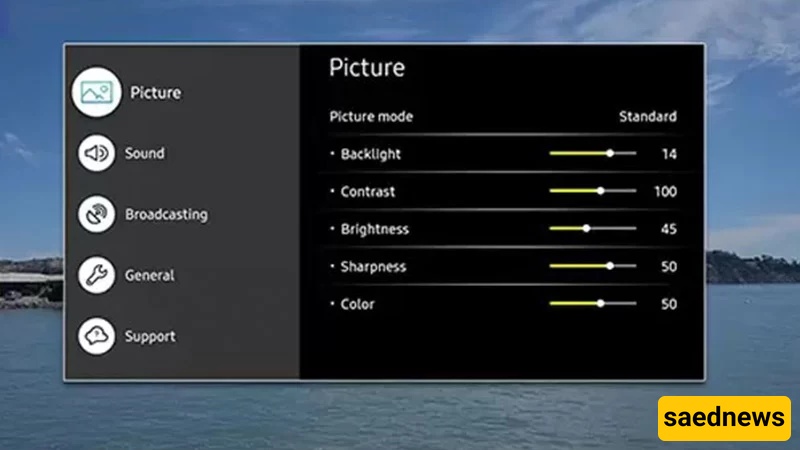
These hidden menus provide access to advanced television settings, but incorrect changes can affect device performance and may even cause software problems or warranty issues.
Before modifying any service settings:
Take photos of the original values.
Avoid changing options you do not understand.
Record the factory settings before making adjustments.
If you are unsure, use the menu only to view information and exit without saving changes.
The service information alone can be enough to check a Samsung TV’s authenticity, software version, and usage history without making any modifications.