SAEDNEWS: The main and most important program for transferring files to an iPhone is iTunes, which has various limitations. In this report, you will become familiar with 5 fast methods to transfer files without using iTunes.
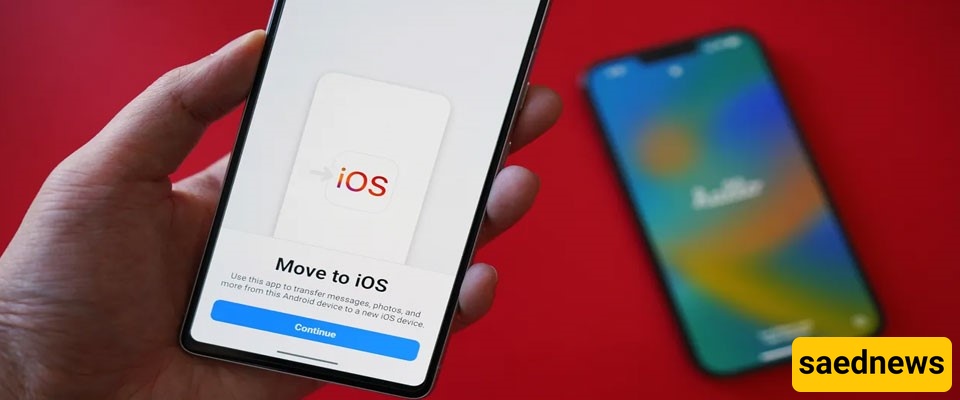
According to Saednews, Transferring files to an iPhone, according to experts in this field, has traditionally been done through Apple’s iTunes software, designed and provided by Apple for all users of its devices. However, anyone who has used iTunes is likely familiar with its limitations, which can be frustrating and, when repeated, may reduce user satisfaction significantly.
So what is the solution? Is there another way to solve this problem? The answer is yes. You can easily transfer files to iPhone and iPad without needing software like iTunes. Some users also report that iTunes can be slow when transferring files.
Fortunately, iTunes is not the only option, and there are several other problems associated with it, including errors during file transfer. In this report, we introduce five fast and effective solutions.
If you are looking for an alternative program to replace iTunes on Windows or Mac, one of the best options is EaseUS MobiMover. With this software, you can transfer files between your computer and iPhone/iPad with just a few clicks.
It allows you to move and manage different types of files and even create backups that can be restored to another iPhone or iPad.
No iCloud limitations for file transfers
Supports photos, videos, music, PDFs, and more
Enables copying data between iPhone and iPad
Compatible with macOS
Simple one-click file management and transfer
Connect your iPhone or iPad to your computer and tap Trust on the device.
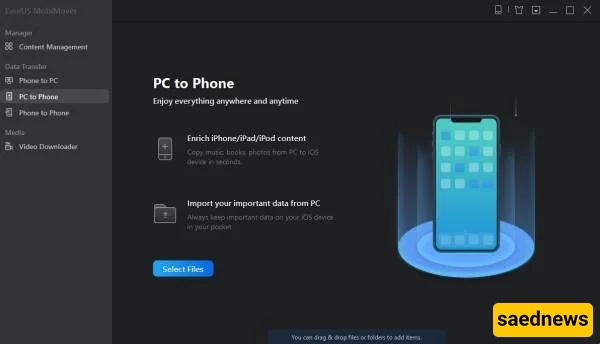
Open EaseUS MobiMover and select PC to Phone, then click Select Files.
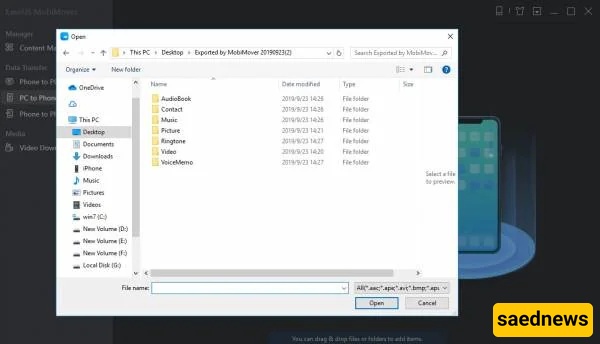
Choose the files you want to transfer and click Open.
The selected files will appear on the right panel with details.
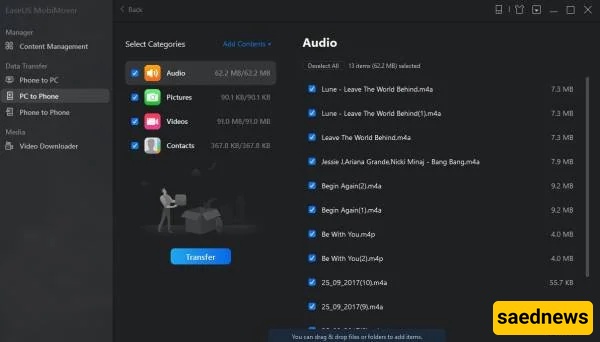 After completion, all files will be transferred and accessible on your iPhone.
iCloud Drive is available for different computers and can be used after activation on both your computer and iPhone.
Download iCloud Drive from Apple’s iCloud website
Sign in with your Apple ID
Locate the iCloud Drive folder on your computer
Access the files on your iPhone or iPad through the Files app
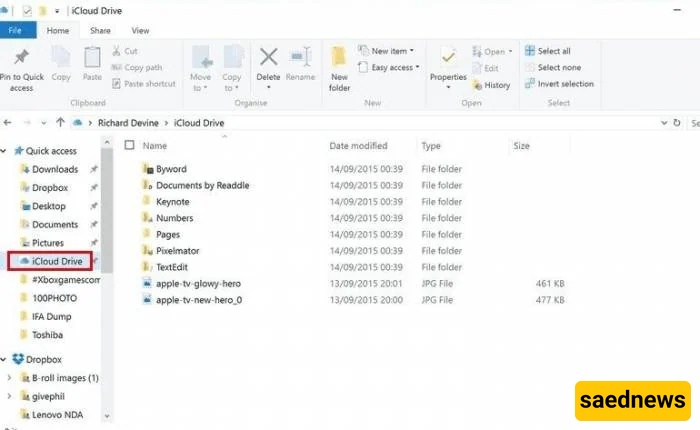
This is one of the simplest methods for transferring files to an iPhone or iPad. It works not only between computer and iPhone but also between iPhones.
However, it has limitations such as file size restrictions and slower transfer speed.
Attach your files to an email
Open the email on your iPhone or iPad
Download the attachments
AirDrop is a built-in feature in macOS and iOS that allows wireless file transfer without cables.
It supports photos, documents, music, and more between Apple devices.
Enable AirDrop, Wi-Fi, and Bluetooth on both devices
Make sure devices are discoverable
Select the file and tap Share
Choose the target device
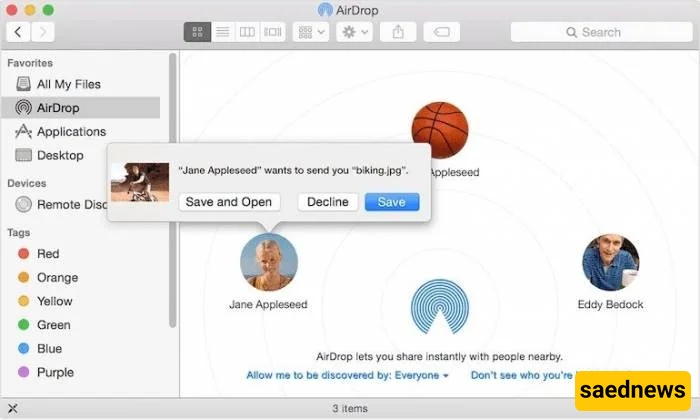
Files will be transferred wirelessly without any cables.
In addition to iCloud Drive, other cloud storage services like Google Drive and Dropbox can also be used.
These platforms offer free storage and are often more flexible than iCloud.
Upload files from your computer to a cloud service
Open the app or website on your iPhone
Download the desired files
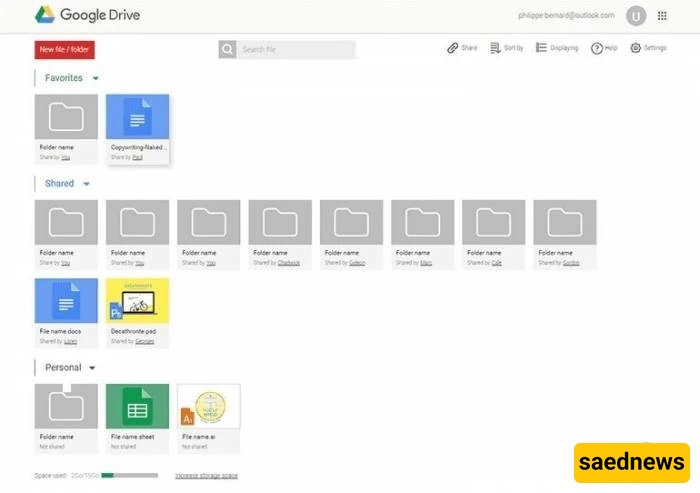
Transferring files to iPhone or computer is essential for accessing photos, videos, books, and documents anytime. While iTunes was once the main option, it is no longer the only solution.
As explained above, there are multiple ways to transfer files without iTunes. Among them, EaseUS MobiMover is often considered one of the simplest and most efficient options.