SAEDNEWS: A guide explaining how to resolve installation issues when a downloaded app fails to install despite repeated attempts.
According to Saednews, The Android operating system is one of the best in the world and has recently reached peak popularity, as more than 70% of the world’s smartphones run on it. However, in its early release stages, Android had both advantages and disadvantages. Over time, through continuous updates, many of its bugs and issues were fixed.
Despite technological progress, we still face certain problems today that can sometimes occupy our entire day and prevent us from achieving what we want. In general, Android bugs and issues depend on time and development, and many simple or security-related problems have already been resolved.
One common issue we focus on here is apps not installing on Android devices, which may be a problem many users experience. If you are facing this issue, the following solutions can help you fix it.
Before looking at solutions, it is better to understand the root causes of this problem:
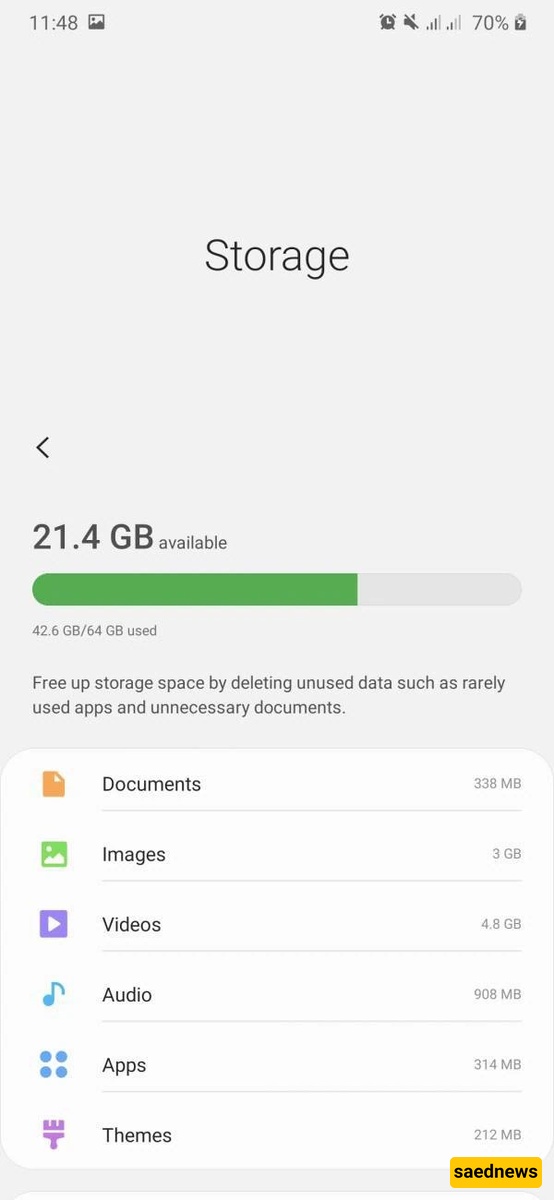
Full device storage
Downloading apps from untrusted websites
Downloading apps via social media platforms
Cache issues in the Package Installer
Cached data in the phone system
Outdated or infected app files
Disabled “Unknown sources” installation permission
One of the most important factors when buying a phone is internal storage. You should choose storage based on your actual usage needs. Some users manage well with 16GB even after years, while others need much more space.
To solve storage-related issues:
Back up files to a computer
Delete unnecessary files
Use a memory card (SD card) to increase storage
A simple search on Google can lead you to many websites, some of which are unreliable or even dangerous. These sites may distribute malware disguised as legitimate apps.
To avoid issues:
Always download apps from trusted sources such as the Google Play Store
Sometimes, installation settings may have been changed without your knowledge. To reset them:
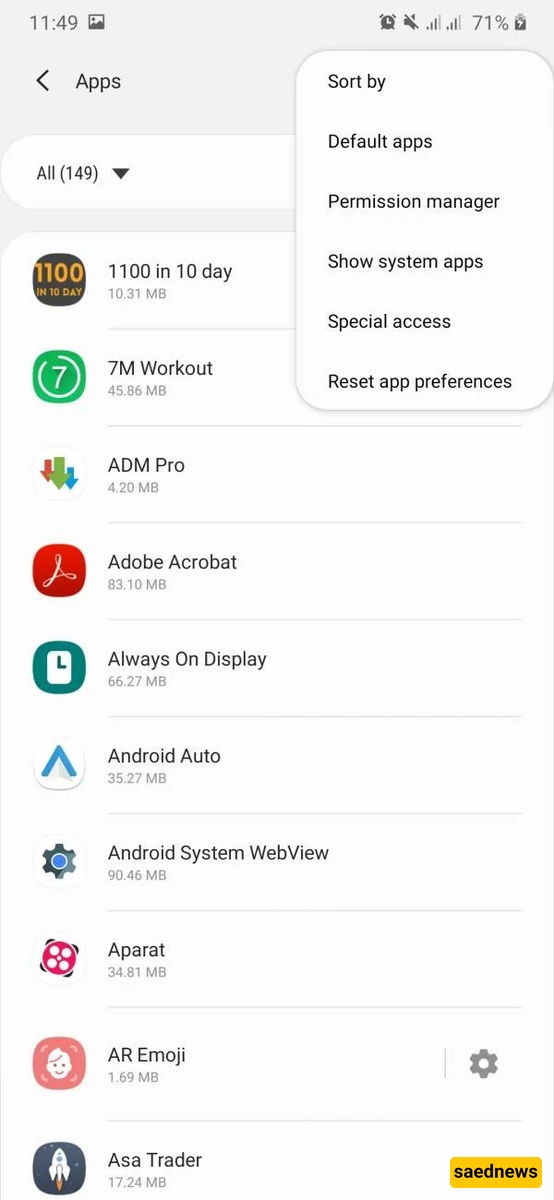
Go to Settings
Open Apps
Tap the three-dot menu
Select Reset app preferences
Apps can be installed from three main sources:
Google Play Store
Websites
Social media platforms
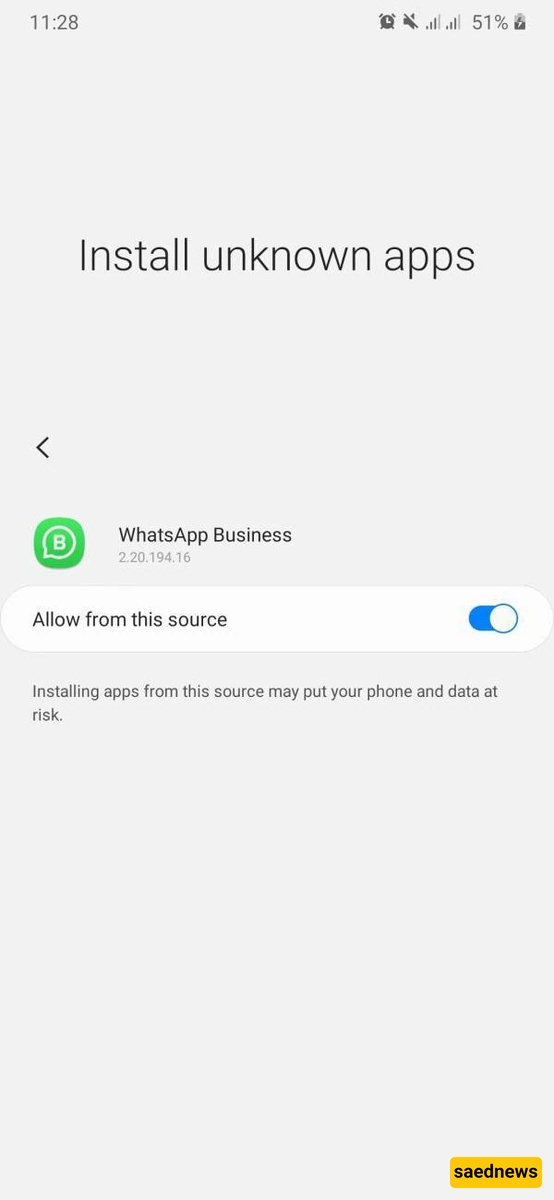
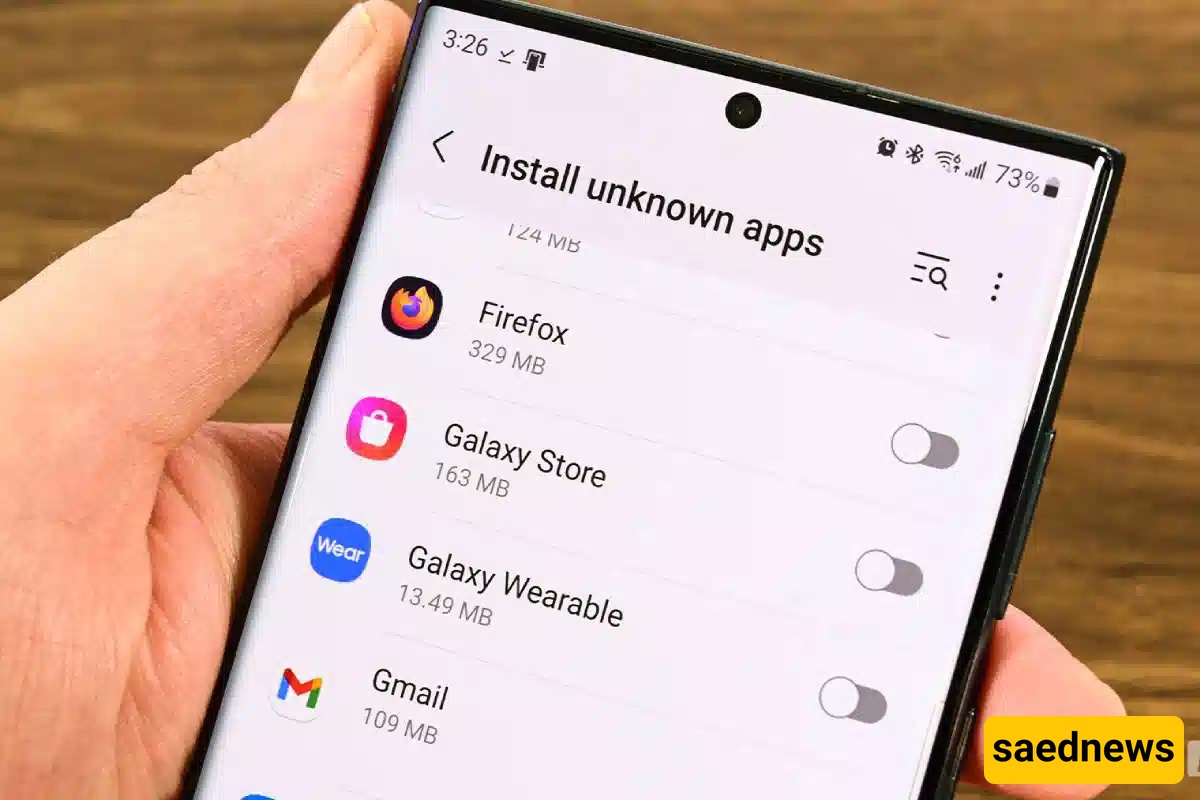
If you install apps outside the Play Store, you must enable permissions:
Go to Settings
Open Apps
Select the app (e.g., WhatsApp)
Find Install unknown apps
Enable permission
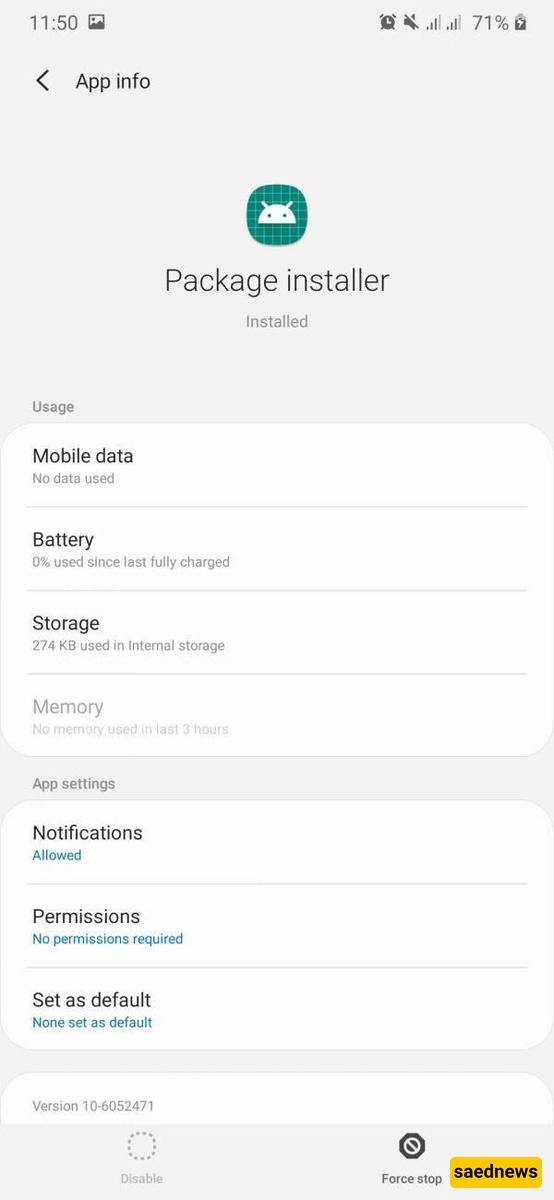
The Package Installer handles app installations. Sometimes its cache may cause problems.
To fix it:
Go to Settings
Search for Package Installer
Open Storage
Clear cache
Try installing the app again
If the app has been stored on your device for a long time without installation, it may be outdated or corrupted. In some cases, Google Play blocks harmful or insecure apps.
To resolve this:
Download the latest version from Google Play
Avoid using modified or outdated APK files
Google Play now acts similarly to Windows Defender, preventing installation of harmful apps and warning users when necessary.
In older versions of Android, there is an option called Unknown Sources that allows installation from outside the Play Store.
To enable it:
Go to Settings
Open Security
Enable Unknown Sources