SAEDNEWS: How to Install Fonts on a Computer: A Simple Guide

According to Saednews, As you may have seen in various magazines and articles, the style of written texts and their appearance can differ greatly. Even in programs like Microsoft Word, we often experience changes in text design. The tool that allows us to apply these changes in different user environments is called a “font.” Nowadays, with a simple search, you can download dozens of free fonts in a ZIP file and install them.

In general, a “font” refers to the standard alphabet letters that are designed in various shapes and styles by different creators. By using these fonts, you can customize your article based on the environment in which you intend to present it. However, if you have downloaded or purchased some fonts but have not yet managed to install them, this guide will help you learn how to install fonts on a computer.
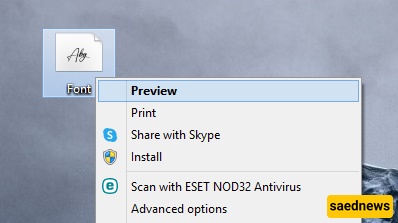
First, locate the downloaded font file. It may be on your desktop or any other folder—it does not matter. After selecting the font file, right-click on it and choose Preview.
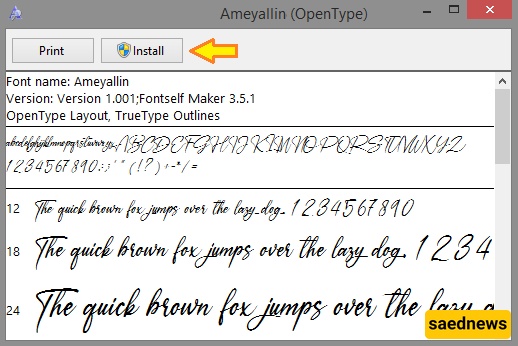
A new window will open. At the top of this window, you will see an option called Install. Click on it to begin installing the font.
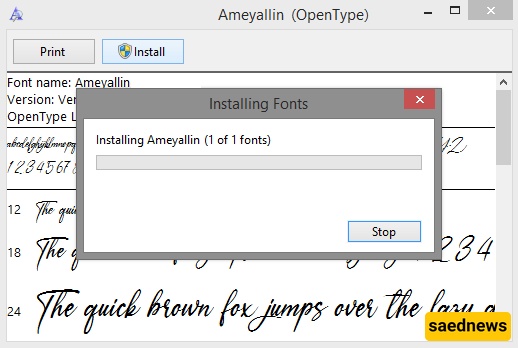
Another window will appear showing the installation process. You should wait a few seconds for it to complete. Once the font is installed, the Install button will become inactive, indicating that the font has been successfully installed on your computer.
If you want to install several fonts in the shortest time possible, instead of opening each file one by one, you can use this method.
First, select all the font files you want to install. Then right-click on one of them and choose Install from the menu.
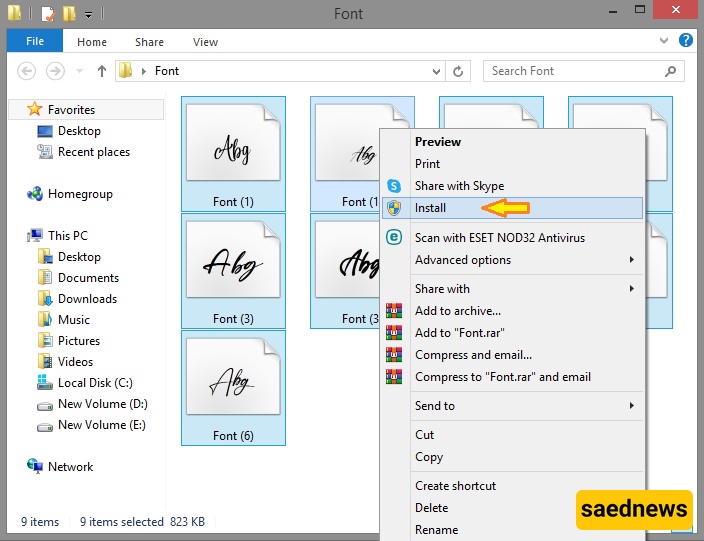
Depending on the number of files you selected, the fonts will be installed within a few seconds. After that, you can use them directly in different programs such as Microsoft Word, PowerPoint, and others.