SAEDNEWS: To create a more engaging digital environment for specific tasks, administrative work, or new games, having more displays can be helpful. Installing an extra monitor on a desktop computer is not difficult. Keep reading to learn how.
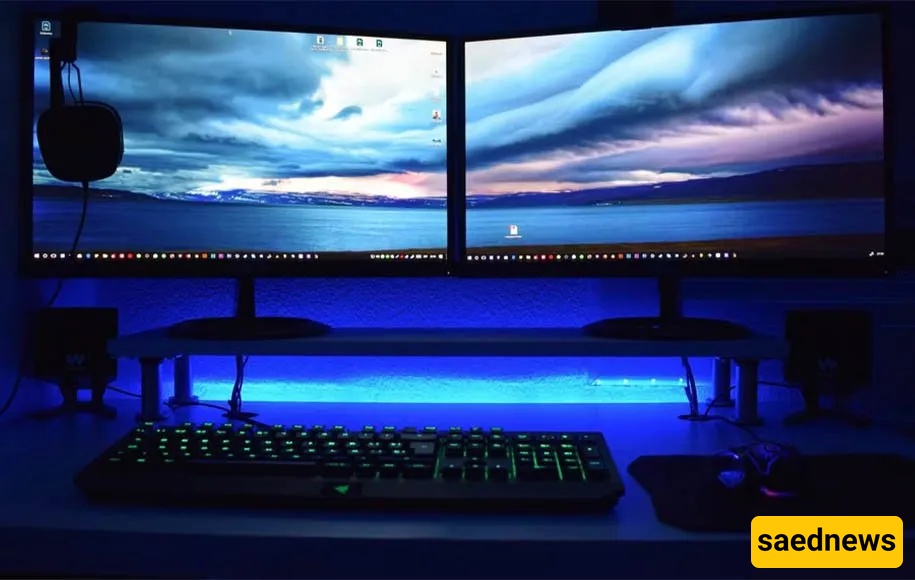
Most gamers and designers prefer using two monitors instead of one to improve their workflow. This setup allows them to have better control and perform tasks with greater precision.
Sometimes you may wonder how to connect two monitors to a single computer case so that each monitor displays different parts of your workspace. Here’s a step-by-step guide to help you set up a dual-monitor system.

Before connecting two monitors, ensure your graphics card supports both displays. Most modern graphics cards come with combinations of DVI, VGA, or HDMI ports, though the exact configuration may vary. For example, one graphics card may have two DVI ports and one VGA port. Once you have a compatible graphics card, install it in your computer case. If you’re unsure how to do this, seek help from a professional.
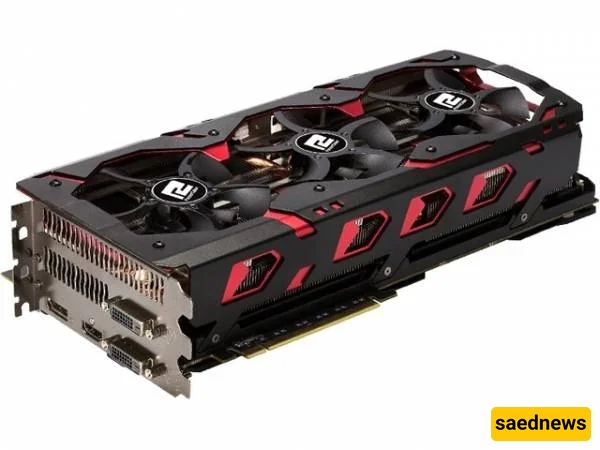
After installing the graphics card, connect the monitors to the respective ports. Turn on the computer; if you see an image on both monitors, the installation was successful. Next, install the graphics card driver using the CD provided with the card or download the latest version from the manufacturer’s website to ensure optimal performance.
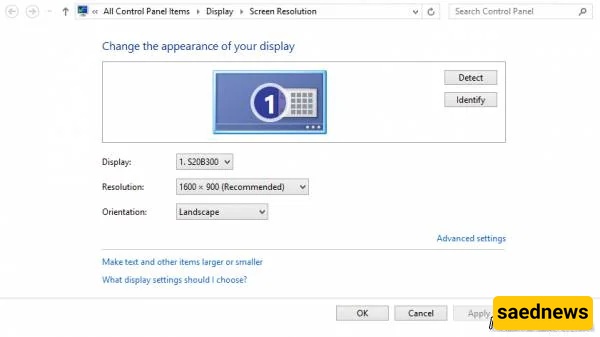
Once your system recognizes the second monitor, configure it through your operating system. In Windows, go to Settings > Display. Your primary monitor will be labeled as “1” and the secondary monitor as “2.”
Right-click on the second monitor and select Attached (or Extend Desktop to this Display). Adjust the Screen Resolution for both monitors to the default or desired setting. This ensures both displays work together seamlessly.
If you want to add more than two monitors, you’ll need a more powerful graphics card. There is no strict limit to the number of monitors you can connect; the setup process is the same for each additional display.