SAEDNEWS: Xiaomi users can choose from several built-in and third-party backup options to securely save their contacts, photos, videos, apps, messages, and other important data.
According to Saednews, If you use a Xiaomi smartphone, backing up your data is an important step to protect your photos, contacts, messages, and other personal files. Whether you are dealing with software issues, switching phones, or simply want an extra copy of your data, having a backup can save you from losing important information.
Several tools can help Xiaomi users transfer or back up their data. Below are three practical options.
Despite its name, Samsung Messages Backup can also be used with Xiaomi phones and supports backing up different types of smartphone data to a Windows or Mac computer.
Download and install Samsung Messages Backup for Windows or Mac.
Launch the program and connect your Xiaomi phone to the computer using a USB cable.
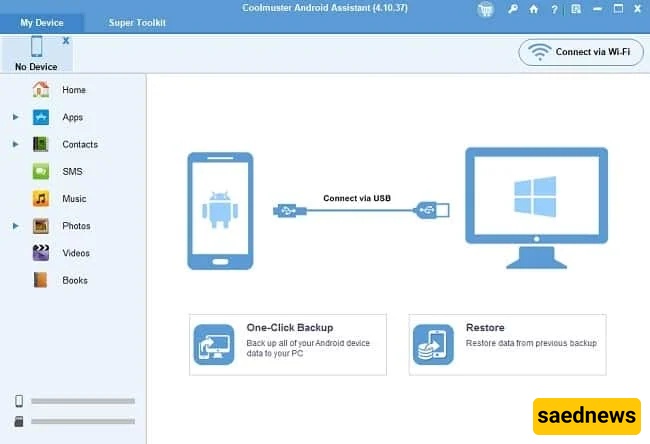
Wait for the software to detect your phone and access its available data.
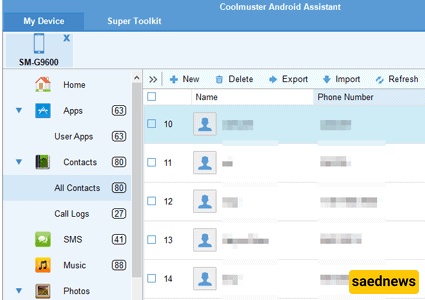
From the menu on the left, select the types of information you want to back up. The selected data will be displayed on the right.
Click Export in the top toolbar to transfer the selected files to your computer.
In the new window, select Super Toolkit, followed by the blue Backup button.
Your selected Xiaomi data will then be backed up to the computer.
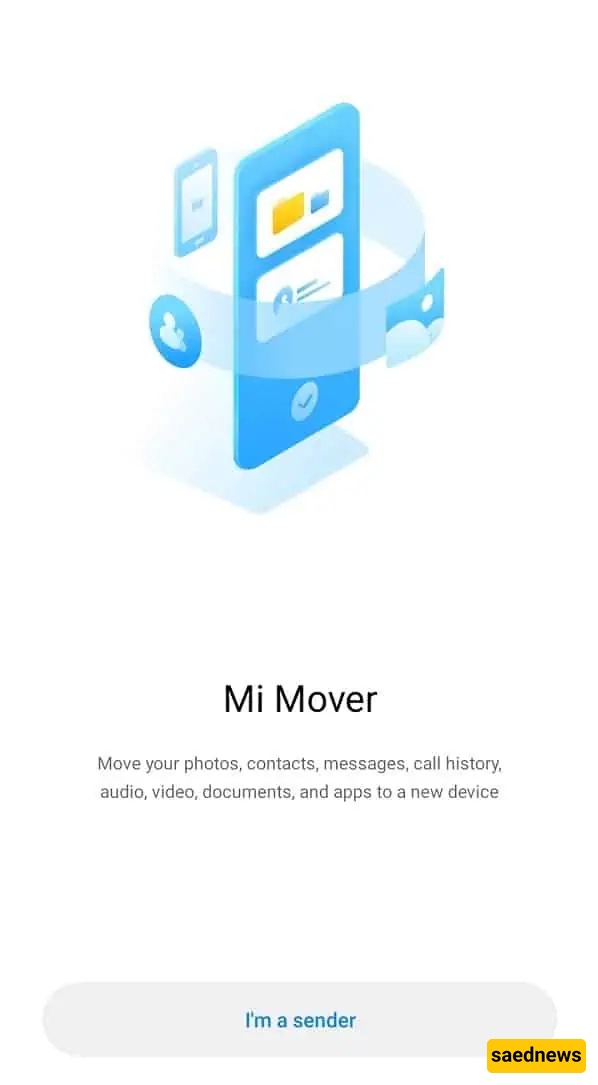
Mi Mover is Xiaomi's own data-transfer application. It was introduced to make it easier to move information from one Android phone to another. It is particularly useful when you do not have access to a computer and want to transfer your Xiaomi data directly to another smartphone.
Download and install Mi Mover on both phones.
Open the application on both devices. You will see two options:
I'm a recipient: Select this option on the new phone.
I'm a sender: Select this option on the old phone.
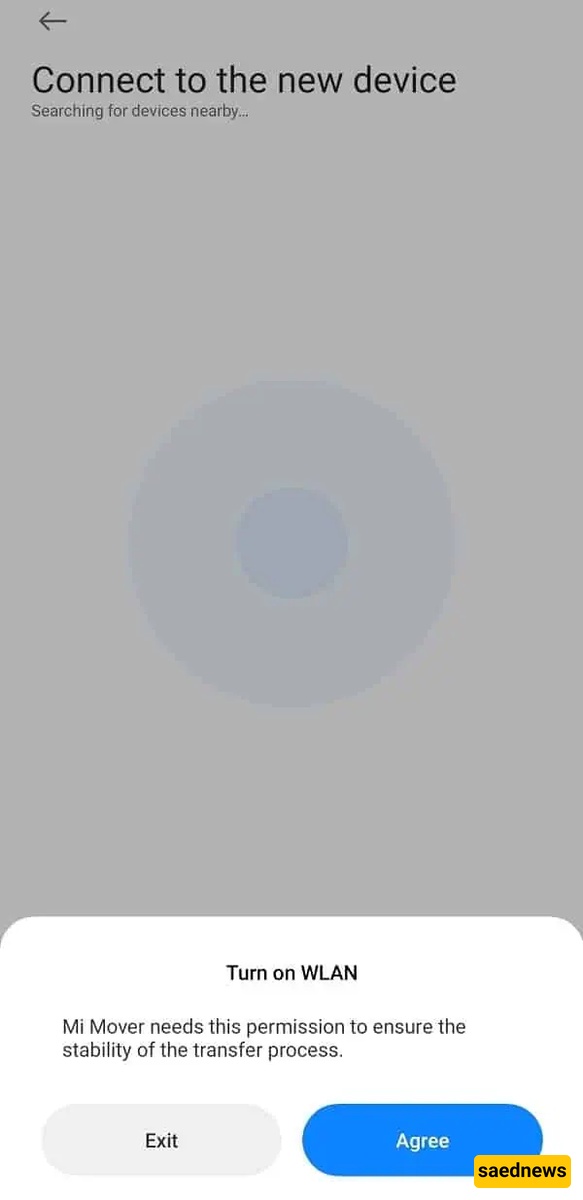
Choose the destination phone and scan the QR code displayed on the old device using the new phone.
Select the data you want to transfer and tap Send.
Wait for the transfer to finish. The required time depends on the amount of data being transferred.
Once the process is complete, tap Finish.
This method allows you to move your important data directly from your old Xiaomi phone to another device without needing a computer.
Many smartphone manufacturers provide desktop software for managing and transferring phone data. Xiaomi has also offered Mi PC Suite for connecting its smartphones to a computer and managing their contents.
Download and install Mi PC Suite on your computer.
Open the software and connect your Xiaomi phone using a USB cable.
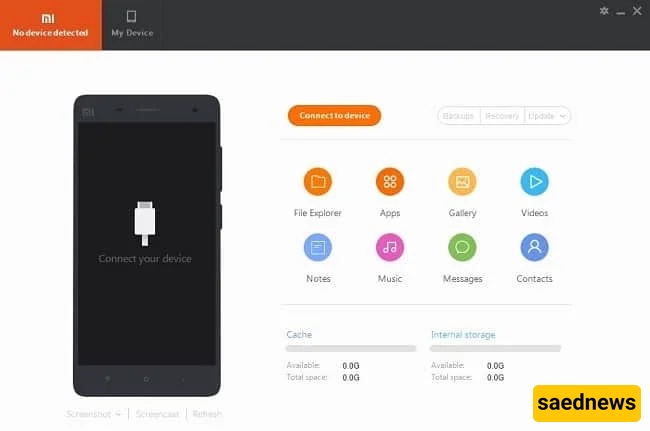
Wait for the program to recognize the device.
Select the types of data you want to save.
Start the backup process and wait for it to complete.
Once the transfer is finished, your selected Xiaomi data will be stored on the computer.
Regularly backing up your Xiaomi phone can help protect your important files and make switching to a new device much easier. Depending on what you have available, you can use a desktop program such as Samsung Messages Backup or Mi PC Suite, or transfer your information directly between Android phones with Mi Mover.