SAEDNEWS: Instructions for transferring data from Android to iPhone are provided below.
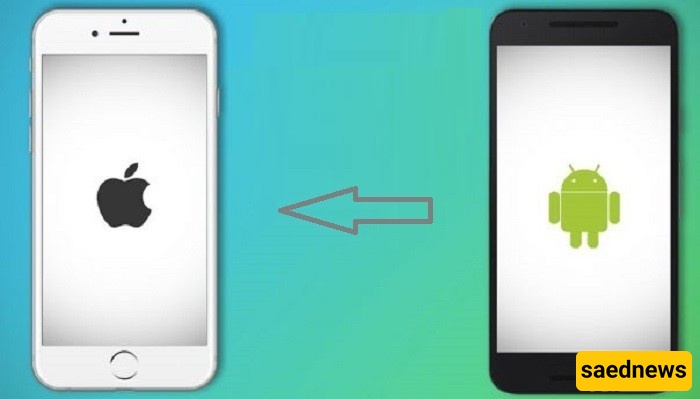
According to Saed News, iPhone sales often exceed analysts’ expectations, and many users switching from Android are looking for an easy way to transfer their data. If you are an Android user planning to move to iPhone, you are not alone. This guide shows how you can do it easily.
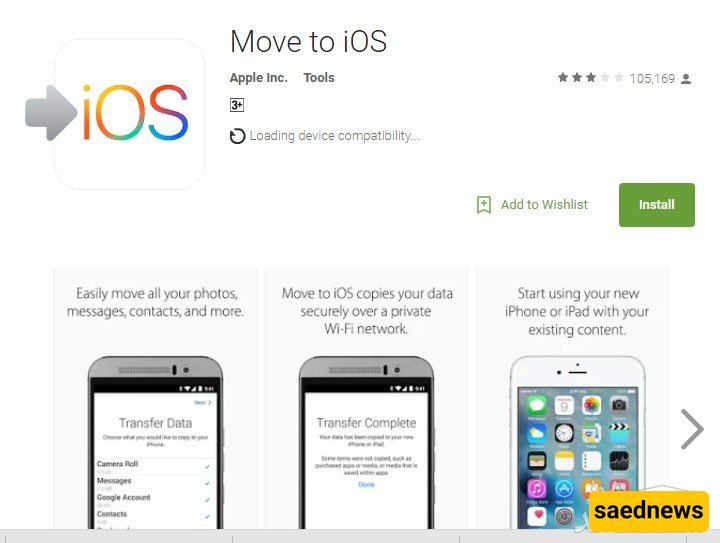
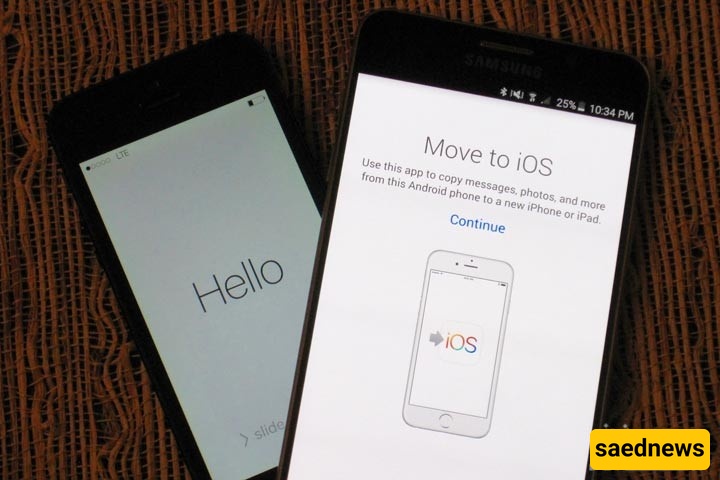
If you want to switch from Android to iPhone, you don’t need to worry about losing your photos or messages. Apple’s free Move to iOS app allows you to transfer them easily. The app is available on Google Play.
Contacts
Message history
Camera photos and videos
Web bookmarks
Mail accounts
Calendars
The app can also automatically download free apps available on iOS from the App Store. Paid apps are added to your App Store wishlist if available.
iPhone: iOS 9 or later
Android: Android 4.0 or later
You can check your Android version in Settings > About Phone.
Supported Apple devices include:
iPhone 5 or later
iPad (4th generation or later)
iPad Mini (2nd generation or later)
iPod Touch (6th generation)
Before starting, complete these steps:
Reset iPhone (if already set up)
Go to Settings > General > Reset > Erase All Content and Settings.
Check storage space
Make sure your iPhone has enough space for your data.
Connect to Wi-Fi and power
Keep both devices plugged into power.
Update Chrome (if needed)
Required for transferring Chrome bookmarks.
Turn on your iPhone and reach the “Apps & Data” screen.
Select “Move Data from Android.”
Open Move to iOS on Android and tap Continue.
Accept the terms and conditions.
On iPhone, tap Continue and wait for a code.
Enter the code on your Android device.
Select the data you want to transfer.
Wait until the transfer completes on the iPhone.
⚠️ Important:
Do not use either device during transfer. Keep Wi-Fi stable and avoid calls or other apps.
If your iPhone is already set up or Move to iOS does not work, you can transfer data manually. This method takes more time and requires a computer.
You may need:
Android device
iPhone
Windows or Mac computer
iTunes
USB cables
Android File Transfer (Mac only)
Services like Gmail, Yahoo, and Exchange do not need manual transfer. Just sign in on iPhone:
Settings > Mail > Accounts > Add Account
Connect Android to computer
Open DCIM > Camera
Copy files to computer
Connect iPhone
Use iTunes to sync photos
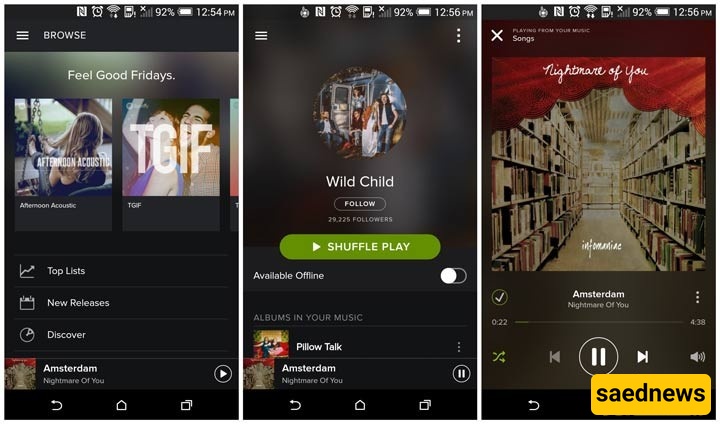
If you use streaming services like Spotify or Apple Music, just log in on iPhone.
For manual music files:
Copy music from Android to computer
Add files to iTunes library
Sync with iPhone
Copy files from Android (Documents folder)
Move them to computer or iCloud Drive
Sync using iBooks or iTunes Books section
Apps like Kindle or Google Books only require reinstalling and logging in.
Free apps: Automatically downloaded via Move to iOS (if available on iOS)
Paid apps: Added to App Store wishlist
If transferring manually, you must search for apps in the App Store.
Most Google services are available on iOS, including:
Google Maps
YouTube
Google Drive
Chrome
Google Translate
You can also use Apple alternatives like Safari and Siri.
 Accessories Compatibility
Bluetooth devices (headphones, speakers) work via Settings > Bluetooth
Wired accessories may require adapters on newer iPhones
Switching from Android to iPhone is straightforward using the Move to iOS app. It transfers most essential data automatically, while manual transfer is available for advanced cases or already-set-up iPhones.