SAEDNEWS: The green dot on Samsung, Xiaomi, and other Android phones shows that an app is using your camera. Introduced in Android 12 and later, it helps protect user privacy by alerting you when the camera is active.
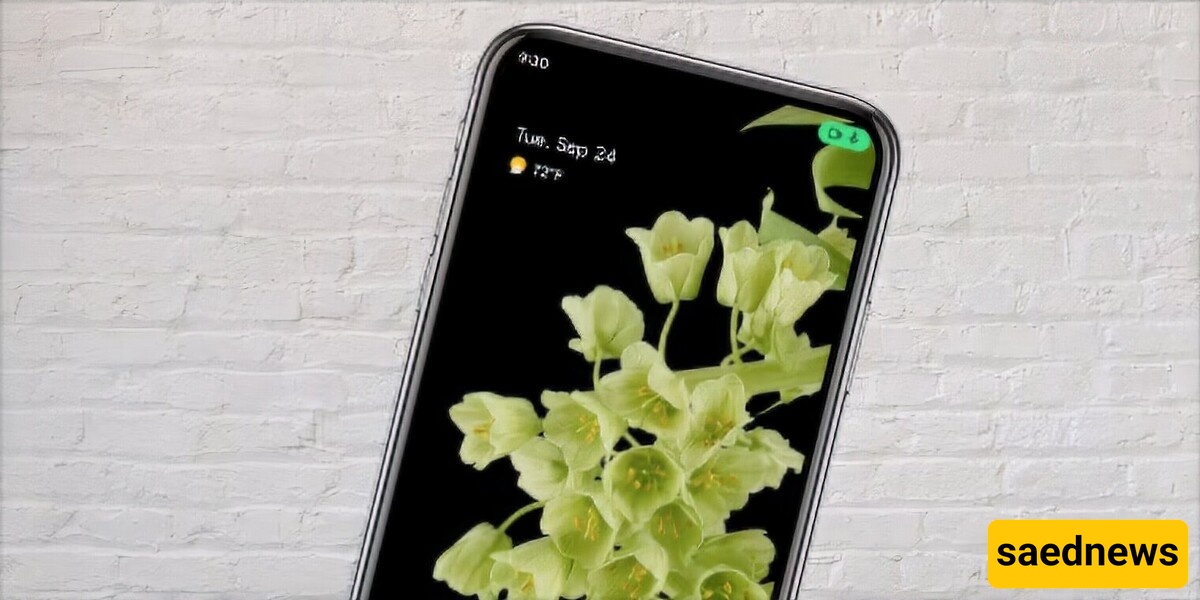
According to the technology desk of Saed News, if while using your smartphone—whether Samsung, Xiaomi, or other Android devices—you notice a small green indicator in the status bar at the top of the screen, you might wonder what it is and what it does. This green dot, introduced starting from Android 12, is part of Android’s privacy and security features designed to help protect users’ personal data. In this article, we will take a comprehensive look at this indicator, its purpose, how to manage it, and related security tips.
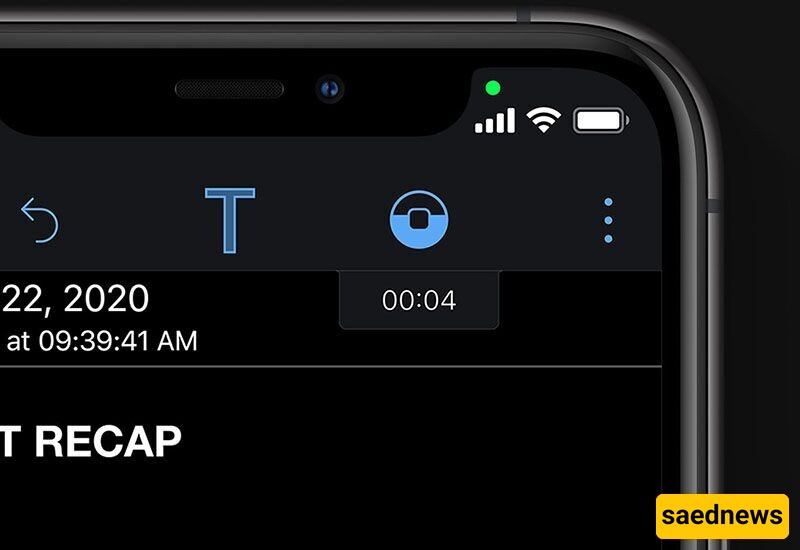
The green dot in the status bar of Android phones indicates that an app is actively using the device’s camera. This feature, introduced in Android 12 and later, is now available on Samsung, Xiaomi, Huawei, and other Android devices running this version or newer.
For example, when using apps such as the camera app, Instagram, WhatsApp, or Zoom for video calls, this indicator will appear.
In cases where both the camera and microphone are used simultaneously (such as video calls), the green dot represents camera activity. If you see an orange indicator, it means the microphone is currently in use.
This feature is part of Android’s privacy system, designed to increase user security and transparency. Its main purpose is to inform users when apps are accessing sensitive hardware such as the camera or microphone. It helps you:
Detect unauthorized access:
If you are using an app that should not require camera access (such as a game or unrelated application) and the green dot appears, it may indicate suspicious activity.
Control privacy:
You can review and restrict access for apps that seem suspicious.
Increase transparency:
It ensures users are clearly informed whenever the camera or microphone is in use.
To identify which app is triggering the green dot, follow these steps:
1. Check the notification panel:
On many Android devices, pulling down the notification shade will show which app is currently using the camera.
2. Go to privacy settings:
Open Settings
Go to Privacy or Security & Privacy
Check Camera Access or App Activity
This section shows recent camera usage by apps.
3. Use the Privacy Dashboard:
On Android 12 and above, the Privacy Dashboard provides a complete report of app access to the camera, microphone, and other sensors.
Although the green dot is a useful security feature, some users may want to limit it by restricting app access:
Restrict app permissions:
Go to Settings > Apps
Select the desired app
Disable camera permission under Permissions (choose “Don’t Allow”)
Turn off camera access entirely:
Go to Settings > Privacy
Disable camera access for all apps
⚠️ Note: This may affect the functionality of essential apps like the camera or messaging apps.
Check suspicious apps:
If the green dot appears unexpectedly, review recently installed apps, especially those downloaded from unofficial sources, and consider removing them.
This feature works similarly across all Android 12+ devices, including Samsung, Xiaomi, Huawei, and Google Pixel.
Samsung (One UI): Provides detailed privacy notifications and activity logs.
Xiaomi (MIUI / HyperOS): Offers a graphical and user-friendly privacy dashboard.
Other brands: Follow the same Android standard, though menu names may vary slightly.
In rare cases, unexpected activation of the green dot may indicate spyware or malicious apps. To stay safe:
Install apps only from trusted sources like Google Play
Keep your system updated with the latest security patches
Use security tools like Google Play Protect
Regularly review app permissions and remove unnecessary access
The green dot on Android phones is a powerful privacy feature that helps users maintain control over their personal data. By notifying you when the camera is in use, it improves transparency and prevents unauthorized access.
By regularly checking app permissions and privacy settings, you can make the most of this feature and keep your device secure.