SAEDNEWS: Samsung Produces Some of the Best Android Phones on the Market
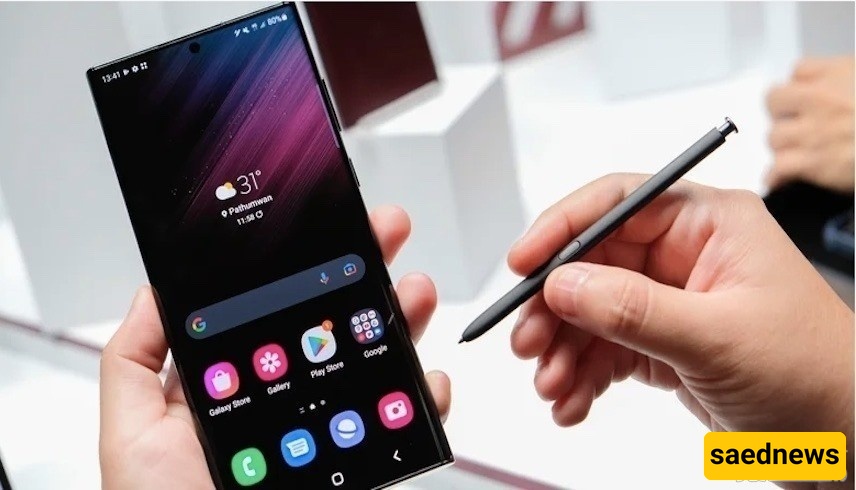
According to a report from the Saed News technology service, citing Young Journalists Club, some Samsung device features may be unknown to many users. This report introduces several hidden features that make using Galaxy phones more unique:
Many Samsung phones allow you to take photos and videos using voice commands or hand gestures, without needing a remote or headphones:
Open the Camera app.
Tap the gear icon in the upper-left corner to open Settings.
Scroll down to Shooting methods.
Enable Voice commands or Palm control.
Place your phone in a safe position and stand in front of the camera. To take a selfie or record video, you can say “cheese,” “shoot,” “smile,” or “record video.”
You can also raise your palm in front of the camera to trigger a timer that automatically takes a photo using either the front or rear camera.
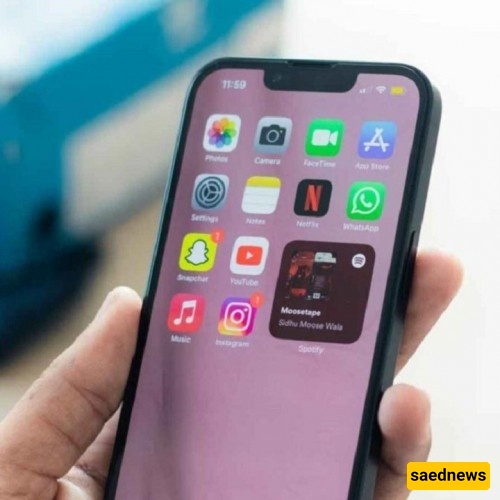
Samsung enhances user protection with Secure Folder. This is an encrypted space protected by Samsung Knox security platform. It adds an extra layer of security and encryption for your important files.
How to enable Secure Folder on a Samsung phone:
Open Settings.
Scroll down to Biometrics and security.
Tap Secure Folder.
You will need a Samsung account. You can create one or sign in.
Accept all required permissions (calendar, contacts, storage, and apps access).
Choose a lock method (pattern, PIN, password, or biometrics).
Enter and confirm your lock method twice.
After setup, open Secure Folder from the apps or home screen.
Tap the plus icon or three-dot menu to add files or apps.
You can select files to move into the folder, and apps will be duplicated inside the Secure Folder environment.
Samsung includes a built-in feature that allows you to call or text contacts simply by swiping:
Open the Contacts app.
Select a contact.
Swipe left on the contact to send a message.
Swipe right to make a call.
No additional settings are required to use this feature.
Some phones include a light indicator that alerts you to new notifications even when the phone is locked. You can also use the camera flash or screen flash for alerts such as missed notifications, calls, or low battery warnings.
To enable this feature:
Go to Settings.
Scroll to Accessibility.
Tap Advanced settings.
Select Flash notification.
Enable Camera flash or Screen flash according to your preference.