SAEDNEWS: Discover the Best Windows Shortcuts for Screenshots, Screen Recording, Voice Typing, and Faster Productivity
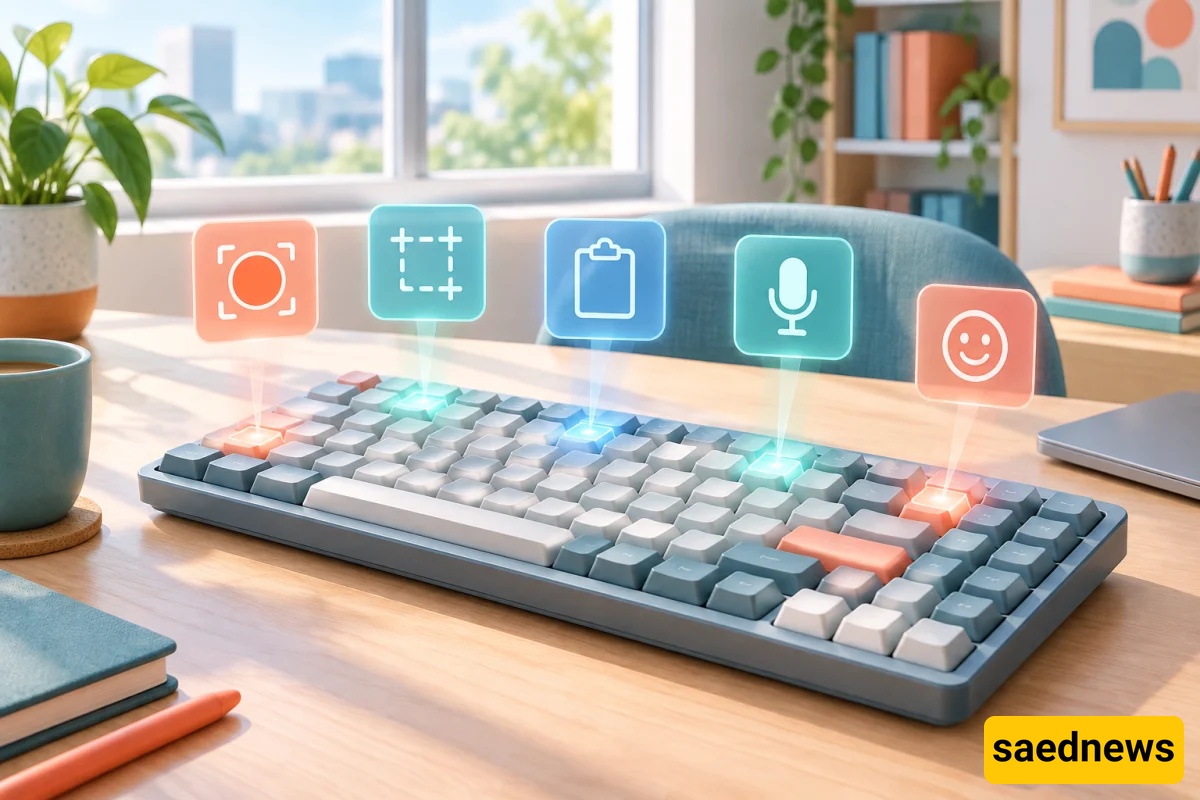
According to Saednews, If you want to work faster on your computer and spend less time on simple tasks, learning a few handy Windows keyboard shortcuts can make a big difference. From screen recording and taking screenshots to accessing copied text and typing with your voice, these tasks can all be accomplished with a few simple keystrokes.
Here are eight useful Windows shortcuts that can help you work more efficiently.
You don't need to install separate software to record your screen in Windows. Press Windows + Alt + R to start or stop screen recording in supported apps and games through Xbox Game Bar.
This feature is useful for recording software tutorials, documenting workflows, and creating instructional videos.
One of the most useful Windows shortcuts is Windows + V. It opens clipboard history, allowing you to access recently copied text and images.
This feature is particularly helpful when writing articles, creating content, or transferring information between multiple applications. You may need to enable clipboard history in Settings before using it.
To capture a specific area of your screen, press Windows + Shift + S. The Windows screenshot tool will open, allowing you to select a region, a window, or the entire screen.
This shortcut is useful for saving important information, creating tutorial images, and sharing software errors.
If you have several windows open and want to access your desktop quickly, press Windows + D. This shortcut minimizes or hides open windows to display the desktop.
Press the same combination again to restore your previous windows.
Press Windows + H to activate Windows voice typing. Instead of typing on your keyboard, you can speak and let Windows convert your words into text.
This feature is useful for quickly writing messages, drafts, and notes. However, Persian language support depends on your Windows version and the available speech recognition languages.
Sometimes you may want to take a quick look at your desktop without minimizing your open windows. In this case, hold down Windows + ,.
While you hold the keys, you can temporarily view the desktop. Once you release them, your previous window returns to view.
If you need emojis or special symbols while writing messages, creating content, or using social media, press Windows + ..
This shortcut opens the Windows emoji panel, where you can access a collection of emojis, symbols, and special characters.
To shut down Windows using your keyboard, first press Windows + X to open the Quick Link menu. Then press U to access the power options, followed by another U to shut down the computer.
This sequence works with the standard Windows menu, although its behavior may vary depending on your Windows version and system settings.
Learning Windows keyboard shortcuts is one of the easiest ways to improve your productivity and work more efficiently on a computer. Shortcuts such as Windows + V for clipboard history, Windows + Shift + S for screenshots, and Windows + H for voice typing can simplify many everyday tasks.
If you use Windows regularly, try these eight shortcuts to access useful features faster without navigating through multiple menus.