SAEDNEWS: If the language you want to type in Windows is not available, you can easily add a new language in Windows.

How to Add Another Language to the Keyboard
By default, when you purchase a laptop or reinstall Windows on your laptop, the default language will be English. Therefore, if you want to type anywhere, you can only do so in English. However, in the Windows operating system, you can add a new language to the keyboard. For this reason, in the following report from Namnak’s technology section, we intend to introduce you to two practical methods for adding a new language to Windows. Follow along with us.
The first method we are going to introduce only works in Windows 10 and Windows 8. So if your Windows version is 10 or 8, you can use this method to add a new language to Windows.
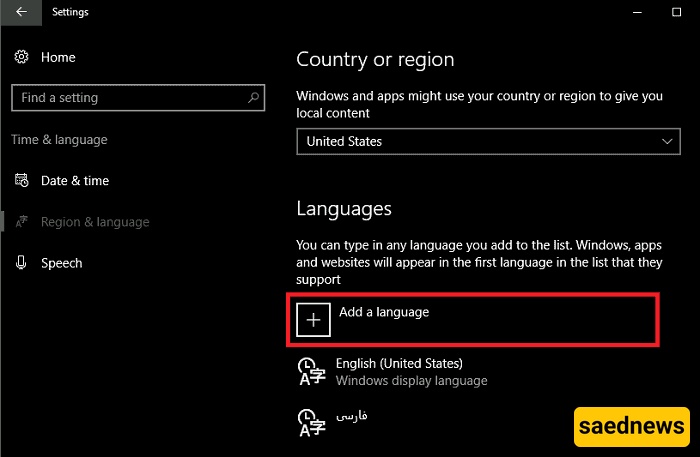
From the Start menu, select the Settings option.
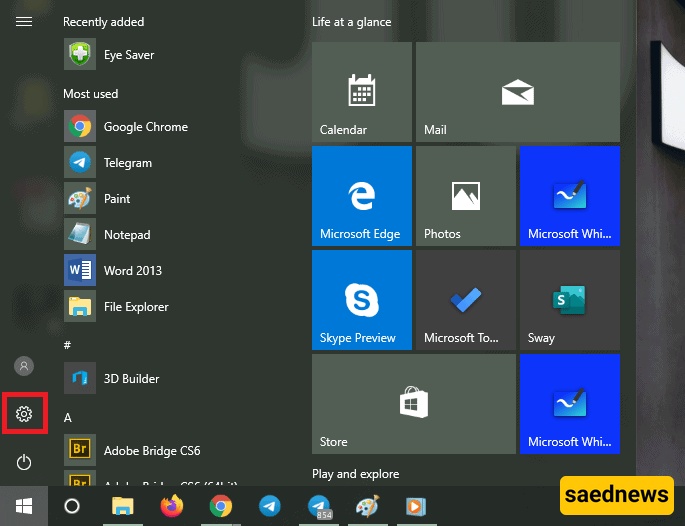
Now, select Time & Language.
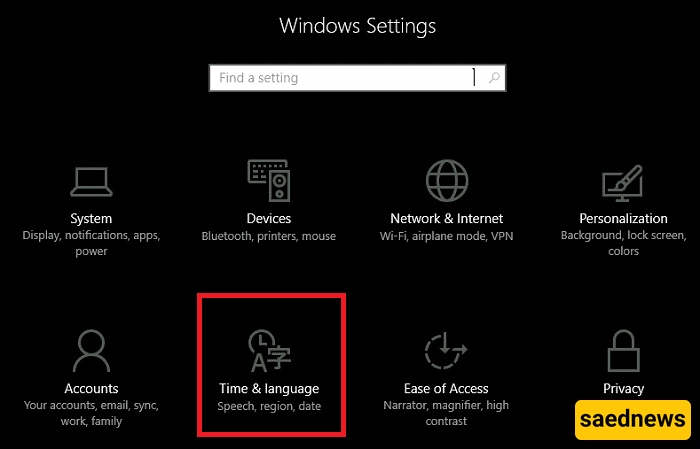
From the left side, select Region & Language.
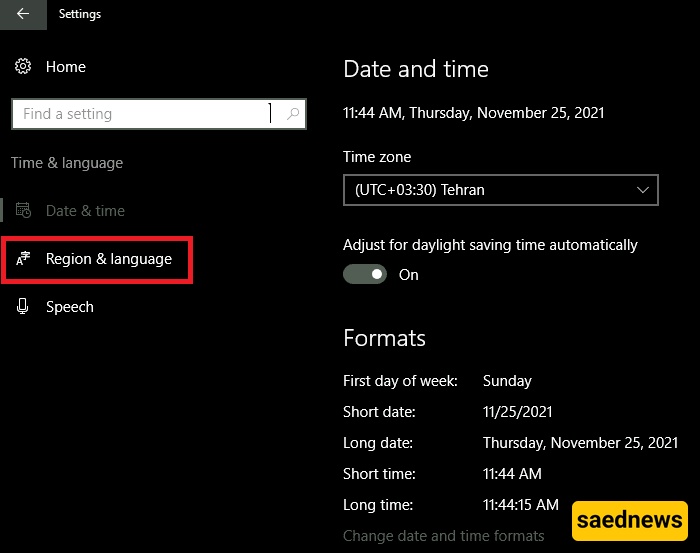
Select Add a language.
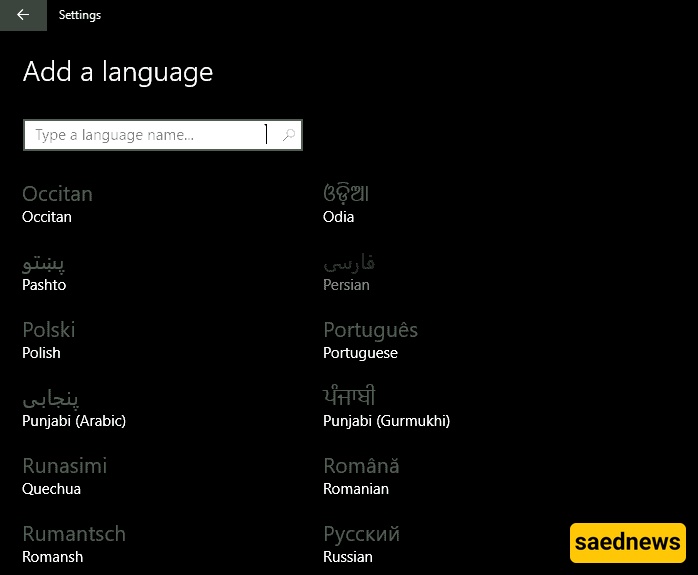
In this section, you can choose your desired language and add it to your Windows 10 system. For example, we want to add Portuguese, so we select Portuguese.
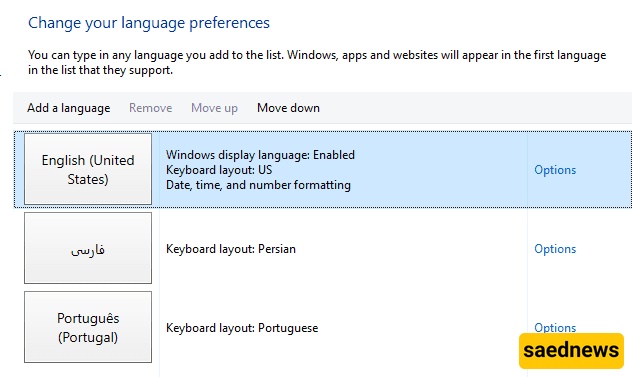
Now, the new Portuguese language has been added to our Windows system, and we can use it.
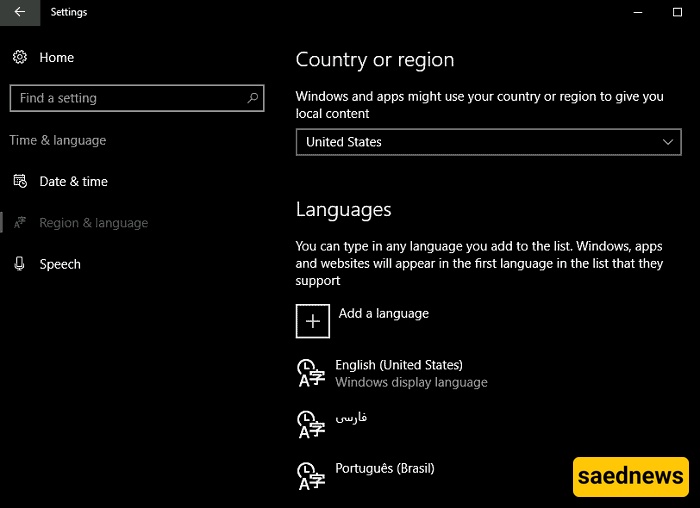
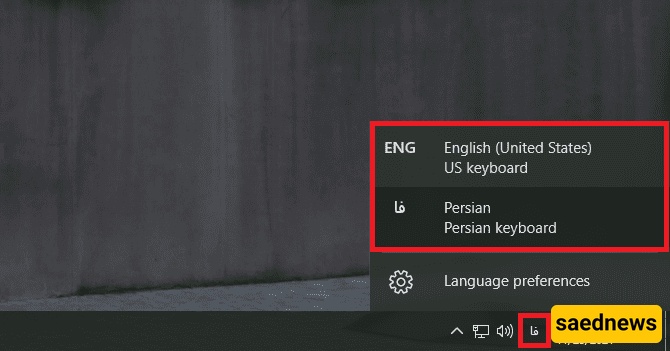
As shown in the image above, there are three languages in our Windows system. The default language set initially is English. So how can we use English? To use Portuguese, you can do it in two ways:
Using the keyboard: Press Alt + Shift simultaneously.
From the bottom right of Windows, click on the language and then select the desired language.
This method works for all Windows versions, and you can easily add a new language to your Windows system using it.
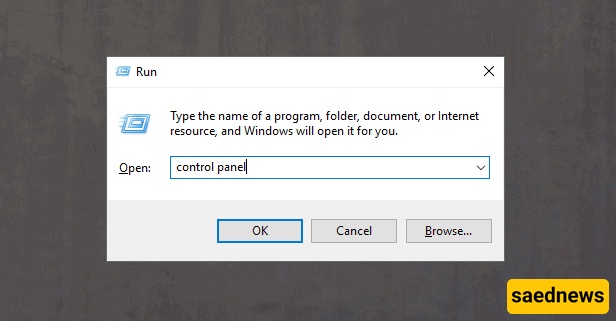
First, press Win + R simultaneously to open the Run window. Then, type Control Panel in the empty box and click OK.
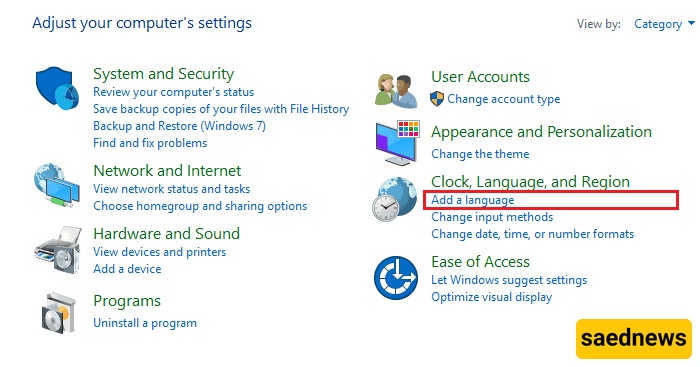
In the Clock, Language, and Region section, select Add a language.
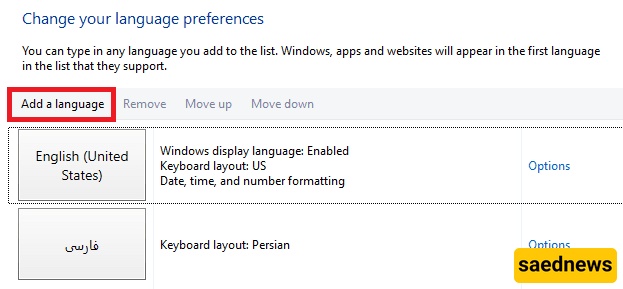
At the top, select Add a language.
Choose your desired language and then click Open.
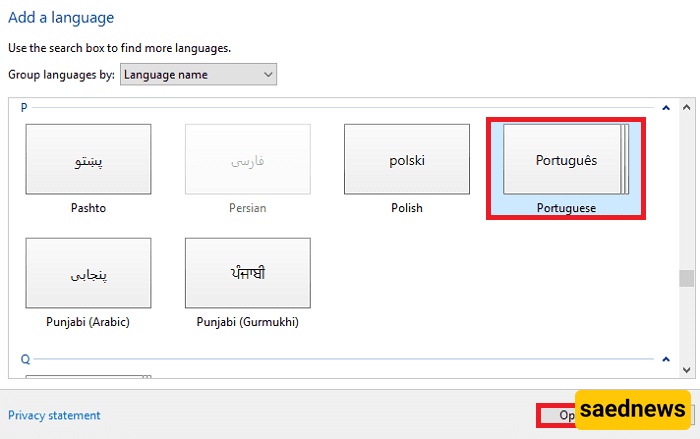
Now, the new language has been added to your Windows, and you can use it.
Also, to switch the keyboard language after adding a new language to Windows, use the Alt + Shift keys.